
Learn to fix MySQL error #1194 (“Table is marked as crashed”). Read this detailed guide for step-by-step repair process. Discover how to quickly restore corrupted MySQL tables with minimal data loss.
1. Problem
It was a Monday morning, and I had just sat down with my coffee when my phone started blowing up. The e-commerce platform I manage for a mid-sized retail client had gone completely down overnight. Orders were not going through, the admin panel was throwing errors, and the support inbox was filling up fast. When I SSH’d into the server and checked MySQL, this is what stared back at me:
ERROR 1194 (HY000): Table ‘orders’ is marked as crashed and should be repaired
It wasn’t any other table, but that one particular table of all the tables in the database. This wasn’t something like a logging table or some cache table, either. No, this was the crux of the entire database, holding the records of all the transactions done by the clients, their order statuses, their invoices, etc. The table contained more than 58,000 records dating back three years. Anything that happened to that table would mean hours of laborious work reconciling data manually.
The table was a MyISAM table. For whatever reason, there was a sudden power outage while the server was operating during the night. MySQL didn’t get to flush the writes for that table correctly, resulting in the table being marked as crashed.
2. What I Tried Before Using Any Tool
Before reaching for anything external, I tried the obvious things:
- Restarted the MySQL service the error came right back
- Ran CHECK TABLE orders; from the MySQL shell it confirmed the table was crashed
- Tried REPAIR TABLE orders; it ran but returned “Operation failed” with no useful detail
- Attempted
myisamchk -r orders.MYIfrom the command line. I got permission and locking issues since the server was still partially live - Checked the MySQL error logs. They showed InnoDB checkpoint warnings and a note about the MyISAM table not being closed properly
Nothing worked. The table files were physically sitting right there in the data directory orders.frm, orders.MYD, and orders.MYI — but MySQL refused to touch the data. The built-in repair tools had hit a wall.
My most recent clean backup was four days old. Restoring it was not an option I was willing to accept without exhausting every other possibility first.
3. Solution
After spending about an hour going down the manual recovery rabbit hole – reading about hex editors, raw MYD file parsing, and third-party scripts – I decided I needed something purpose-built for this exact situation. That is when I came across Stellar Repair for MySQL.
The tool claims to handle:
- Crashed and corrupt MyISAM tables (.MYD, .MYI, .frm files)
- InnoDB corruption and inaccessible tables
- MySQL errors including #1194, #1932, and index file corruption
- Recovery of tables, views, triggers, keys, and stored procedures
- Preview of recovered data before you commit to purchasing
Given that this was a live client situation and not a personal test environment, I needed something I could trust and verify before spending money. The free demo that lets you preview recovered data before saving was what made me give it a serious shot.
4. How I Used the Software
Step 1: Downloaded and Installed the Demo Version
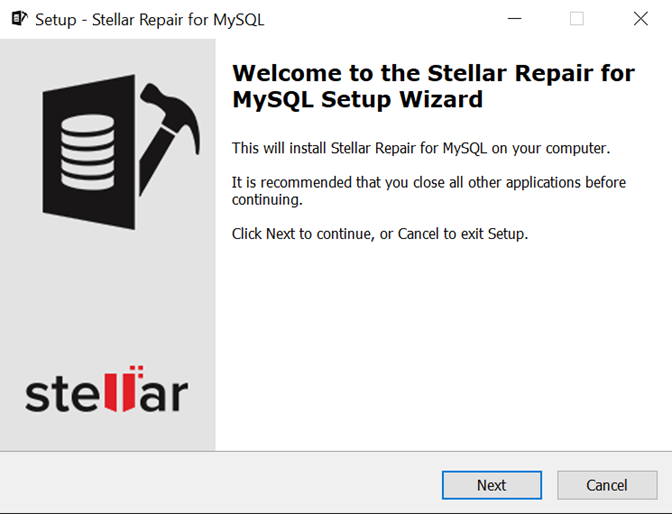
I downloaded the demo version of Stellar Repair for MySQL from the official Stellar website and installed it on my Windows workstation. The installation was straightforward and took under two minutes.
Step 2: Copied the MySQL Data Folder
Before doing anything else, I made a copy of the entire MySQL data directory to a safe location. This is just good practice never work directly on the only copy of damaged data. Once that was done, I launched the software.
Step 3: Selected the MySQL Data Folder
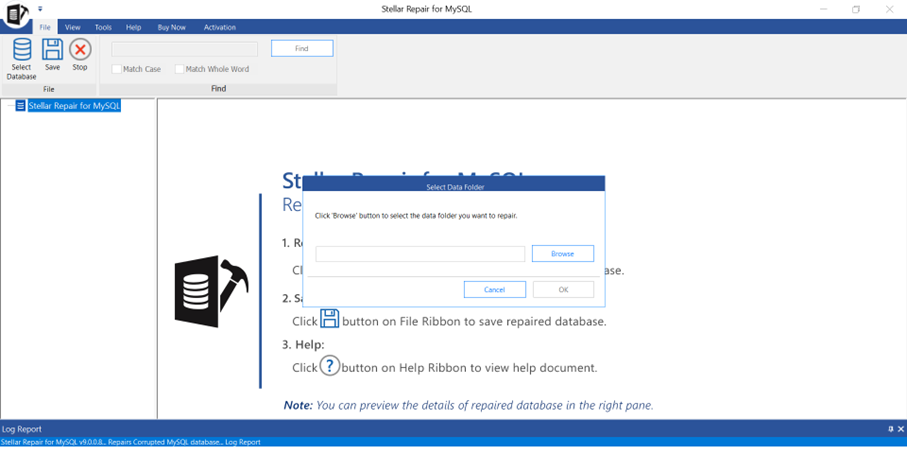
The main screen opened with a “Select Data Folder” prompt. I clicked the browse button and navigated to the copied MySQL data directory on my machine. The software picked it up immediately.
Step 4: Selected the Affected Database and Clicked Repair
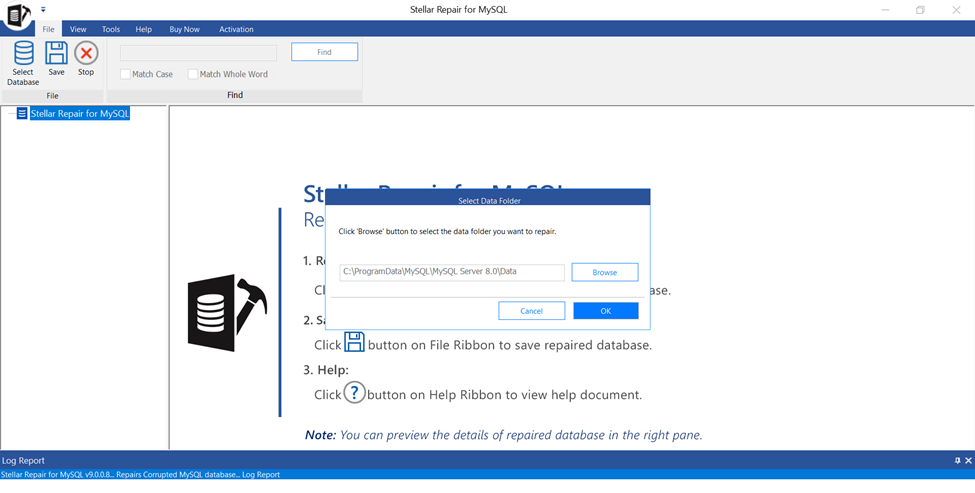
After clicking OK, Stellar listed every database it found inside the data folder. I selected my Eccomerce database from the list and clicked the “Repair” button. The scanning process kicked off right away — no complicated configuration, no manual file selection.
Step 5: Previewed the Recovered Table
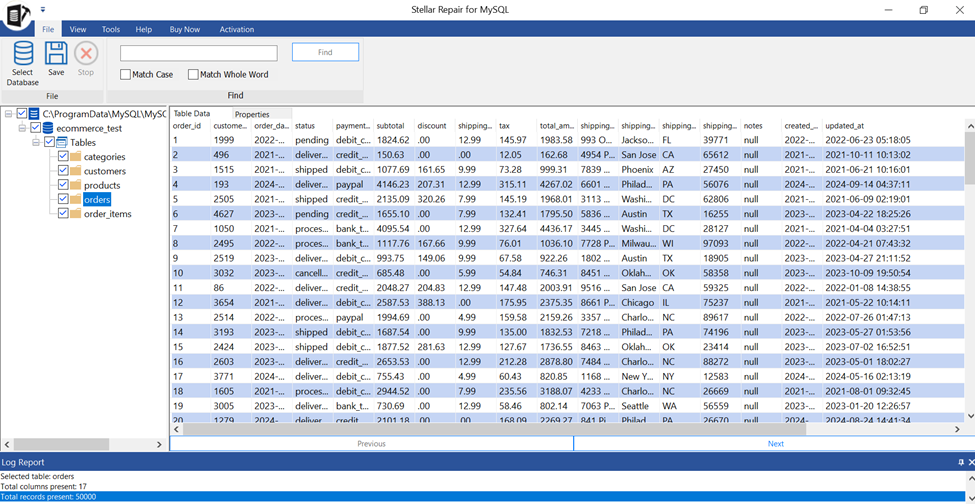
Once the scan finished, the software displayed the full database tree in the left panel. I expanded the database, found the orders table, and clicked on it. The right panel loaded a full preview of the table – structure, column names, and all the row data. Every record I expected to see was there. That was an enormous relief.
Step 6: Purchased the License and Saved the Recovered Data
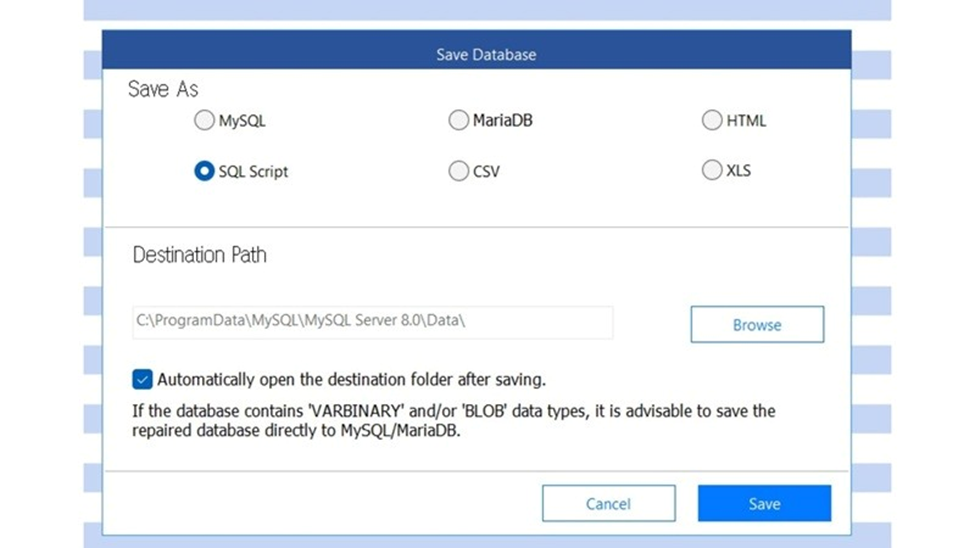
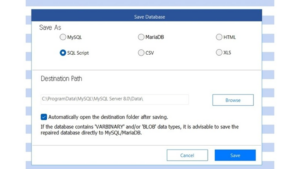
After confirming that the data was intact in the preview, I went ahead and purchased the licensed version. Activation was instant. I then went to File → Save, which opened the Save Database dialog. I entered the MySQL connection details for a clean test database I had spun up and clicked Save. The export finished in a couple of minutes and showed a success confirmation.
Step 7: Verified and Restored to Production
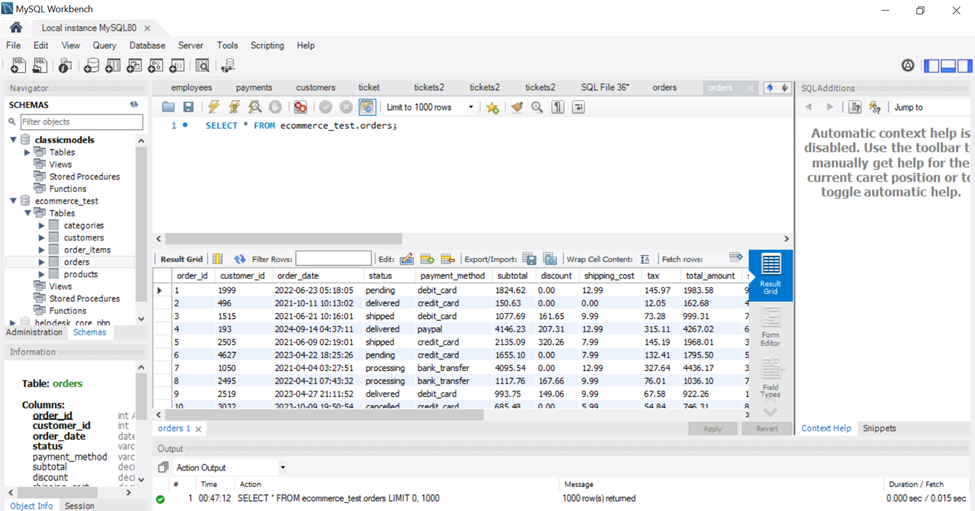
I opened the restored database in MySQL Workbench and ran a few spot checks – row count, date ranges, a few specific order IDs I knew from memory. Everything matched. I then dumped it and imported it into the production server. The orders table came back up clean, the #1194 error was gone, and the platform was live again within the hour.
5. Conclusion
Error #1194 in MySQL is pretty scary when you receive it for the table that your company absolutely relies upon, and the options provided by the software are not always enough to fix the problem. For example, REPAIR TABLE did nothing in my case and myisamchk was unwilling to help me while the server was still active. I knew it would take me four days to restore the table using the backup, and it definitely meant financial losses for my client.
Using Stellar Repair for MySQL allowed me to be sure about the product that I am going to purchase. Preview of all 58,000+ rows that have been successfully recovered prior to buying the license means that you do not need to pay for something that does not work. The procedure of fixing took less than two hours since I checked everything twice.
