
Selenide is a Java library on top of Selenium WebDriver whose element checks and actions retry until the condition holds or a timeout runs out, 4 seconds by default, so Angular UI testing needs no explicit waits for spinners, dimmers and elements that render late. In-browser UI testing of Angular applications is hard with plain Selenium, because every asynchronous HTTP call can show a loading screen that the test has to wait out. Selenide handles most of that waiting for us.
We use Selenide for end-to-end tests of single-page apps, such as login flows, forms, search results and dashboards, written in Java with JUnit 5. The examples use Selenide 7.18.2, which brings Selenium 4.49, with JUnit 5 and Java 25.
The following example logs in to an Angular app and checks the recipe list that appears after a loading spinner.
@Test
void showsRecipesAfterLogin() {
    open("/login");
    $("#username").setValue("anna");
    $("#password").setValue("secret");
    $("#loginButton").click();
    $("#spinner").should(disappear);                     // waits up to 4 s
    $("#welcome").shouldHave(text("Welcome, anna"));     // waits up to 4 s
    $$(".recipe").shouldHave(size(3));                   // waits up to 4 s
}
Notice that the test has no wait objects at all, because every should call polls the page until it passes. We compare the waiting in Selenium and Selenide first, set up Maven and the browser, write the tests, handle failures and finish with the method reference and the test reports.
1. Handling Loading Screens in Selenium vs. Selenide
When using pure Selenium, handling loading screens takes extra code in every test. Selenium does not wait for a loading indicator to go away unless the test asks for it with an explicit wait. The WebDriverWait class polls a condition until it is true or the timeout expires, and it throws TimeoutException after that.
static void waitForDimmer(WebDriver driver) {
    WebDriverWait wait = new WebDriverWait(driver, Duration.ofSeconds(10));
    wait.until(ExpectedConditions.invisibilityOfElementLocated(By.id("dimmer-element-id")));
}
Defining the loading conditions by hand before every click is error-prone and makes the tests longer. A test that forgets one wait fails with ElementClickInterceptedException whenever the backend is slower than usual.
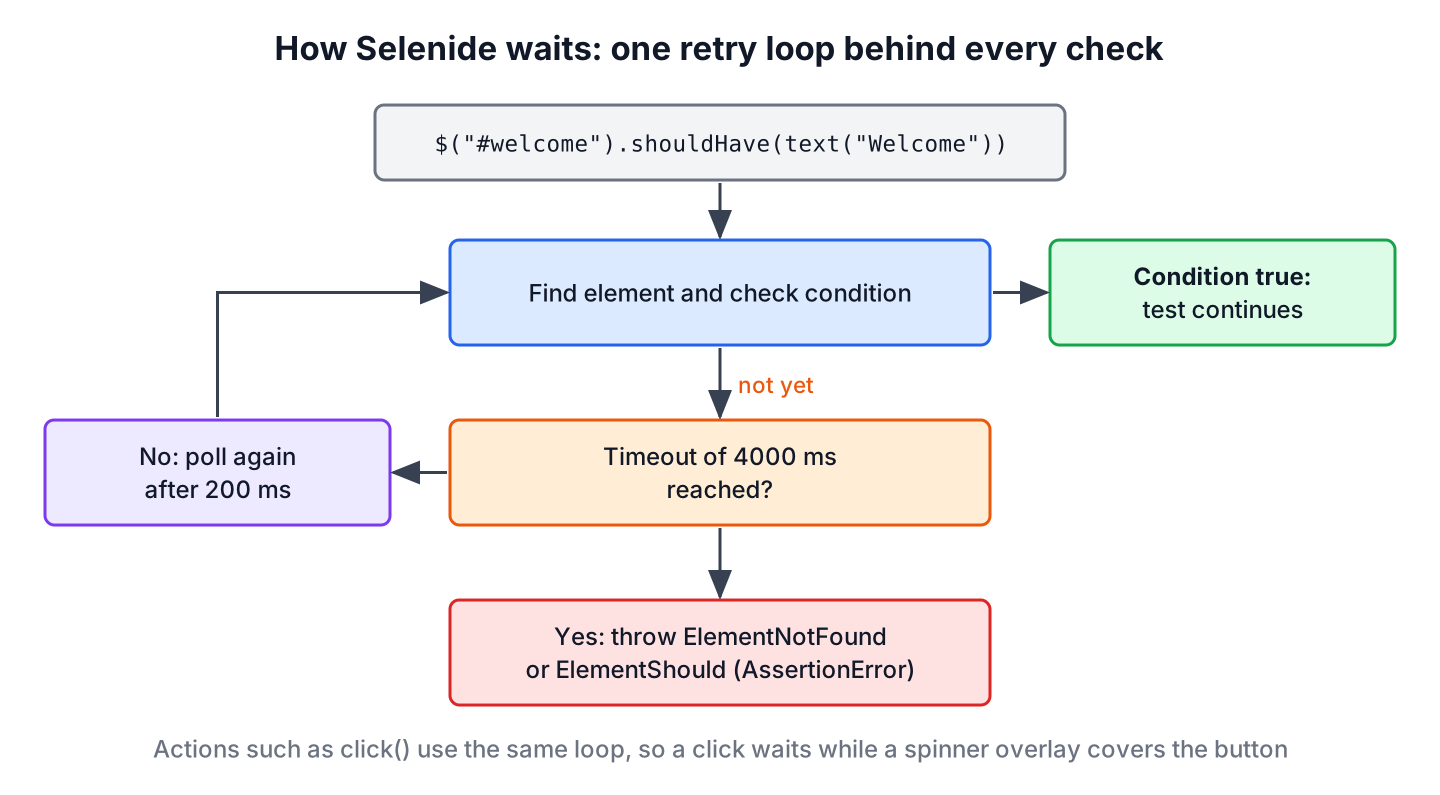
Selenide, on the other hand, builds the waiting into every check and every action. A should method retries every 200 ms until the condition holds or Configuration.timeout (4,000 ms by default) runs out. An action such as click() also retries while another element, such as a spinner overlay, would receive the click. That makes tests more stable and removes most explicit waits.
| Selenium WebDriver | Selenide | |
|---|---|---|
| Waiting for an element | Explicit WebDriverWait per condition | Built into every should and action |
| Default timeout | None (implicit wait 0) | 4 seconds, poll every 200 ms |
| Failure type | TimeoutException, NoSuchElementException | ElementNotFound, ElementShould (both AssertionError) |
| Driver setup | new ChromeDriver() and quit() | Started on first open(), closed after the tests |
| Screenshot on failure | Own code | On by default |
Selenide waits only for what the test checks, so a spinner that stays longer than 4 seconds still fails the test. For slow screens, we wait for the spinner with a longer timeout in one helper and keep the global default short. A helper that waits for an element and returns null instead of failing is useful only in setup code that must handle an optional banner.
static SelenideElement findElement(By by, int timeoutSeconds) {
    try {
        return $(by).shouldBe(visible, Duration.ofSeconds(timeoutSeconds));
    } catch (ElementNotFound e) {
        return null;
    }
}
Tests themselves should let the AssertionError fail the test, because the Selenide error message lists the selector, the condition, the timeout and the paths of the screenshot and page source.
2. Adding Selenide to a Maven Build
Selenide works on top of Selenium, and the selenide artifact brings the matching selenium-java version with it. Declaring a second Selenium version in the POM is the usual source of NoSuchMethodError at startup, so we let Selenide choose it. JUnit 6.0.3 is the current JUnit release, and it keeps the JUnit 5 (Jupiter) annotations and API, so every test in this article runs on both versions.
<dependencies>
  <dependency>
    <groupId>com.codeborne</groupId>
    <artifactId>selenide</artifactId>
    <version>7.18.2</version>
    <scope>test</scope>
  </dependency>
  <dependency>
    <groupId>org.junit.jupiter</groupId>
    <artifactId>junit-jupiter</artifactId>
    <version>6.0.3</version>
    <scope>test</scope>
  </dependency>
</dependencies>
If using Gradle, we include the same artifacts in build.gradle, as shown in JUnit 5 with Gradle.
dependencies {
    testImplementation "com.codeborne:selenide:7.18.2"
    testImplementation "org.junit.jupiter:junit-jupiter:6.0.3"
    testRuntimeOnly "org.junit.platform:junit-platform-launcher:6.0.3"
}
3. Setting Up WebDriver
There used to be browser version mismatch issues when the test relied on a driver binary that someone downloaded by hand, as described in this version of ChromeDriver only supports Chrome version. Since Selenium 4.6, Selenium Manager finds the installed browser, downloads the matching driver into ~/.cache/selenium and reuses it on the next run. Selenide uses Selenium Manager, so the test needs no driver setup code and no WebDriverManager library.
We configure the browser once for the test class in a @BeforeAll method. Selenide reads every setting from the static fields of Configuration, and each field can also come from a -Dselenide.xxx system property, such as -Dselenide.headless=true on the CI server.
class LoginTest {

    @BeforeAll
    static void setup() {
        Configuration.baseUrl = "http://localhost:4200";
        Configuration.browser = "chrome";
        Configuration.headless = true;
        Configuration.timeout = 6000;
        Configuration.browserCapabilities = browserOptions();
    }

    private static ChromeOptions browserOptions() {
        ChromeOptions options = new ChromeOptions();
        options.addArguments("--window-size=1366,900");
        options.addArguments("--disable-extensions");
        options.addArguments("--disable-dev-shm-usage");
        return options;
    }

    @BeforeEach
    void openLoginPage() {
        open("/login");
    }

    @AfterEach
    void closeBrowser() {
        closeWebDriver();
    }
}
Old examples call options.setHeadless(false), which Selenium removed in version 4.10, and set –remote-allow-origins=*, which was a workaround for Chrome 111 with Selenium 4.8.1 and older. Configuration.headless replaces the first, and the second can go. The argument –no-sandbox belongs only in Docker containers that run Chrome as root.
| Configuration field | Default | Use |
|---|---|---|
| baseUrl | http://localhost:8080 | Prefix for open(“/path”); Angular dev server runs on 4200 |
| browser | chrome | firefox, edge or safari |
| headless | false | true on CI servers |
| timeout | 4000 ms | Wait for every should and action |
| pollingInterval | 200 ms | Time between two checks |
| screenshots, savePageSource | true | Files saved when a check fails |
| reportsFolder | build/reports/tests | Folder for screenshots and HTML |
4. Writing a Simple JUnit 5 Test for UI Testing
The first test verifies the Angular login page. It types the credentials into the input fields and submits the form. The check on the welcome message waits until Angular has received the response from the server and rendered the text, so no extra wait is needed after the click.
@Test
void loginWithValidCredentials() {
    $("#username").setValue("anna");
    $("#password").setValue("secret");
    $("#loginButton").click();
    $("#welcomeMessage").shouldHave(text("Welcome, anna"));
}
A recipe app built with Angular shows a full-screen spinner while it loads the recipes of the user after login, and the list renders only when the HTTP call returns. That is the case where Selenium tests most often fail with a click on the spinner. With Selenide, a click on a covered button is retried until the overlay is gone, and the list check passes as soon as the three items render, as long as both happen within the timeout.
@Test
void recipeListAppearsAfterSpinner() {
    $("#username").setValue("anna");
    $("#password").setValue("secret");
    $("#loginButton").click();

    $("#spinner").should(disappear, Duration.ofSeconds(15));
    $$(".recipe").shouldHave(size(3));
    $$(".recipe").shouldHave(texts("Pancakes", "Omelette", "Salad"));
    $$(".recipe").findBy(text("Omelette")).click();
    $("h1").shouldHave(text("Omelette"));
}
The explicit timeout on the spinner covers the slowest backend call, while all other checks keep the short default. The condition disappear passes for a hidden element and for an element that is no longer in the page, which matches how Angular removes a spinner with @if or *ngIf.
Stable selectors matter more than waiting in Angular apps. Generated class names and DOM positions change with every UI update, so we add data-testid attributes to the templates and select them with $(“[data-testid=recipe-card]”).
5. Handling Element Lookup Failures
Selenide has a default timeout of 4 seconds, set by Configuration.timeout. It means that Selenide keeps checking for up to 4 seconds for the element to appear or the condition to become true. If the element never appears, Selenide throws ElementNotFound, and if the element exists but the condition stays false, it throws ElementShould. Both extend UIAssertionError, which is an AssertionError, so JUnit reports a failed test.
@Test
void missingElementFails() {
    $("#nonexistent").click();                                       // ElementNotFound after 4 s
}
We can change the timeout for a single check by passing a Duration to should, shouldBe or shouldHave. This causes the test method to fail after that time instead of the global one.
@Test
void customTimeout() {
    $("#nonexistent").shouldBe(visible, Duration.ofSeconds(10));     // ElementNotFound after 10 s
    $("#welcome").shouldHave(text("Goodbye"));                       // ElementShould after 4 s
}
A click on an element that stays covered by an overlay for longer than the timeout fails with InvalidStateError and the browser message element click intercepted. The fix is a longer wait on the overlay, as in the recipe test above, not a longer global timeout.
If we do not want to throw an exception, but rather handle a missing element, we use exists(), isDisplayed() or is(condition). These methods check once without waiting and return true or false, so they suit optional elements such as a cookie banner, never the main assertion.
static void closeCookieBannerIfShown() {
    if ($("#cookie-banner").isDisplayed()) {
        $("#cookie-banner .accept").click();
    }
}
6. Important Methods for Finding and Verifying Elements
The most used Selenide methods locate and verify elements in the page loaded into the browser. The should methods and the actions wait up to the timeout, whereas the methods that return a value check once.
| Method | Description | Waits |
|---|---|---|
| $(“#elementId”) | Finds an element by CSS selector; lazy, nothing is searched yet | No |
| $(By.xpath(“//div[@class=’example’]”)) | Finds an element using XPath | No |
| $(byText(“Log in”)) | Finds an element by its exact text | No |
| $(“.className”).shouldBe(visible) | Verifies that an element is visible | Yes |
| $(“#inputField”).setValue(“Test”) | Clears an input field and types the value | Yes |
| $(“button”).click() | Clicks a button, retrying while it is covered | Yes |
| $(“#message”).shouldHave(text(“Success”)) | Verifies that an element contains the text (case-insensitive) | Yes |
| $(“#message”).shouldHave(exactText(“Success”)) | Verifies the whole text | Yes |
| $(“#checkbox”).shouldBe(checked) | Verifies that a checkbox is selected | Yes |
| $(“#dropdown”).selectOption(“Option 1”) | Selects an option of a select element by its text | Yes |
| $$(“.list-items”).shouldHave(size(3)) | Verifies the number of matching elements | Yes |
| $$(“.row”).get(2).click() | Clicks the third element in a list | Yes |
| $(“#loading”).should(disappear) | Waits until an element is hidden or removed | Yes |
| $(“#error”).exists() | Returns true or false without throwing | No |
7. Generating Test Reports
A failed UI test is hard to debug without seeing the page, so the report matters as much as the assertion. Selenide saves the evidence by default, and Allure turns the steps into a readable report.
7.1. Default Reporting
Selenide takes a screenshot and saves the page HTML whenever a check fails, because Configuration.screenshots and Configuration.savePageSource are true by default. The files go to build/reports/tests unless we change Configuration.reportsFolder, and their paths appear in the error message of the failed test.
static void configureReports() {
    Configuration.screenshots = true;
    Configuration.savePageSource = true;
    Configuration.reportsFolder = "target/selenide-reports";
}
In a Maven project, we point the folder into target, so mvn clean removes old files and the CI server can archive one folder. Each failure produces one .png and one .html file with a timestamp in the name.
7.2. Advanced Reporting with Allure
Allure is a reporting tool that shows the history of test runs, each Selenide step, the screenshots and the failure reasons in an interactive HTML page. To integrate Allure into the project tests, we add the allure-selenide dependency, together with the Allure JUnit 5 integration.
<dependency>
    <groupId>io.qameta.allure</groupId>
    <artifactId>allure-selenide</artifactId>
    <version>3.0.0</version>
    <scope>test</scope>
</dependency>
We enable the Allure reporting by adding a listener before the first test runs. The listener records every Selenide call as a report step and attaches the screenshot and the page source of a failure.
@BeforeAll
static void setUpAllure() {
    SelenideLogger.addListener("AllureSelenide", new AllureSelenide()
            .screenshots(true)
            .savePageSource(true));
}
After running the tests, the results are in the allure-results folder of the working directory, or in the folder set by the allure.results.directory property, which Maven builds often point to target/allure-results. With the Allure command-line tool installed, one command builds the report and opens it in the browser.
allure serve target/allure-results8. Angular UI Testing With Selenide FAQs
Teams that move Angular tests from Protractor or plain Selenium to Selenide ask about page readiness, timeouts, CI servers and test frameworks.
8.1. Does Selenide know when Angular has finished loading?
No. Selenide does not hook into Angular or its change detection. It waits for the conditions the test checks, so we check the element that proves the page is ready, such as the spinner with disappear or the first row of a table with visible.
8.2. Should we still use Protractor for Angular apps?
No. The Angular team deprecated Protractor, and it reached end of life in 2023. Java teams use Selenide or plain Selenium, and JavaScript teams use Playwright or Cypress.
8.3. How do we change the Selenide timeout for all tests?
We set Configuration.timeout in milliseconds in a @BeforeAll method, or pass -Dselenide.timeout=8000 to the JVM. A global timeout above 10 seconds hides slow pages, so we raise it only for the checks that need it with should(condition, Duration).
8.4. Can Selenide run tests in headless Chrome on a CI server?
Yes. We set Configuration.headless = true or pass -Dselenide.headless=true. Selenium Manager downloads the driver on the CI machine, and in Docker we add the Chrome arguments –no-sandbox and –disable-dev-shm-usage.
8.5. Does Selenide work with JUnit 5 and TestNG?
Yes. Selenide works with any test framework, because $() and open() are static methods. JUnit 5 is the common choice; with TestNG, the same code runs inside @Test methods of TestNG.
9. Conclusion
Plain Selenium needs an explicit wait for every loading screen of an Angular application, whereas Selenide builds the waiting into its checks. Selenide retries every check and action for up to 4 seconds, which covers short spinners and late rendering, and a longer Duration on the spinner check covers slow backend calls.
With Selenium Manager, the setup needs one Maven dependency and a few Configuration fields. Failures come as ElementNotFound or ElementShould with a screenshot and the page source, and Allure adds a step-by-step report on top. Lifecycle annotations, parameterized tests and the other JUnit features used around these UI tests are explained in the JUnit 5 tutorial.
10. References
- Selenide documentation
- Selenide Configuration Javadoc
- Selenium Manager
- Allure Report, Selenide integration
- Selenium blog, Headless is Going Away
Happy Learning !!
