
A Java application creates objects as it works. Once it finishes using an object, garbage collection can free that memory if the application no longer holds any references to it. Sometimes, the program forgets to remove a reference, such as an entry in a map. The object then stays in memory even though its work is done. This is how a Java memory leak can happen.
To find the leak, we first check whether memory usage keeps growing after the work is done and garbage collection has run. We then find the objects left in memory and the code that still holds them. Once we find the cause, we fix the code and repeat the same work to check that memory no longer keeps growing.
In this guide, we use an order-export program that keeps data from completed jobs. We run the program and use jcmd, a tool included with the JDK, to inspect its memory. We then save a heap dump, which is a snapshot of the objects in the Java heap. We open this dump in Eclipse Memory Analyzer (MAT) to see what keeps the job data in memory. Finally, we fix the code and compare memory usage before and after the change.
1. Demo Application and Memory Leak
Our demo simulates processing orders for export. Each order gets a job ID and a 256 KiB byte array that represents its export data. The program has three main parts.
- ExportResult stores the job ID and its byte array.
- IN_FLIGHT is a Map that tracks jobs while they are running. It stores each job ID as the key and its ExportResult as the value.
- exportOrder() processes one job. It creates the byte array and the ExportResult, adds the result to IN_FLIGHT, and performs a small calculation to simulate work. It then increases the completed-job count.
Once a job finishes, we no longer need its data. The program should remove its entry from IN_FLIGHT so garbage collection can free the result and its byte array. The bug in our demo is that exportOrder() never removes the entry. As more jobs finish, the map keeps growing and holds more memory.
The code below shows these three parts. The complete source is included in the project download.
private static final int PAYLOAD_BYTES = 256 * 1024;
private static final Map<Long, ExportResult> IN_FLIGHT = new HashMap<>();
private static long completed;
private static long checksum;

private record ExportResult(long jobId, byte[] payload) {}

private static void exportOrder(long jobId) {
        byte[] payload = new byte[PAYLOAD_BYTES];
        payload[0] = (byte) jobId;
        ExportResult result = new ExportResult(jobId, payload);
        IN_FLIGHT.put(jobId, result);
        try {
            checksum += Byte.toUnsignedInt(result.payload()[0]);
            completed++;
        } finally {
            // The completed export is accidentally left in IN_FLIGHT.
        }
    }
The finally block is where we expect to clean up after the job. In this version, it is empty. The completed result stays in IN_FLIGHT and still refers to its byte array. Garbage collection cannot free either object while the map holds the result.
What the Memory Growth Looks Like
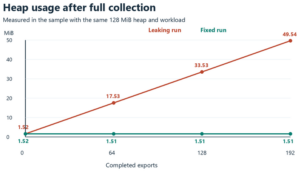
Before we start the investigation, we can see the problem in the graph below. We ran 64 jobs at a time, for a total of 192 jobs. After each batch, we requested garbage collection and recorded the heap memory still in use. The heap limit was 128 MiB throughout the run.
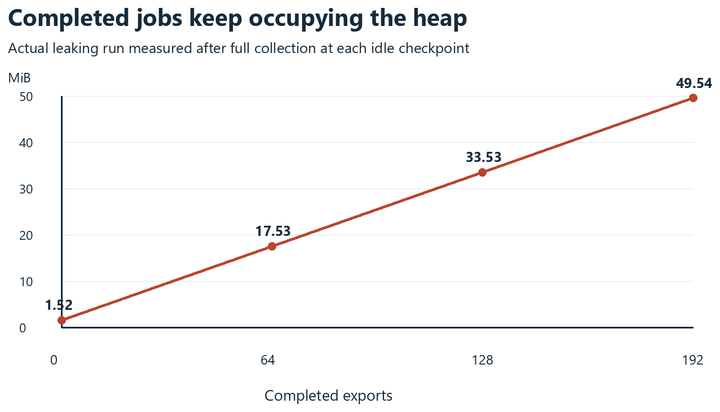
At startup, the program used 1.52 MiB after garbage collection. After 192 jobs, it used 49.54 MiB. The jobs had finished, but the map still held their byte arrays. Those arrays contained 48 MiB of data.
When memory keeps growing after the work is complete and garbage collection has run, we need to investigate the reason. A brief rise in memory while a batch is running does not prove that there is a leak. In the following steps, we reproduce this growth. We then find the objects left in memory and the field that holds them.
2. Setup
We first download and extract the order-export memory-leak project. The project has two versions of the same program. The code in src/leaky contains the bug. The code in src/fixed contains the fix. We start with the leaking version and use the fixed version later for comparison.
We used HotSpot JDK 25.0.4 on Windows and MAT 1.17.0 to run this example and analyze its memory usage. The program needs only a JDK. It does not need Maven, Spring Boot, or another service.
The JDK provides javac to compile the program, java to run it, and jcmd to inspect its memory. Once the JDK is installed, we add its bin directory to the system path. We then run the following command to check which Java version the terminal uses.
java -version
Our terminal printed the following version. When following the example, the process IDs, memory addresses, and command timings will differ. The amount of memory used at startup may also differ slightly.
java version "25.0.4" 2026-07-21 LTS
Java(TM) SE Runtime Environment (build 25.0.4+7-LTS-189)
Java HotSpot(TM) 64-Bit Server VM (build 25.0.4+7-LTS-189, mixed mode, sharing)
To inspect the heap dump, we also install the standalone Eclipse Memory Analyzer for the heap-dump analysis. This MAT release needs Java 21 or newer to run.
We open two terminals in the extracted project directory. We run the program in the first terminal and enter its batch commands there. We run jcmd in the second terminal while the program stays open in the first.
3. Debugging the Java Memory Leak
We process one batch at a time. When the batch finishes, the program waits for another command. We inspect its memory at that point, when no jobs are running. This lets us see which objects remain after the work is done.
| Step | What we do | What we learn |
|---|---|---|
| 1 | Compile and start the leaking sample | Which process we inspect |
| 2 | Complete three batches and inspect after collection | Whether memory keeps growing after jobs finish |
| 3 | Compare class histograms | Which objects keep increasing in number |
| 4 | Capture a heap dump | Which objects exist and how they are connected |
| 5 | Inspect the retaining path in MAT | Which field keeps the job data in memory |
| 6 | Remove completed jobs from the map | Where we remove the unnecessary reference |
| 7 | Run the fixed sample with the same workload | Whether memory stops growing |
Step 1. Start the Leaking Application
In the first terminal, we run the commands below from the project directory. The first two commands create folders for the compiled code and the files we collect during the investigation. The javac command compiles the leaking version. The java command starts it.
mkdir out
mkdir artifacts
javac -d out src/leaky/OrderExportLab.java
java -Xms128m -Xmx128m -XX:+UseSerialGC -Xlog:gc:file=artifacts/leaky-gc.log:uptime,level,tags -cp out OrderExportLab
We enter the full java command on one line. It works in PowerShell and a Unix shell. If the directories already exist, we can keep them and continue with compilation.
The -Xms128m option starts the heap at 128 MiB. The -Xmx128m option prevents it from growing beyond that size. We use Serial GC so the memory report is easier to compare with the output in this guide. A production service may use a different collector. The -Xlog option saves garbage-collection events in artifacts/leaky-gc.log.
The application prints its process ID and waits for input.
OrderExportLab pid=13808
Commands  batch <1-256> | status | exit
completed=0 tracked=0 retainedPayloadMiB=0.00 checksum=0
The program prints pid=13808 in our run. This process ID tells jcmd which Java application to inspect. When following the example, we use the ID printed by the running program instead of 13808. We keep the first terminal open.
The last line describes the program’s current state.
- completed counts the jobs that have finished.
- tracked counts the results still stored in IN_FLIGHT.
- retainedPayloadMiB shows the total size of the byte arrays held by those results. The program calculates this value from the number of map entries.
- checksum is a total calculated from the job data. We compare it between the leaking and fixed versions to check that both performed the same calculation.
These values help us follow the example. We also inspect the heap with jcmd and MAT to check which objects are actually in memory.
Step 2. Measure the Heap After Each Batch
Before we process any orders, we measure the memory used by the program. This gives us a starting value for comparison. In the second terminal, we run the following commands.
jcmd 13808 GC.run
jcmd 13808 GC.heap_info
jcmd 13808 GC.class_histogram > artifacts/histogram-0.txt
Each command gives us a different part of the investigation.
- GC.run requests garbage collection so we can check what remains afterward.
- GC.heap_info reports how much heap memory is in use.
- GC.class_histogram lists the number of objects of each class and the memory they use. We save this list in histogram-0.txt for comparison later.
We run jcmd using the same operating-system account that started the program. In our run, GC.run printed the following confirmation.
13808:
Command executed successfully
We request full garbage collections only while this sample is waiting for input. These commands can pause an application, especially when collecting a histogram or heap dump. We should not use this sequence as a production monitoring loop.
We now enter this command in the first terminal.
batch 64
The application completes 64 jobs and returns the following status.
completed=64 tracked=64 retainedPayloadMiB=16.00 checksum=2080
The status line tells us that all 64 jobs have finished. It also shows that 64 results are still in the map, holding 16 MiB of data. We now run the same memory checks in the second terminal and save a new histogram.
jcmd 13808 GC.run
jcmd 13808 GC.heap_info
jcmd 13808 GC.class_histogram > artifacts/histogram-64.txt
We repeat this process twice more. Each time, we enter batch 64 in the first terminal and wait for the jobs to finish. We then run the three diagnostic commands in the second terminal. After the second batch, we save the histogram as histogram-128.txt. After the third batch, we save it as histogram-192.txt. This keeps each result in a separate file. We leave the program running for the next steps.
The application eventually reports the following status.
completed=192 tracked=192 retainedPayloadMiB=48.00 checksum=18528
Serial GC divides the heap into a young generation, shown as DefNew, and an old generation, shown as Tenured. We add their used values to find the total heap memory in use.
After the third batch and garbage collection, DefNew used 0K and Tenured used 50727K. The total was therefore 50,727 KiB, or about 49.54 MiB.
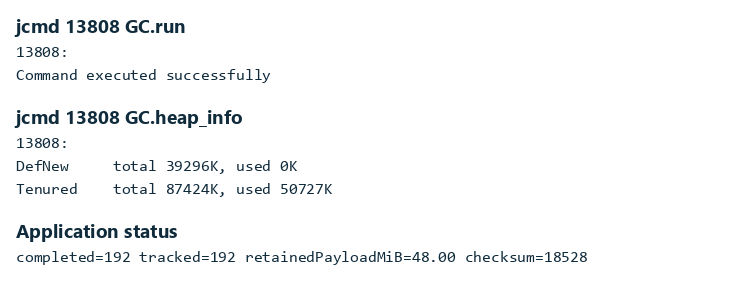
The screenshot shows this output from our run. The byte arrays hold 48 MiB of data, but total heap usage is higher because the map, results, and other objects also need memory. We compare the used values to see whether more objects remain after each batch. The total values describe the available heap space.
We record the used values after each batch. The table below summarizes our GC.heap_info output. DefNew used 0K at every measurement, so all the used heap shown here was in Tenured.
| Completed jobs | DefNew used KiB | Tenured used KiB | Total used MiB |
|---|---|---|---|
| 0 | 0 | 1561 | 1.52 |
| 64 | 0 | 17948 | 17.53 |
| 128 | 0 | 34338 | 33.53 |
| 192 | 0 | 50727 | 49.54 |
The heap capacity stays the same, but more memory remains in use after each collection. These values produce the graph shown earlier.
The jobs have finished and garbage collection has run, but memory usage keeps increasing. We now need to find which objects are taking up that memory.
Step 3. Find the Objects That Accumulate
We now know that memory usage grows after each batch. The next question is which objects remain in memory. The histogram files from Step 2 help us answer it.
A class histogram lists each class, its object count, and its shallow size. Shallow size means the memory used by the objects themselves. It does not include other objects they refer to. For example, the size of an ExportResult does not include its separate byte array.
We search the saved files for OrderExportLab$ExportResult and compare the counts.
In PowerShell, we can display the relevant rows from all three saved files with this command. The single quotes prevent PowerShell from treating $ExportResult as a variable.
Select-String -Path artifacts/histogram-64.txt,artifacts/histogram-128.txt,artifacts/histogram-192.txt -SimpleMatch 'OrderExportLab$ExportResult'
Our saved histograms contain the following rows. Select-String also prints the filename before each match. Those filename prefixes are omitted below.
  46:            64           1536  OrderExportLab$ExportResult
  37:           128           3072  OrderExportLab$ExportResult
  23:           192           4608  OrderExportLab$ExportResult
The counts increase from 64 to 128 to 192. Each completed job has left one ExportResult in memory. The JVM uses $ to separate a nested class from its enclosing class, so OrderExportLab$ExportResult is the ExportResult record inside OrderExportLab.
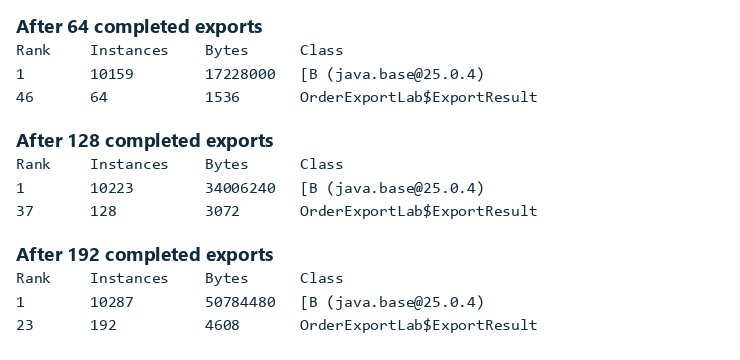
The row named [B represents byte arrays. Its size includes our export buffers and any other byte arrays in the JVM. The large value tells us that byte arrays use most of the memory. It does not tell us which field holds them.
The 192 ExportResult objects use only 4,608 bytes themselves. Their byte arrays take up much more space, but those arrays appear in a separate row. To see how the results and arrays are connected, we need a heap dump.
Step 4. Capture the Heap Dump
A histogram gives us object counts, but it does not show the references between objects. A heap dump records the objects and those references so we can inspect them in MAT.
We leave the program waiting for input in the first terminal. In the second terminal, we run the following command to save the dump.
jcmd 13808 GC.heap_dump artifacts/leaky.hprof
The path is relative to the running application’s working directory. We started the program from the project directory, so the file is saved as artifacts/leaky.hprof under that directory. Our command printed the following output.
13808:
Dumping heap to artifacts\leaky.hprof ...
Heap dump file created [54763879 bytes in 0.157 secs]
By default, this command requests garbage collection before saving the dump. We wait for the success message and check that artifacts/leaky.hprof exists. If a dump with that name already exists, we choose a new filename to keep the previous file.
Our dump contains only the sample data generated by this program. A dump from a real service can contain private application data, so we should store it where only authorized people can access it.
The dump file size is not the same as used heap memory. The file also contains information about the objects and their references. We use the heap report and MAT’s measurements when comparing memory usage.
Oracle’s jcmd command reference describes the command options and their impact.
Step 5. Trace the Retaining Field in MAT
MAT helps us find which objects hold the data that should have been released. We open MAT and select File > Open Heap Dump. We choose artifacts/leaky.hprof and wait for MAT to read the file. When it offers a report, we select Leak Suspects.
The Leak Suspects report points to objects that hold a large amount of memory. We open Details for the first suspect. MAT names OrderExportLab and reports a retained size of 50,349,056 bytes. This means about 97.36% of the analyzed heap is kept in memory through this class.
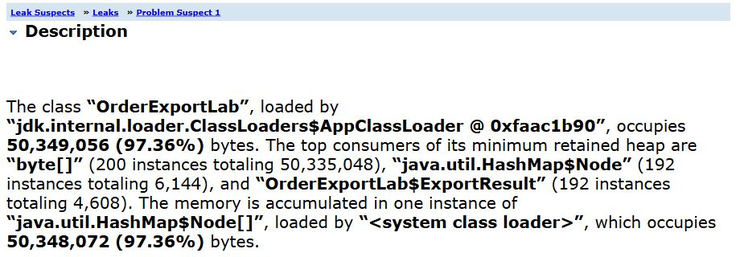
The screenshot shows MAT’s Description of this suspect. It points us toward OrderExportLab, but a large memory value alone does not prove a leak. We still need to find what holds the data and whether the program needs it.
We next find Shortest Paths To the Accumulation Point in the same report. This table shows how the JVM can still reach the map and its data. The IN_FLIGHT field points to the map. The map’s table field points to its internal array of entries.
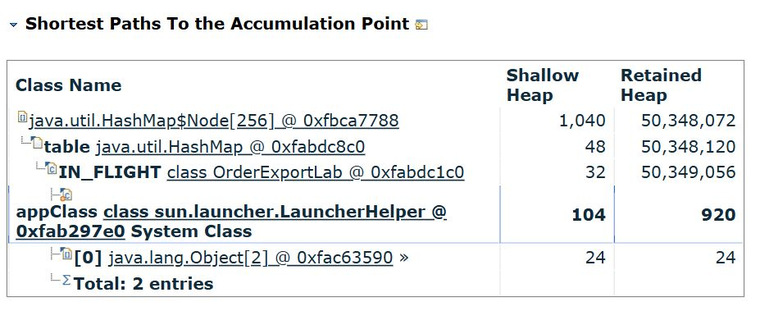
The screenshots in this section come from MAT’s HTML report, opened in a browser. The reference table leads back from the map’s internal array to IN_FLIGHT. Starting with the application field, we can follow the same references toward the job data as shown below.
OrderExportLab static IN_FLIGHT field
    -> HashMap
    -> table and map entries
    -> ExportResult objects
    -> payload byte arrays
We then find All Accumulated Objects by Class in the same details report. This table lists the objects held by the map, including 192 ExportResult objects and 192 byte arrays.
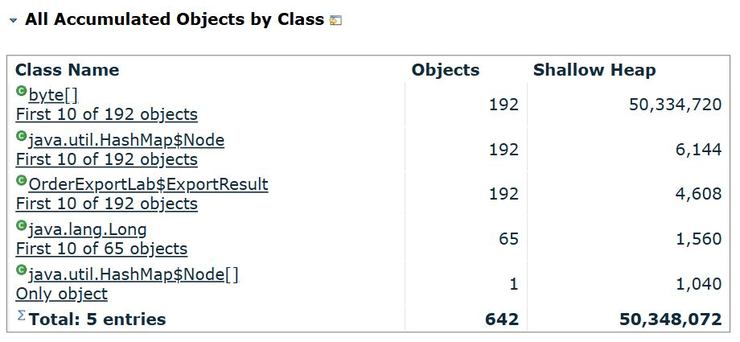
The Objects column shows how many objects remain. The Shallow Heap column shows the bytes used by those objects themselves. The 192 results use only 4,608 bytes, but their byte arrays use 50,334,720 bytes. This explains why the small result objects keep so much data in memory.
The array sizes include a small header for each array, which is why their total is slightly larger than 48 MiB. The map entries and result objects use additional memory.
We now return to exportOrder() and check how it uses the map. The call to IN_FLIGHT.put(jobId, result) adds the result. There is no matching call to remove it.
All 192 jobs have finished, but the map still contains their results. This is the cause of the leak. The application still holds the map, the map holds each result, and each result holds its byte array. Garbage collection cannot free that data until we remove these unnecessary references.
MAT also provides a Dominator Tree for finding objects that keep other objects in memory. This is another useful starting point when the suspect is less obvious. The tree groups objects by what keeps them alive, so a parent and child are not always connected by a direct field.
To inspect the actual references, we select an object and use List Objects > with incoming references. We can also use Path to GC Roots to follow references back to a starting point used by garbage collection.
Step 6. Remove the Completed Job From the Map
The map should hold only jobs that are still running. To fix the leak, we remove each entry when its job finishes. We put IN_FLIGHT.remove(jobId) in the finally block so it runs whether the work succeeds or throws an exception. The fixed source is in src/fixed.
The corrected method is shown below. The added remove() call is the only functional change.
private static void exportOrder(long jobId) {
        byte[] payload = new byte[PAYLOAD_BYTES];
        payload[0] = (byte) jobId;
        ExportResult result = new ExportResult(jobId, payload);
        IN_FLIGHT.put(jobId, result);
        try {
            checksum += Byte.toUnsignedInt(result.payload()[0]);
            completed++;
        } finally {
            IN_FLIGHT.remove(jobId);
        }
    }
Setting the local payload variable to null would not fix this leak. The map would still hold the result, and the result would still hold the byte array. Increasing the heap would only let more completed jobs build up before the program ran out of memory. We need to remove the map entry itself.
In the first terminal, we enter exit to stop the leaking process. We compile the corrected source into the same output directory and start a fresh process.
javac -d out src/fixed/OrderExportLab.java
java -Xms128m -Xmx128m -XX:+UseSerialGC -Xlog:gc:file=artifacts/fixed-gc.log:uptime,level,tags -cp out OrderExportLab
The corrected process started with the following output.
OrderExportLab pid=2116
Commands  batch <1-256> | status | exit
completed=0 tracked=0 retainedPayloadMiB=0.00 checksum=0
The fixed version runs as a new Java process. We use its new process ID in the remaining jcmd commands. In our run, that ID was 2116.
Step 7. Verify the Fix With the Same Workload
We now check whether the fix stops the memory growth. First, we measure the fixed program before it processes any jobs. We run the same commands in the second terminal, using the new process ID.
jcmd 2116 GC.run
jcmd 2116 GC.heap_info
jcmd 2116 GC.class_histogram > artifacts/fixed-histogram-0.txt
We enter batch 64 in the first terminal and wait for the jobs to finish. In the second terminal, we run the three memory checks again and save the histogram as fixed-histogram-64.txt.
We repeat this for two more batches. We save those histograms as fixed-histogram-128.txt and fixed-histogram-192.txt. Both versions have now processed the same 192 jobs, with memory measured at the same points.
After the third batch, our corrected application reports the following status.
completed=192 tracked=0 retainedPayloadMiB=0.00 checksum=18528
Both versions completed 192 jobs and produced the same checksum. In the fixed version, no completed results remain in the map.
After the last GC.run, the selected heap-summary lines were as follows. Address ranges are omitted.
2116:
DefNew     total 39296K, used 0K
Tenured    total 87424K, used 1550K
The heap uses about 1.51 MiB after collection. We can check the final saved histogram in PowerShell.
Select-String -Path artifacts/fixed-histogram-192.txt -SimpleMatch 'OrderExportLab$ExportResult'
This time, the search prints nothing and returns to the PowerShell prompt. There are no ExportResult rows in the saved histogram. The program also reports tracked=0. Together, these results show that the map is empty and garbage collection has removed the completed results.
We took these measurements while each program was waiting for input. To calculate used heap, we add the used values for DefNew and Tenured. We divide the total by 1024 to convert KiB to MiB.
| Completed exports | Leaking tracked jobs | Fixed tracked jobs | Leaking heap MiB | Fixed heap MiB |
|---|---|---|---|---|
| 0 | 0 | 0 | 1.52 | 1.52 |
| 64 | 64 | 0 | 17.53 | 1.51 |
| 128 | 128 | 0 | 33.53 | 1.51 |
| 192 | 192 | 0 | 49.54 | 1.51 |
The graph below compares both runs. The leaking version uses more memory after each batch. The fixed version stays close to the amount it used at startup.
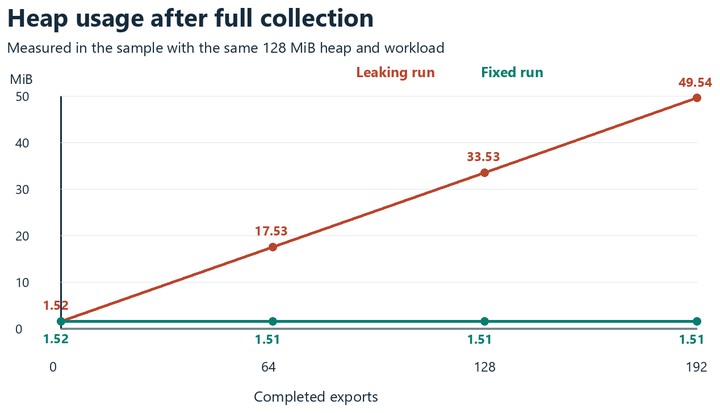
The fixed version completes the same jobs without keeping their results in memory. This shows that the fix works for our sample. For a real service, we should also repeat the workload that caused the problem and run it for long enough to check whether memory keeps growing.
We can also capture a heap dump from the fixed version and open it in MAT.
jcmd 2116 GC.heap_dump artifacts/fixed.hprof
The fixed version produced a dump of 4,395,772 bytes. MAT still listed some JVM objects as suspects because those objects now account for a larger share of the smaller heap. This does not prove another leak.
For this example, we check three things. The map no longer contains completed jobs, the histogram no longer lists their ExportResult objects, and memory usage stays close to its starting value after repeated batches. All three checks support the fix.
4. Applying the Process to a Real Service
In this example, the leak was in the Java heap. A real Java process also uses memory outside the heap, such as memory for thread stacks and direct buffers. If total process memory grows while heap usage stays stable, we need to investigate those other areas. A heap dump alone may not show the cause.
For a real service, we start with its monitoring data and the requests that cause the problem. We check whether more heap memory remains in use after garbage collection. We then compare object counts and inspect a heap dump to find what holds the growing data.
An OutOfMemoryError also does not prove a leak. The application may need more memory than the heap allows, even when it releases objects correctly. Oracle’s memory-leak troubleshooting guide explains that distinction.
The same question applies to other application objects. Does the application still need them, or has their work already finished? For example, a listener may stay registered after it is no longer needed. A pooled thread may keep an old ThreadLocal value. A queue may grow because new items arrive faster than they are processed. We find the cause of the growth before choosing a fix.
Troubleshooting the Walkthrough
| Problem | What to check | How to continue |
|---|---|---|
| jcmd cannot connect to the program | We check that the program is running and that we used its current process ID. | We run jcmd using the same operating-system account and in the same host or container as the program. If we restart the program, we use its new process ID. |
| A dump with that filename already exists | We check the application’s working directory for the existing file. | We keep that file and use another name for the new dump, such as artifacts/leaky-second.hprof. |
| We cannot find the dump | We check the directory where the application was started. | We read the command output to check whether the file was saved. We also check that the application has permission to write to that directory. |
| MAT runs out of memory while reading the dump | MAT needs its own memory to analyze the file. Its heap is separate from the sample program’s heap. | We increase the -Xmx value in MemoryAnalyzer.ini without exceeding the memory available on the analysis machine. We then restart MAT and open the dump again. |
If a command fails, we resolve that problem before moving on. For example, we need a complete heap dump before MAT can provide useful results.
5. Conclusion
The leak happened because IN_FLIGHT kept results from jobs that had already finished. The histograms showed one result left behind for every completed job. MAT showed how the map kept each result and its byte array in memory. We fixed the problem by removing the entry in finally.
After 192 jobs, the leaking version still held 48 MiB of job data and used about 49.54 MiB of heap after collection. The fixed version held no completed results and used about 1.51 MiB. Both versions completed the same number of jobs and produced the same checksum.
6. References
For more detail on the inspections used here, we can refer to Eclipse MAT’s retained-heap explanation, GC-root path inspection, and batch-analysis commands.
Happy Learning!
