
The compiler error “class file has wrong version 61.0, should be 52.0” means that a library on the classpath was compiled for Java 17 (class file version 61), but our code is compiled by a Java 8 JDK, which reads class files only up to version 52. The fix is to build the project with JDK 17 or newer, not to downgrade the library.
We see the error most often while migrating to Spring Boot 3 or 4, Spring Framework 6 or 7, Hibernate 7 or JUnit 6, because all of them ship Java 17 class files. The same message with “should be 55.0” means the compiler is JDK 11. The following example is the Maven fix for a Spring Boot project.
<parent>
  <groupId>org.springframework.boot</groupId>
  <artifactId>spring-boot-starter-parent</artifactId>
  <version>4.1.1</version>
</parent>

<properties>
  <java.version>17</java.version>   <!-- or 21, 25 -->
</properties>
Notice that the pom.xml setting alone is not enough; Maven itself has to run on JDK 17 or newer, which mvn -v shows. We read the error message first, fix it in Maven, Gradle, IntelliJ IDEA and Eclipse, list all class file versions up to Java 27, and separate it from the runtime error with a similar message.
1. Why the Class File Has Wrong Version 61.0
The javac compiler reads the class files of every dependency to check our code against them. Each class file starts with a version number, and a JDK can read class files only up to its own version. When a dependency is newer than the JDK that runs javac, the compiler stops with a “bad class file” error.
For example, the baseline for Spring Framework 6 and Spring Boot 3 is Java 17, and Spring Boot 4 keeps that baseline. Compiling a Spring Boot 4.1.1 application with a Java 8 JDK prints the following error.
ShopApplication.java:1: error: cannot access SpringApplication
import org.springframework.boot.SpringApplication;
                               ^
  bad class file: /home/dev/.m2/repository/org/springframework/boot/spring-boot/4.1.1/spring-boot-4.1.1.jar(org/springframework/boot/SpringApplication.class)
    class file has wrong version 61.0, should be 52.0
    Please remove or make sure it appears in the correct subdirectory of the classpath.
The two numbers in the message answer two questions. The first number is the version of the library class, and the second number is the highest version that the running compiler understands.
| Part of the message | Meaning | Example |
|---|---|---|
| wrong version 61.0 | The library class was compiled for Java 17 | spring-boot-4.1.1.jar |
| should be 52.0 | The JDK running javac is Java 8 | JAVA_HOME points to JDK 8 |
| should be 55.0 | The JDK running javac is Java 11 | An IDE or CI image still on JDK 11 |
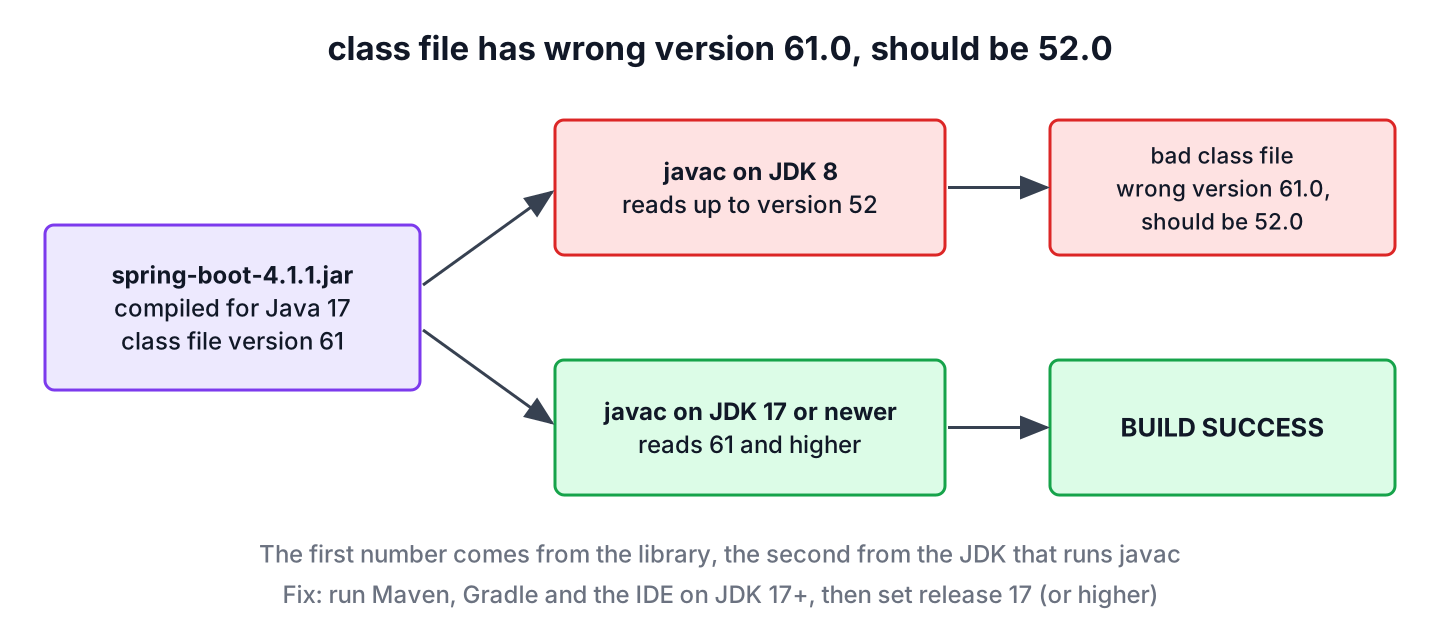
The “should be” number belongs to the compiler JDK, not to our –release or target setting. For example, JDK 25 compiling with –release 21 against a library built by JDK 27 still reports “wrong version 71.0, should be 69.0”. Changing the target level never fixes the error; changing the JDK does.
2. Fixing the Wrong Version Error
To fix the compilation issue, we compile the application with Java 17 or newer, and every tool that runs javac has to use that JDK. On a developer laptop that can mean three places at once, the terminal, the build tool and the IDE.
2.1. Check Which JDK Compiles the Code
Before changing any file, we find out which JDK each tool uses. The java -version command alone is not enough, because Maven and Gradle can use a different JDK through JAVA_HOME or their own settings.
javac -version
mvn -v                  # shows "Java version: ..." used by Maven
./gradlew -version      # shows the Launcher and Daemon JVM
Inside a running program, two system properties show the same information. The java.class.version property is the highest class file version the JVM accepts.
String javaVersion = System.getProperty("java.version");          // "25.0.4.1"
String maxClassVersion = System.getProperty("java.class.version"); // "69.0"
int feature = Runtime.version().feature();                         // 25
2.2. Maven
A Spring Boot project sets the Java level with the java.version property, as in the intro, because the Boot parent copies it into maven.compiler.release. A project without the Boot parent sets maven.compiler.release in its own properties. The release option is better than source and target, because it also checks that we use only APIs of that Java version.
<properties>
  <maven.compiler.release>17</maven.compiler.release>
</properties>

<build>
  <plugins>
    <plugin>
      <groupId>org.apache.maven.plugins</groupId>
      <artifactId>maven-compiler-plugin</artifactId>
      <version>3.16.0</version>
    </plugin>
  </plugins>
</build>
Next, we point JAVA_HOME to a JDK 17 or newer and run mvn -v again. If the JDK that runs Maven does not match the settings, the build fails in one of these ways.
- With maven.compiler.source and target set to 17 on JDK 8, the build stops with Fatal error compiling: invalid target release: 17.
- With maven.compiler.release set to 17 on JDK 8, the compiler plugin drops the flag, compiles Java 8 class files, and the dependency error from section 1 comes back.
- With a release newer than the JDK, for example 27 on JDK 25, the build stops with error: release version 27 not supported.
2.3. Gradle
Gradle uses a Java toolchain to pick the JDK for compiling and testing, separate from the JVM that runs Gradle. With a toolchain, a laptop where JAVA_HOME points to an old JDK still compiles with the right one, and with the Foojay toolchain resolver plugin, Gradle downloads it if it is missing.
java {
    toolchain {
        languageVersion = JavaLanguageVersion.of(17)
    }
}
Older build files set only sourceCompatibility and targetCompatibility. Those settings behave like Maven’s source and target, so they do not change the JDK and do not fix the error.
2.4. IntelliJ IDEA and Eclipse
IDEs keep their own JDK settings, which explains why a project builds in the terminal and fails in the IDE, or the other way round. We change the project settings in the IDE as well.
- In IntelliJ IDEA, set the SDK in File | Project Structure | Project to JDK 17 or newer, and set the language level to match.
- For Maven projects in IntelliJ IDEA, also check the JRE in Settings | Build, Execution, Deployment | Build Tools | Maven | Runner; for Gradle projects, check Gradle JVM under Build Tools | Gradle.
- In Eclipse, add a JDK 17 or newer under Window | Preferences | Java | Installed JREs, select it in the project’s Java Build Path, and set the compiler compliance level under Java Compiler.
- After the change, reload the Maven or Gradle project so the IDE picks up the new settings.
After these changes, the compiler error is gone. On a CI server, the same check applies to the build image; a Docker image such as maven:3-eclipse-temurin-8 keeps failing until we move it to a JDK 17 or newer image.
3. Java Class File Versions
The class file major version is the Java release plus 44, so Java 17 is 61 and Java 25 is 69. The minor version is 0 for all releases since Java 12, except for classes compiled with preview features, which use 65535. Every release has its own major version number, from 45 for Java 1.1 to 71 for Java 27.
| Java Version | Class File Version | Java Version | Class File Version |
|---|---|---|---|
| Java 1.0 and 1.1 | 45 | Java 15 | 59.0 |
| Java 1.2 | 46.0 | Java 16 | 60.0 |
| Java 1.3 | 47.0 | Java 17 (LTS) | 61.0 |
| Java 1.4 | 48.0 | Java 18 | 62.0 |
| Java 5 | 49.0 | Java 19 | 63.0 |
| Java 6 | 50.0 | Java 20 | 64.0 |
| Java 7 | 51.0 | Java 21 (LTS) | 65.0 |
| Java 8 (LTS) | 52.0 | Java 22 | 66.0 |
| Java 9 | 53.0 | Java 23 | 67.0 |
| Java 10 | 54.0 | Java 24 | 68.0 |
| Java 11 (LTS) | 55.0 | Java 25 (LTS) | 69.0 |
| Java 12 | 56.0 | Java 26 | 70.0 |
| Java 13 | 57.0 | Java 27 | 71.0 |
| Java 14 | 58.0 |
The version number in the error message shows which JDK is used and which one is expected. To read the version of a class inside a jar, we run javap -v on it, as shown in viewing the bytecode of a class file.
javap -v -cp spring-boot-4.1.1.jar org.springframework.boot.SpringApplication | grep "major version" major version: 61Several popular libraries moved to Java 17 class files in their current major versions, so a project that upgrades one of them meets this error first.
| Library | Class file version | Minimum Java |
|---|---|---|
| Spring Boot 3.x and 4.x, Spring Framework 6.x and 7.x | 61 | 17 |
| Hibernate ORM 7 | 61 | 17 |
| Apache Tomcat 11 | 61 | 17 |
| JUnit 6 | 61 | 17 |
4. The Same Problem at Runtime
The compiler is not the only tool that checks the version. When a class compiled for a newer Java version is started on an older JVM, the program fails at runtime with UnsupportedClassVersionError, and the message uses the same numbers in a longer sentence.
Exception in thread "main" java.lang.UnsupportedClassVersionError: Hello has been compiled by a more recent version of the Java Runtime (class file version 61.0), this version of the Java Runtime only recognizes class file versions up to 52.0The fix is the same, a newer JVM on the server or in the container image, or a lower release for our own code when we have to support an old runtime. A third message, “Unsupported class file major version 69”, comes from tools such as Gradle or bytecode libraries that are older than the JDK; it is covered in unsupported class file major version.
| Message | Thrown by | Means |
|---|---|---|
| class file has wrong version 61.0, should be 52.0 | javac (build time) | A dependency is newer than the compiler JDK |
| UnsupportedClassVersionError … up to 52.0 | The JVM (run time) | Our class or a dependency is newer than the JVM |
| Unsupported class file major version 69 | A tool or library (build or run time) | The tool is older than the JDK it runs on |
The class UnsupportedClassVersionError extends LinkageError, an unchecked Error, so no try-catch in our code can repair it. The hierarchy of errors and exceptions is explained in checked vs unchecked exceptions.
5. Class File Wrong Version FAQs
Several answers start from the same situation, a pom.xml that already says 17 while the build still fails.
5.1. Which Java version is class file version 61.0?
Java 17. The major version is the Java release plus 44, so 52 is Java 8, 55 is Java 11, 65 is Java 21 and 69 is Java 25.
5.2. I set Java 17 in pom.xml. Why does the error stay?
Because Maven or the IDE still runs an older JDK. The pom.xml settings control the target level, while the “should be” number comes from the JDK that runs javac. Run mvn -v, fix JAVA_HOME, and check the Maven Runner JRE in IntelliJ IDEA.
5.3. Can I use Spring Boot 3 or 4 with Java 8 or 11?
No. Spring Boot 3 and 4 need Java 17 or newer at compile time and at run time. A project that must stay on Java 8 or 11 has to stay on Spring Boot 2.7, which no longer receives open source updates.
5.4. Can I downgrade the library instead of upgrading the JDK?
Yes, if an older version of the library supports our Java version, for example JUnit 5 instead of JUnit 6. It is a short-term fix only, because the older versions stop getting security fixes.
5.5. Does the error appear with class file version 65.0 or 69.0 too?
Yes, the pattern is the same for every version. For example, “wrong version 65.0, should be 61.0” means a Java 21 library is compiled by JDK 17, and “wrong version 71.0, should be 69.0” means a Java 27 library is compiled by JDK 25.
6. Conclusion
The error “class file has wrong version 61.0, should be 52.0” tells us that a dependency was compiled for Java 17 and the compiler runs on Java 8. The fix is a JDK 17 or newer in every place that runs javac, namely the terminal, Maven or Gradle, the IDE and the CI image.
Setting maven.compiler.release, java.version or a Gradle toolchain declares the target, and mvn -v, javac -version and javap -v show which JDK runs. With the version table, any pair of numbers in the message maps to the JDK we have and the JDK we need.
7. References
- JVM Specification, The ClassFile Structure (major versions)
- Maven Compiler Plugin, Setting the –release of the Java Compiler
- Gradle, Toolchains for JVM projects
- javac command (Java 25)
Happy Learning !!

How about java 21
Minimum supported version is Java 17. Any version after 17 will work.
It wasn’t gone!! How can you be so sure that if it worked for you, it will be for all others?
Hello, there may be any additional step based on the specific dev setup, which you have to figure out. But the root cause remains the same.
What if I want to run with Java 8?
You cannot. The minimum supported version is Java 17.