
Apache POI is the open-source Java library from the Apache Software Foundation that reads and writes Microsoft Excel files, both the old .xls format and the current .xlsx format. It is pure Java, so the machine that runs our code doesn’t need Excel installed. In addition, we can read and write MS Word and MS PowerPoint files using the same Apache POI library.
If we are building software for the HR or Finance domain, there is often a requirement for generating Excel reports across management levels. Apart from reports, we can also expect input data for the applications coming in the form of Excel sheets, for example an upload that we import into a database, and the application is expected to support this requirement. The reverse case is a report that a REST API sends for download.
The following example writes a one-row .xlsx file with Apache POI 5.5.1 and reads it back. Both blocks use try-with-resources, so the workbook and the file stream are always closed.
// 1. Write a workbook
try (Workbook workbook = new XSSFWorkbook();
     OutputStream out = Files.newOutputStream(Path.of("fruits.xlsx"))) {
  Row row = workbook.createSheet("Stock").createRow(0);
  row.createCell(0).setCellValue("apple");
  row.createCell(1).setCellValue(5);
  workbook.write(out);
}

// 2. Read it back (null = no password, true = read-only)
try (Workbook workbook = WorkbookFactory.create(new File("fruits.xlsx"), null, true)) {
  Row row = workbook.getSheetAt(0).getRow(0);
  DataFormatter formatter = new DataFormatter();
  String fruit = formatter.formatCellValue(row.getCell(0));      // "apple"
  String quantity = formatter.formatCellValue(row.getCell(1));   // "5"
  double raw = row.getCell(1).getNumericCellValue();             // 5.0
}
Notice that Excel stores every number as a double, so getNumericCellValue() returns 5.0, while DataFormatter returns the text “5” that Excel shows on the screen.
The rest of this Apache POI tutorial covers the Maven setup and the main classes, writing styled sheets with formulas, reading cells of every type, conditional formatting, files with a million rows, and the exceptions developers hit most often.
1. Maven Dependency
For .xlsx files, we add the poi-ooxml artifact. The poi-ooxml artifact brings the poi artifact (needed for .xls files and for the shared ss.usermodel interfaces) and the other required jars, such as commons-io, commons-compress, xmlbeans and log4j-api. Apache POI 5.5.1 is the latest version on Maven Central at the time of writing.
<dependency>
  <groupId>org.apache.poi</groupId>
  <artifactId>poi-ooxml</artifactId>
  <version>5.5.1</version>
</dependency>
For Gradle, the same dependency is one line.
implementation 'org.apache.poi:poi-ooxml:5.5.1'Apache POI logs through the Log4j 2 API. If the app has no Log4j 2 provider on the classpath, the first POI call prints the following line once. The message is harmless; to get rid of it, we add log4j-core or a bridge such as log4j-slf4j2-impl that routes the messages to our existing logger.
2026-10-05T03:19:17.700310210Z main ERROR Log4j API could not find a logging provider.2. Core Classes in POI Library
The Apache POI spreadsheet API has one set of interfaces in the package org.apache.poi.ss.usermodel and one implementation per file format. When we code against the interfaces (Workbook, Sheet, Row, Cell), the same code works for both formats.
2.1. HSSF, XSSF and SXSSF
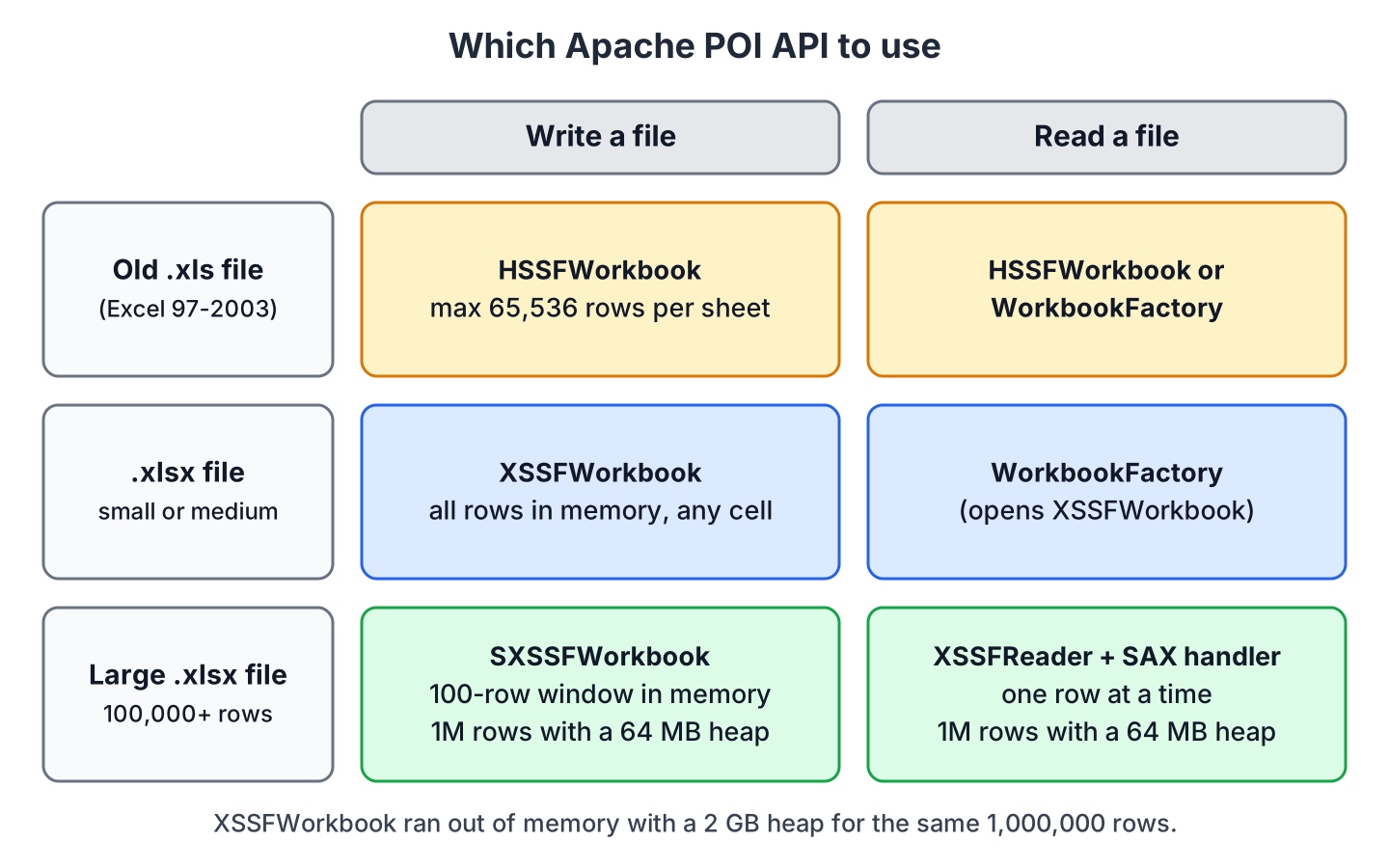
Apache POI main classes start with either HSSF, XSSF or SXSSF. The prefix tells us which file format the class handles and how much of the file it keeps in memory.
| Prefix | What it is | Example classes | Use it for |
|---|---|---|---|
| HSSF | The POI Project’s pure Java implementation of the Excel 97(-2003) file format | HSSFWorkbook, HSSFSheet | Old .xls files, at most 65,536 rows per sheet |
| XSSF | The POI Project’s pure Java implementation of the Excel 2007 OOXML (.xlsx) file format | XSSFWorkbook, XSSFSheet | Reading and writing .xlsx files that fit in the heap |
| SXSSF | An API-compatible streaming extension of XSSF, to be used when huge spreadsheets have to be produced and heap space is limited (since 3.8-beta3) | SXSSFWorkbook, SXSSFSheet | Writing large .xlsx files |
SXSSF achieves its low memory footprint by limiting access to the rows within a sliding window, while XSSF gives access to all rows in the document. SXSSF only writes, so for reading a large .xlsx file we use the XSSF event API, as we will see in section 7.
2.2. Workbook, Sheet, Row and Cell
A Workbook is the whole file, and it contains one or more Sheet objects. A sheet contains Row objects, and each row contains Cell objects. Rows and cells are 0-based in the API, so sheet.getRow(0).getCell(1) is the cell that Excel calls B1.
A few more classes come up in almost every program.
- WorkbookFactory opens a file and returns an HSSFWorkbook or an XSSFWorkbook, depending on the file content.
- DataFormatter returns the cell value as the text Excel displays, with the cell’s number or date format applied.
- FormulaEvaluator is used to evaluate the formula cells in an Excel sheet.
- CellStyle, Font, DataFormat and IndexedColors style the cells, and SheetConditionalFormatting with ConditionalFormattingRule adds formatting that depends on the cell value.
3. Write to an Excel File
We take this example first, so we can reuse the Excel sheet created by this code in further examples. Writing Excel using POI involves the following steps.
- Create a workbook.
- Create a sheet in the workbook.
- Create a row in the sheet.
- Add cells to the row.
- Repeat steps 3 and 4 to write more data.
- Write the workbook to an OutputStream and close it.
3.1. Writing Rows and Cells
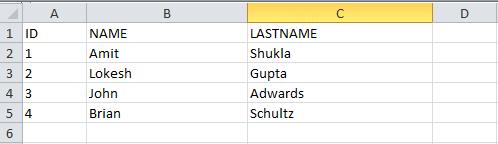
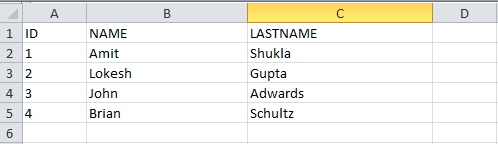
The following example writes four employees to the sheet “Employee Data”. Each row is an Object[], and a pattern-matching switch calls the setCellValue() overload that matches the value type, so numbers stay numbers in Excel.
List<Object[]> data = List.of(
    new Object[]{"ID", "NAME", "LASTNAME"},
    new Object[]{1, "Amit", "Shukla"},
    new Object[]{2, "Lokesh", "Gupta"},
    new Object[]{3, "John", "Adwards"},
    new Object[]{4, "Brian", "Schultz"});

try (Workbook workbook = new XSSFWorkbook();
     OutputStream out = Files.newOutputStream(Path.of("howtodoinjava_demo.xlsx"))) {

  Sheet sheet = workbook.createSheet("Employee Data");
  int rowNum = 0;
  for (Object[] values : data) {
    Row row = sheet.createRow(rowNum++);
    int cellNum = 0;
    for (Object value : values) {
      Cell cell = row.createCell(cellNum++);
      switch (value) {
        case String text -> cell.setCellValue(text);
        case Integer number -> cell.setCellValue(number);
        default -> throw new IllegalArgumentException("Unsupported type: " + value);
      }
    }
  }
  workbook.write(out);
}
The program creates howtodoinjava_demo.xlsx in the working directory. The try-with-resources block closes the workbook and the stream even when write() throws an IOException, so no file handle stays open.
Learn to append rows to an existing Excel file with Apache POI.
3.2. Cell Types, Styles, Formulas, Auto-Size and Freeze Panes
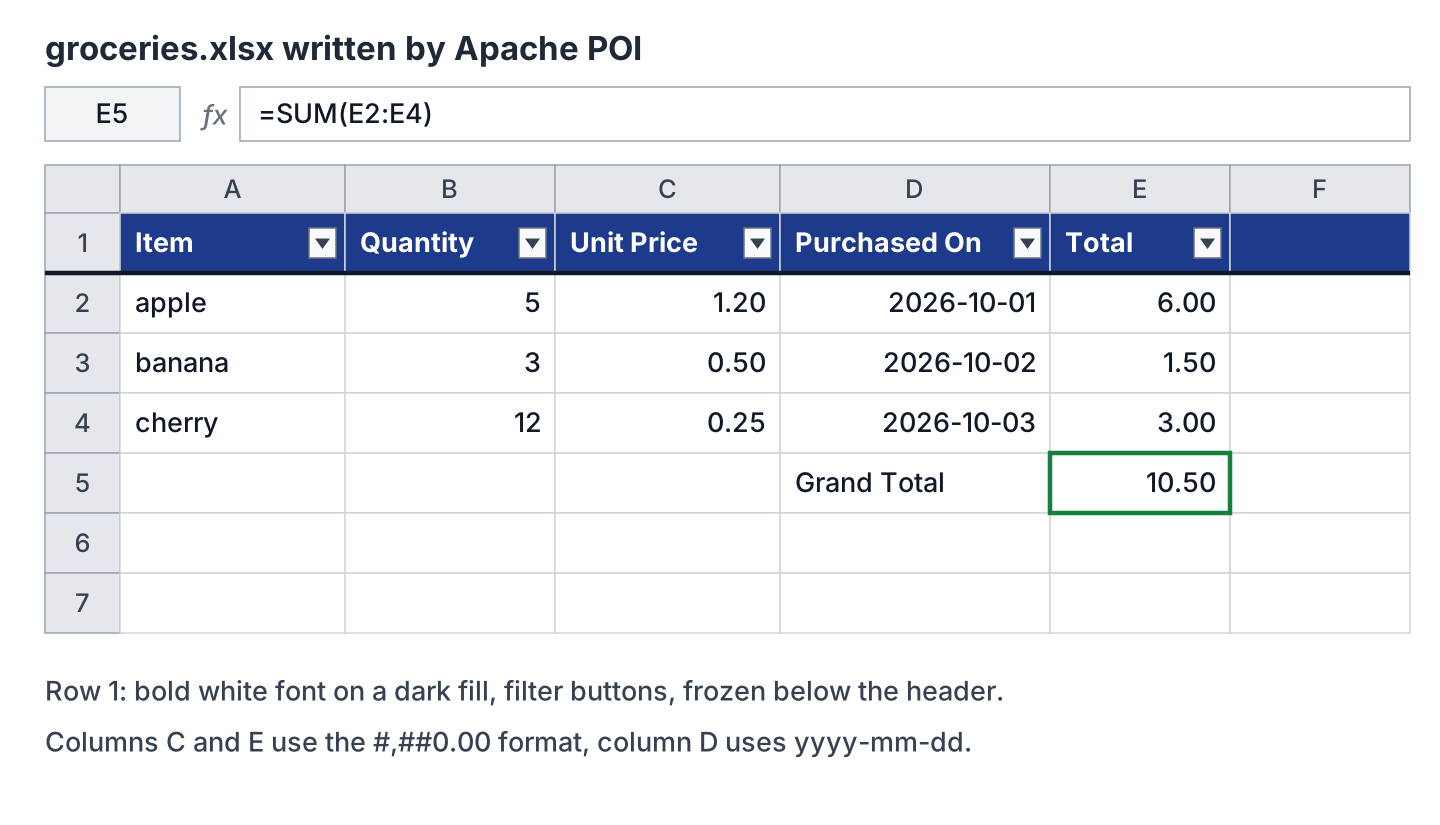
A real report needs more than plain values. Say a shop exports its grocery purchases every week, and the people who open the file expect a bold header that stays visible while they scroll, prices with two decimals, real dates, a total per row and a grand total.
Each of these is a separate POI call. A CellStyle holds the font, fill, border and number format, and we create each style once per workbook and reuse it, because an .xlsx file allows at most 64,000 styles. Dates go in with setCellValue(LocalDate), and Excel shows them as dates only when the cell has a date format.
// 1. Styles, created once per workbook
Font headerFont = workbook.createFont();
headerFont.setBold(true);
headerFont.setColor(IndexedColors.WHITE.getIndex());

CellStyle headerStyle = workbook.createCellStyle();
headerStyle.setFont(headerFont);
headerStyle.setFillForegroundColor(IndexedColors.DARK_BLUE.getIndex());
headerStyle.setFillPattern(FillPatternType.SOLID_FOREGROUND);

CreationHelper helper = workbook.getCreationHelper();
CellStyle moneyStyle = workbook.createCellStyle();
moneyStyle.setDataFormat(helper.createDataFormat().getFormat("#,##0.00"));
CellStyle dateStyle = workbook.createCellStyle();
dateStyle.setDataFormat(helper.createDataFormat().getFormat("yyyy-mm-dd"));

// 2. One data row: string, numeric, date and formula cells
Row row = sheet.createRow(1);
row.createCell(0).setCellValue("apple");
row.createCell(1).setCellValue(5);
Cell price = row.createCell(2);
price.setCellValue(1.20);
price.setCellStyle(moneyStyle);
Cell date = row.createCell(3);
date.setCellValue(LocalDate.of(2026, 10, 1));
date.setCellStyle(dateStyle);
Cell total = row.createCell(4);
total.setCellFormula("B2*C2");                 // no leading "="
total.setCellStyle(moneyStyle);

// 3. Grand total in row 5
Cell grandTotal = sheet.createRow(4).createCell(4);
grandTotal.setCellFormula("SUM(E2:E4)");
grandTotal.setCellStyle(moneyStyle);

// 4. Layout
sheet.createFreezePane(0, 1);                  // keep row 1 visible
sheet.setAutoFilter(CellRangeAddress.valueOf("A1:E4"));
for (int col = 0; col < 5; col++) {
  sheet.autoSizeColumn(col);                   // after the data is written
}

// 5. Store the formula results in the file
helper.createFormulaEvaluator().evaluateAll();
The snippet shows one data row; the full program in the repository loops over three purchases. We call autoSizeColumn() after all rows are written, because it measures the current content of the column. Calling evaluateAll() before write() stores the formula results in the file, so programs that read cached values, such as a CSV export tool, see 10.50 instead of nothing.
4. Reading an Excel File
Reading an Excel file using POI is also clear if we divide it into steps.
- Create a workbook instance from an Excel file.
- Get to the desired sheet.
- Iterate over the rows of the sheet.
- Iterate over all cells in a row.
- Read each cell according to its type.
We open files with WorkbookFactory.create(file, null, true) instead of new XSSFWorkbook(). The factory detects .xls and .xlsx from the file content, the null means “no password” and true opens the file read-only. Passing a File instead of an InputStream also uses less memory, because POI doesn’t have to buffer the whole stream.
4.1. Reading Cells by Type
Every cell has a type from the CellType enum, and each type has its own getter. A switch expression over getCellType() handles them all. Dates are not a separate type, because Excel stores a date as a number with a date format, so we check DateUtil.isCellDateFormatted() inside the NUMERIC case.
The following example reads the file written in section 3.1 cell by cell.
try (Workbook workbook = WorkbookFactory.create(new File("howtodoinjava_demo.xlsx"), null, true)) {
  Sheet sheet = workbook.getSheetAt(0);
  for (Row row : sheet) {
    for (Cell cell : row) {
      String value = switch (cell.getCellType()) {
        case NUMERIC -> DateUtil.isCellDateFormatted(cell)
            ? cell.getLocalDateTimeCellValue().toLocalDate().toString()
            : String.valueOf(cell.getNumericCellValue());
        case STRING -> cell.getStringCellValue();
        case BOOLEAN -> String.valueOf(cell.getBooleanCellValue());
        case FORMULA -> cell.getCellFormula();
        case BLANK -> "";
        default -> "?";
      };
      System.out.print(value + "\t");
    }
    System.out.println();
  }
}
The program prints the column names and the values in them, cell by cell. We can see that the IDs come back as 1.0 and 2.0, because getNumericCellValue() always returns a double.
ID      NAME    LASTNAME
1.0     Amit    Shukla
2.0     Lokesh  Gupta
3.0     John    Adwards
4.0     Brian   Schultz
Learn to read a large Excel file with the SAX parser in Apache POI.
4.2. Reading the Displayed Value With DataFormatter
Most of the time we want the value as the user sees it in Excel, so “1” and not “1.0”, and “1.20” for a cell with the format #,##0.00. The DataFormatter.formatCellValue() method does that for every cell type, so it replaces the whole switch expression.
DataFormatter formatter = new DataFormatter();
for (Row row : sheet) {
  for (Cell cell : row) {
    String text = formatter.formatCellValue(cell);   // "1", "Amit", ...
    System.out.print(text + "\t");
  }
  System.out.println();
}
ID NAME LASTNAME
1 Amit Shukla
2 Lokesh Gupta
3 John Adwards
4 Brian SchultzFor formula cells, we pass a FormulaEvaluator to formatCellValue(cell, evaluator); without one, DataFormatter returns the formula text, such as “B2*C2”, and not its result.
4.3. Reading Dates, Formulas and Missing Cells
The groceries report from section 3.2 has all the tricky cases in one sheet. Row 5 has cells only in columns D and E, and the enhanced for loop over a row skips missing cells, which shifts the columns in our output. So we loop over the column indexes instead; getCell() returns null for a missing cell, and formatCellValue(null) returns an empty string.
FormulaEvaluator evaluator = workbook.getCreationHelper().createFormulaEvaluator();
DataFormatter formatter = new DataFormatter();

for (Row row : sheet) {
  for (int col = 0; col < row.getLastCellNum(); col++) {
    Cell cell = row.getCell(col);                                   // null if missing
    String text = formatter.formatCellValue(cell, evaluator);       // "6.00", "2026-10-01", ""
  }
}

Row apple = sheet.getRow(1);
LocalDate purchasedOn = apple.getCell(3).getLocalDateTimeCellValue().toLocalDate();  // 2026-10-01
String formula = apple.getCell(4).getCellFormula();                                  // "B2*C2"
double total = evaluator.evaluate(apple.getCell(4)).getNumberValue();                // 6.0
Item Quantity Unit Price Purchased On Total
apple 5 1.20 2026-10-01 6.00
banana 3 0.50 2026-10-02 1.50
cherry 12 0.25 2026-10-03 3.00
Grand Total 10.50Notice that getLastCellNum() returns the last cell index plus one, so it works as the loop limit. If we need a Cell object rather than null, we call row.getCell(col, Row.MissingCellPolicy.CREATE_NULL_AS_BLANK), which returns a blank cell.
5. Add and Evaluate Formula Cells
When working on complex Excel sheets, we encounter many cells with formulas to calculate their values. These are formula cells. Apache POI has support for adding formula cells and for evaluating formula cells that are already present in a file.
The following example calculates simple interest. The sheet has four cells in a row, and the fourth one holds the formula A2*B2*C2/100 (principal times rate in percent times years, divided by 100). We pass the formula to setCellFormula() without the leading “=”.
try (Workbook workbook = new XSSFWorkbook();
     OutputStream out = Files.newOutputStream(Path.of("formulaDemo.xlsx"))) {

  Sheet sheet = workbook.createSheet("Calculate Simple Interest");

  Row header = sheet.createRow(0);
  header.createCell(0).setCellValue("Principal");
  header.createCell(1).setCellValue("Rate (%)");
  header.createCell(2).setCellValue("Years");
  header.createCell(3).setCellValue("Interest (P*R*T/100)");

  Row dataRow = sheet.createRow(1);
  dataRow.createCell(0).setCellValue(14500d);
  dataRow.createCell(1).setCellValue(9.25);
  dataRow.createCell(2).setCellValue(3d);
  dataRow.createCell(3).setCellFormula("A2*B2*C2/100");

  workbook.write(out);
}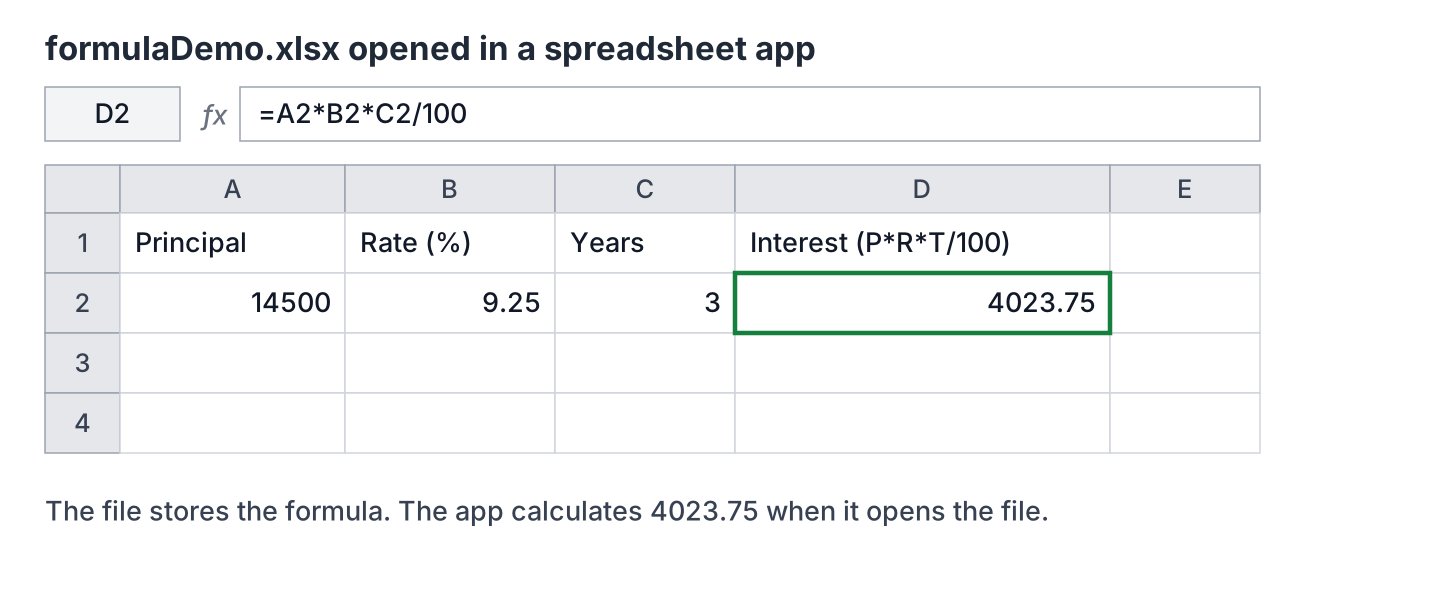
Apache POI doesn’t calculate formulas when it writes a file. A spreadsheet app calculates them on opening, but a Java program that reads the cell with getNumericCellValue() gets the cached value, which is 0.0 for a formula that was never evaluated. To get the result in Java, we evaluate the cell with a FormulaEvaluator.
try (Workbook workbook = WorkbookFactory.create(new File("formulaDemo.xlsx"), null, true)) {
  Cell interest = workbook.getSheetAt(0).getRow(1).getCell(3);
  FormulaEvaluator evaluator = workbook.getCreationHelper().createFormulaEvaluator();

  String formula = interest.getCellFormula();                    // "A2*B2*C2/100"
  double cached = interest.getNumericCellValue();                // 0.0
  double result = evaluator.evaluate(interest).getNumberValue(); // 4023.75
}
The FormulaEvaluator interface has four evaluation methods, and they differ in what they change in the workbook.
| Method | Returns | Changes the cell |
|---|---|---|
| evaluate(cell) | A CellValue with the result | No |
| evaluateFormulaCell(cell) | The CellType of the result | Stores the result as the cached value, keeps the formula |
| evaluateInCell(cell) | The same Cell | Replaces the formula with its result |
| evaluateAll() | Nothing | Stores the cached value of every formula in the workbook |
We avoid evaluateInCell() for reading results, because it deletes the formulas from the workbook in memory. Use evaluate() to read results, and evaluateAll() before write() when other programs need the cached values. If we modify an existing workbook and want Excel to recalculate everything on opening, we call workbook.setForceFormulaRecalculation(true).
6. Formatting the Cells
So far we have seen examples of reading and writing Excel files using Apache POI. When creating a report in an Excel file, it is common to add formatting to the cells that match some pre-determined criteria, for example a different color for a value range or for an expiry date limit.
Conditional formatting differs from a CellStyle, because Excel applies it while the user views the sheet and recalculates it when the values change. We create the rules with sheet.getSheetConditionalFormatting(), and each rule gets a pattern fill or a font format. The following examples write each rule to its own sheet of styleDemo.xlsx.
6.1. Cell Value in a Specific Range
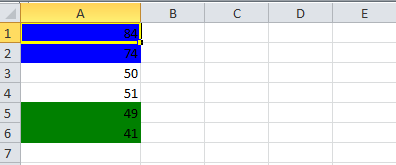
The following rules color any cell in the range A1:A6 whose value is greater than 70 in blue, and any cell whose value is less than 50 in green. The values from 50 to 70 keep the default look.
SheetConditionalFormatting sheetCF = sheet.getSheetConditionalFormatting();

// Condition 1: Cell Value Is greater than 70 (Blue Fill)
ConditionalFormattingRule rule1 = sheetCF.createConditionalFormattingRule(ComparisonOperator.GT, "70");
PatternFormatting fill1 = rule1.createPatternFormatting();
fill1.setFillBackgroundColor(IndexedColors.BLUE.index);
fill1.setFillPattern(PatternFormatting.SOLID_FOREGROUND);

// Condition 2: Cell Value Is less than 50 (Green Fill)
ConditionalFormattingRule rule2 = sheetCF.createConditionalFormattingRule(ComparisonOperator.LT, "50");
PatternFormatting fill2 = rule2.createPatternFormatting();
fill2.setFillBackgroundColor(IndexedColors.GREEN.index);
fill2.setFillPattern(PatternFormatting.SOLID_FOREGROUND);

CellRangeAddress[] regions = {CellRangeAddress.valueOf("A1:A6")};
sheetCF.addConditionalFormatting(regions, rule1, rule2);
We import ComparisonOperator from org.apache.poi.ss.usermodel. The HSSF record class CFRuleBase.ComparisonOperator has the same constants, but it belongs to the HSSF internals and is not meant for application code.
6.2. Highlight Duplicate Values
A formula rule highlights all cells that have duplicate values in the observed cells. The formula COUNTIF($A$2:$A$11,A2)>1 is true for every value that appears more than once in A2:A11.
SheetConditionalFormatting sheetCF = sheet.getSheetConditionalFormatting();

// Condition 1: Formula Is =COUNTIF($A$2:$A$11,A2)>1 (Blue Font)
ConditionalFormattingRule rule1 = sheetCF.createConditionalFormattingRule("COUNTIF($A$2:$A$11,A2)>1");
FontFormatting font = rule1.createFontFormatting();
font.setFontStyle(false, true);
font.setFontColorIndex(IndexedColors.BLUE.index);

CellRangeAddress[] regions = {CellRangeAddress.valueOf("A2:A11")};
sheetCF.addConditionalFormatting(regions, rule1);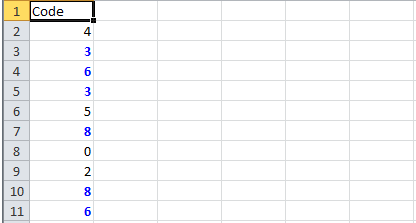
6.3. Alternate Color Rows in Different Colors
The formula MOD(ROW(),2) returns 1 for odd rows, so this rule colors every odd row in the range A1:Z100 in light green.
SheetConditionalFormatting sheetCF = sheet.getSheetConditionalFormatting();

// Condition 1: Formula Is =MOD(ROW(),2) (Light Green Fill)
ConditionalFormattingRule rule1 = sheetCF.createConditionalFormattingRule("MOD(ROW(),2)");
PatternFormatting fill1 = rule1.createPatternFormatting();
fill1.setFillBackgroundColor(IndexedColors.LIGHT_GREEN.index);
fill1.setFillPattern(PatternFormatting.SOLID_FOREGROUND);

CellRangeAddress[] regions = {CellRangeAddress.valueOf("A1:Z100")};
sheetCF.addConditionalFormatting(regions, rule1);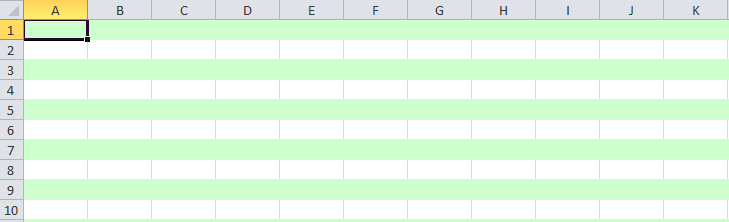
6.4. Color Amounts That Expire in the Next 30 Days
The following rule helps financial projects that keep track of deadlines. The cells A2 to A4 hold the formulas TODAY()+29, A2+1 and A3+1 with the date format d-mmm, and the rule colors the dates that are 0 to 30 days away.
CellStyle style = sheet.getWorkbook().createCellStyle();
style.setDataFormat((short) BuiltinFormats.getBuiltinFormat("d-mmm"));

sheet.createRow(0).createCell(0).setCellValue("Date");
sheet.createRow(1).createCell(0).setCellFormula("TODAY()+29");
sheet.createRow(2).createCell(0).setCellFormula("A2+1");
sheet.createRow(3).createCell(0).setCellFormula("A3+1");
for (int rownum = 1; rownum <= 3; rownum++) {
  sheet.getRow(rownum).getCell(0).setCellStyle(style);
}

SheetConditionalFormatting sheetCF = sheet.getSheetConditionalFormatting();

// Condition 1: Formula Is =AND(A2-TODAY()>=0,A2-TODAY()<=30) (Blue Font)
ConditionalFormattingRule rule1 = sheetCF.createConditionalFormattingRule("AND(A2-TODAY()>=0,A2-TODAY()<=30)");
FontFormatting font = rule1.createFontFormatting();
font.setFontStyle(false, true);
font.setFontColorIndex(IndexedColors.BLUE.index);

CellRangeAddress[] regions = {CellRangeAddress.valueOf("A2:A4")};
sheetCF.addConditionalFormatting(regions, rule1);

sheet.getRow(0).createCell(1).setCellValue("Dates within the next 30 days are highlighted");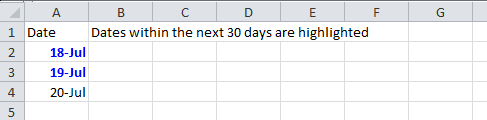
7. Reading and Writing Large Excel Files
The XSSFWorkbook class keeps every row and cell of the file as Java objects, so its memory use grows with the file. Take a nightly export of all orders with 1,000,000 rows, which is close to the .xlsx limit of 1,048,576 rows per sheet.
With such a sheet of three columns, on Java 25 and Apache POI 5.5.1, SXSSFWorkbook wrote the file in a 64 MB heap, whereas XSSFWorkbook still ran out of memory with 2 GB. Reading showed the same gap between the event API and WorkbookFactory. The programs are LargeExcelWriteDemo and LargeExcelReadDemo in the repository.
| Task | API | Heap (-Xmx) | Result |
|---|---|---|---|
| Write | SXSSFWorkbook | 64 MB | 15,011 KB file in 10.6 seconds |
| Write | XSSFWorkbook | 2 GB | OutOfMemoryError: Java heap space |
| Write | XSSFWorkbook | 4 GB | Done in 50.6 seconds |
| Read | XSSF event API | 64 MB | Done in 9.5 seconds |
| Read | WorkbookFactory (XSSFWorkbook) | 2 GB | OutOfMemoryError: Java heap space |
| Read | WorkbookFactory (XSSFWorkbook) | 4 GB | Done in 33.5 seconds |
The streaming APIs need a fraction of the memory and also finish faster, because they don’t build millions of cell objects.
7.1. Writing With SXSSF
The SXSSFWorkbook constructor takes the window size, which is the number of rows it keeps in memory (100 by default). When we create row 101, SXSSF writes row 1 to a temporary file, and write() combines the temporary files into the final .xlsx file.
try (SXSSFWorkbook workbook = new SXSSFWorkbook(100);           // 100 rows in memory
     OutputStream out = Files.newOutputStream(Path.of("large-sxssf.xlsx"))) {
  workbook.setCompressTempFiles(true);                         // gzip the temp files
  Sheet sheet = workbook.createSheet("Stock");
  Row header = sheet.createRow(0);                             // Id, Fruit, Quantity
  header.createCell(0).setCellValue("Id");
  header.createCell(1).setCellValue("Fruit");
  header.createCell(2).setCellValue("Quantity");
  for (int i = 1; i <= 1_000_000; i++) {
    Row row = sheet.createRow(i);
    row.createCell(0).setCellValue(i);
    row.createCell(1).setCellValue(FRUITS[i % FRUITS.length]);  // "apple", "banana", "cherry"
    row.createCell(2).setCellValue(i % 50);
  }
  workbook.write(out);
}
In POI 5.5.1, close() deletes the temporary files, and the old dispose() method is deprecated, so try-with-resources is all the cleanup we need. SXSSF has limits that follow from the window.
- A row that left the window can’t be read or changed, and sheet.getRow() returns null for it.
- Formulas that refer to flushed rows can’t be evaluated with FormulaEvaluator.
- The autoSizeColumn() method measures only the rows in the window, and it requires sheet.trackAllColumnsForAutoSizing() before the rows are written.
7.2. Reading With the XSSF Event API
For reading, POI has no streaming Workbook. Instead, the event API parses the sheet XML with a SAX parser and calls our SheetContentsHandler for each row and cell, so only the current row is in memory. The XSSFSheetXMLHandler class resolves shared strings (an .xlsx file stores each distinct text once, in a separate table) and applies the cell formats, so formattedValue is the same text that DataFormatter returns.
long[] result = new long[2];   // [rows, quantity sum]

SheetContentsHandler handler = new SheetContentsHandler() {
  public void startRow(int rowNum) { }
  public void endRow(int rowNum) {
    if (rowNum > 0) result[0]++;
  }
  public void cell(String cellReference, String formattedValue, XSSFComment comment) {
    if (cellReference.startsWith("C") && !cellReference.equals("C1")) {
      result[1] += Long.parseLong(formattedValue);
    }
  }
};

try (OPCPackage pkg = OPCPackage.open(new File("large-sxssf.xlsx"), PackageAccess.READ)) {
  XSSFReader reader = new XSSFReader(pkg);
  ReadOnlySharedStringsTable strings = new ReadOnlySharedStringsTable(pkg);
  StylesTable styles = reader.getStylesTable();

  XSSFReader.SheetIterator sheets = (XSSFReader.SheetIterator) reader.getSheetsData();
  while (sheets.hasNext()) {
    try (InputStream sheet = sheets.next()) {
      XMLReader parser = XMLHelper.newXMLReader();
      parser.setContentHandler(new XSSFSheetXMLHandler(styles, strings, handler, new DataFormatter(), false));
      parser.parse(new InputSource(sheet));
    }
  }
}
// result = [1000000, 24500000]
The event API reads forward only, and it gives us strings, not typed cells. So it fits imports and reports that process each row once. For a smaller library that streams both reads and writes, see FastExcel in FAQ 9.1.
8. Common Apache POI Errors and Fixes
Most POI exceptions come from four causes, namely the wrong class for the file format, the security limits on compressed files, missing or old dependency jars, and reading a cell in the wrong way.
8.1. Opening the Wrong File Format
An .xls file is an OLE2 binary file, whereas an .xlsx file is a ZIP archive of XML files (OOXML). Each workbook class accepts only its own format. Opening an .xls file with XSSFWorkbook throws an OLE2NotOfficeXmlFileException, and opening an .xlsx file with HSSFWorkbook throws an OfficeXmlFileException.
org.apache.poi.openxml4j.exceptions.OLE2NotOfficeXmlFileException: The supplied data appears to be in the OLE2 Format. You are calling the part of POI that deals with OOXML (Office Open XML) Documents. You need to call a different part of POI to process this data (eg HSSF instead of XSSF)

org.apache.poi.poifs.filesystem.OfficeXmlFileException: The supplied data appears to be in the Office 2007+ XML. You are calling the part of POI that deals with OLE2 Office Documents. You need to call a different part of POI to process this data (eg XSSF instead of HSSF)
The fix is WorkbookFactory, which picks the class from the file content, not from the extension.
try (Workbook xls = WorkbookFactory.create(new File("old-format.xls"), null, true);
     Workbook xlsx = WorkbookFactory.create(new File("new-format.xlsx"), null, true)) {
  String xlsType = xls.getClass().getSimpleName();     // "HSSFWorkbook"
  String xlsxType = xlsx.getClass().getSimpleName();   // "XSSFWorkbook"
}
A file that is neither format, such as a CSV file renamed to .xlsx, fails in both cases. XSSFWorkbook throws NotOfficeXmlFileException: No valid entries or contents found, this is not a valid OOXML (Office Open XML) file, and WorkbookFactory throws IOException: Can’t open workbook – unsupported file type: UNKNOWN. We parse CSV files with a CSV parser instead.
8.2. Highly Compressed Files and the Zip Bomb Check
POI checks the compression ratio of every entry in an .xlsx file once more than 100 KB of it has been uncompressed, as protection against zip bombs (small files that expand to gigabytes). By default, the compressed entry must be at least 1% of its uncompressed size. Sheets with long repeated text can fail the check, as the following real message shows.
org.apache.poi.ooxml.POIXMLException: java.io.IOException: Zip bomb detected! The file would exceed the max. ratio of compressed file size to the size of the expanded data.
This may indicate that the file is used to inflate memory usage and thus could pose a security risk.
You can adjust this limit via ZipSecureFile.setMinInflateRatio() if you need to work with files which exceed this limit.
Uncompressed size: 106544, Raw/compressed size: 512, ratio: 0.004806
Limits: MIN_INFLATE_RATIO: 0.010000, Entry: xl/worksheets/sheet1.xml
If the file comes from a source we trust, we lower the ratio with ZipSecureFile before opening it. The setting is global for the JVM, so for user uploads we keep the default and reject the file.
ZipSecureFile.setMinInflateRatio(0.001);    // trusted files only
try (Workbook workbook = WorkbookFactory.create(new File("highly-compressed.xlsx"), null, true)) {
  int rows = workbook.getSheetAt(0).getPhysicalNumberOfRows();   // 100
} finally {
  ZipSecureFile.setMinInflateRatio(0.01);   // restore the default
}
8.3. Missing or Outdated Dependency Jars
When we add the POI jars by hand instead of through Maven or Gradle, a missing jar shows up as a NoClassDefFoundError at the first POI call. The class name in the message tells us which jar to add.
| Message | Missing jar |
|---|---|
| java.lang.NoClassDefFoundError: org/apache/commons/io/output/UnsynchronizedByteArrayOutputStream | commons-io |
| java.lang.NoClassDefFoundError: org/apache/logging/log4j/Logger | log4j-api |
| java.lang.NoClassDefFoundError: org/apache/commons/compress/archivers/zip/ZipFile | commons-compress |
| java.lang.NoClassDefFoundError: org/openxmlformats/schemas/spreadsheetml/x2006/main/CTWorkbook | poi-ooxml-lite |
A similar error appears with Maven when the project declares an older version of a POI dependency, because Maven picks the version declared in our pom.xml over the one POI asks for. For example, a project that pins commons-io 2.11.0 fails at the first write() call after the upgrade to POI 5.5.1.
java.lang.NoSuchMethodError: 'org.apache.commons.io.output.UnsynchronizedByteArrayOutputStream$Builder org.apache.commons.io.output.UnsynchronizedByteArrayOutputStream.builder()'The fix is to remove the old pin or raise it to the version POI needs (2.21.0 for POI 5.5.1). The command mvn dependency:tree -Dincludes=commons-io shows which version wins.
8.4. Reading a Cell With the Wrong Getter
Each getter accepts only its own cell type, so getStringCellValue() on a number cell throws an IllegalStateException. The exception is common when a column has mostly text and a few numbers, such as postal codes or IDs.
Cell quantity = sheet.getRow(0).getCell(1);                    // numeric cell with 5
String bad = quantity.getStringCellValue();                    // IllegalStateException: Cannot get a STRING value from a NUMERIC cell
String text = new DataFormatter().formatCellValue(quantity);   // "5"
The safe version uses DataFormatter, as in section 4.2, or checks getCellType() first.
8.5. Empty Rows and Cells
A row or cell that never had a value doesn’t exist in the file, so sheet.getRow() and row.getCell() return null for it. Chaining the calls throws a NullPointerException.
String bad = sheet.getRow(5).getCell(0).toString();
// NullPointerException: Cannot invoke "org.apache.poi.ss.usermodel.Row.getCell(int)"
//   because the return value of "org.apache.poi.ss.usermodel.Sheet.getRow(int)" is null

Row row = sheet.getRow(5);
String safe = (row == null) ? "" : new DataFormatter().formatCellValue(row.getCell(0));   // ""
Cell blank = sheet.getRow(0).getCell(7, Row.MissingCellPolicy.CREATE_NULL_AS_BLANK);      // type BLANK
9. Apache POI Excel FAQs
9.1. Which Java Library Is Best for Reading and Writing Excel Files?
Apache POI is the best default, because it covers both formats and nearly every Excel feature, such as styles, formulas, conditional formatting, charts and password-protected files. Other libraries are smaller or faster for specific jobs.
| Library | Formats | Strengths | Limits |
|---|---|---|---|
| Apache POI | .xls, .xlsx | Full feature set, formula evaluation, streaming write (SXSSF) and event read | More jars, more memory in the default user model |
| FastExcel | .xlsx | Small, fast streaming read and write | No formula evaluation, fewer styling options |
| JExcelApi | .xls only | Small API | Last release 2.6.12 in 2011, no .xlsx support |
9.2. Does Apache POI Need Microsoft Excel Installed?
No. Apache POI is pure Java and reads and writes the file formats itself, so it runs on Linux servers and in containers without Office. The FormulaEvaluator also calculates formulas in Java, although it doesn’t support every Excel function; the formula evaluation page lists what is covered.
10. Conclusion
Apache POI covers the Excel jobs that a typical Java app has. For files that fit in the heap, we write with XSSFWorkbook and read with WorkbookFactory, which also handles old .xls files. DataFormatter gives us the values as Excel shows them, and FormulaEvaluator calculates formulas, which POI never does on its own when writing.
For large files, we switch to SXSSFWorkbook for writing and to the XSSF event API for reading, which handled 1,000,000 rows in a 64 MB heap where XSSFWorkbook failed with 2 GB.
Wrap every Workbook, stream and OPCPackage in try-with-resources, keep the POI dependencies at the versions POI expects, and most of the errors in section 8 never show up.
11. References
- Apache POI Spreadsheet Quick Guide
- Apache POI Spreadsheet How-To (SXSSF and event API)
- Apache POI Formula Evaluation
- Apache POI Spreadsheet Limitations
- Apache POI Changes
- poi-ooxml on Maven Central
Happy Learning !!

my requirement -: I want u to write a program in java to access Excel file this scenario create a view with label ‘GUID’ we should entre in the textbox add a button “retrieve files” on click of the button it should read an excel and here the entered GUID must be found n col A and its corresponding MDM ID must be searched in col B and displayed my problem-:when I click on “retrieve files” nothing happen in my console -: no error showing or no expectation showing……..why its happening?
It is tough to predict anything without looking at the code.
Hi,
I am generating an excel file that has formulae that extract data from external files, and when the file is opened, the ‘Enable Updates?’ needs to be set.
Is there any way to automatically enable external updates?
In addition, my organisation requires sensitivity labels to allow updates to the file.
Is there any way to add a sensitivity label?
Never tried such things. Let’s see if someone else can answer it.
How to set confidentiality level in excel
Please elaborate the requirements. Are you trying to password protect a workbook or sheet? Or something else?
Not Password protect, but set a sensitivity label
Do we have any solution for this. How we will set sensitivity level on excel file
CELL_TYPE_STRING cannot be resolved or is not a field
CELL_TYPE_NUMERIC cannot be resolved or is not a field
i am getting erorr. thanks in advance
The working code is on Github. Checkout for POI version and class imports.
Hi,
I have excel sheet with columns like this( Asset Name , Asset Type, Asset SubType , Asset Logo Path)… Here I want to read blob data based on Asset Logo Path column(/home/mbytes/yellaiah/asset imgs/pens.png) value to back-end(spring) from front-end extjs grid. I have tested reading file based on asset logo path column value, blob data is reading if client and server both are in same system, but i want to upload excel sheet from system2 by connecting to my server system and read files from local system(based on uploaded system) and insert into db. when i upload excel sheet i am display uploaded data to extjs grid. in grid i have button. when i click on button i need to pass data to back-end.how can i read blob from other system. pls give some suggestions.
Some of the istorm reports are not working correctly in Excel 365.Which version of POI.jar supports excel 365?Kindly help me.
Hi Lokesh, it was very helpful. Thanks for your help. I have a question on your second example;
Reading an excel file:
instead of getting all the cell values, what if want to get an input from an user (getText), lets say : ID – 1 and I need those cell values i.e. Amit and Shukla? Please throw some light on this.
Hi Mr.Lokesh,
Thanks for the helpful work uploaded.
Also, can u plz let me know can i read & write simultaneously from an excel file using Java, keeping the file open ?
Hello,
How can I find user selected cells or active cells?
Thank u
Hi,
I am uploading xl to db using Hibernate and spring i am facing foreign key problem.?please help me.
What problem??
how to pass foreign key to the controller?
Great Work! That too, you have given the source code downloading option! Highly appreciated! Great work!
Hi,
I am abel to write data in excel using above code, but when I open the file I am getting Data like :
3.0 John Adwards
4.0 Brian Schultz
ID NAME LASTNAME
1.0 Amit Shukla
2.0 Lokesh Gupta
any idea?
how can you read the password protected excel file ?
Hi Sachin, first find any tool to crack the password. Then read it. I am not aware of any other way.
Very very helpful post and brilliant tutorial for Excel
Need the suggestion regarding the below..
reading the above created file, howtodoinjava_demo.xlsx.
while parsing by using SAX Parser, the output is differing the output as below.
Employee Data [index=0]:
“ID”,”NAME”,”LASTNAME”,,,
1.0,”Amit”,”Shukla”,,,
2.0,”Lokesh”,”Gupta”,,,
3.0,”John”,”Adwards”,,,
4.0,”Brian”,”Schultz”,,,
Same file just edited in local system and doing the same gives the below output – looks fine.
Employee Data [index=0]:
“ID”,”NAME”,”LASTNAME”,,,
1,”Amit”,”Shukla”,,,
2,”Lokesh”,”Gupta”,,,
3,”John”,”Adwards”,,,
4,”Brian”,”Schultz”,,,
Please advise what can we do to get same results with system generated file?
is Apache POI free if not then what price of this
Its free.
Hi Lokesh,
I am stuck in 1 requirement to upload an read excel and save it in db.
Problem: i have n no. of excel sheets and all have different columns and all sheets would save in different table (having different table structure). And i want to create a common service , which read excel sheets and save accordingly.
In that case, you MUST put some restriction for users who are uploading those files. E.g. File names should include a particular word for each different format, OR column names should match exactly what is specified. There MUST be some rule which could be verified after file is received at server side.
Hi Lokesh, Thanks for the reply. I should elaborate more of my problem, to understand u in clear way:
For Example I have 3 excel tabs A, B & C. A has 5 columns, B has 10 & C has 15 columns. As of now, i am creating 3 different beans with the same no. of attributes (Setter/Getter) , sets every column and finally save the object in db(using hibernate).
But using this concept, i need to create 3 different service for 3 different tabs.
SO, is there any optimize way of doing this.
I will suggest you to stick with 3 services. It is good for future use.
See, it’s more of coding style question. I believe that code should be easy enough to read AND follow these SOLID principles. I will prefer easy maintainable code, rather than optimized code. Choice is yours.