
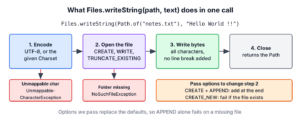
The method Files.writeString(path, text) is the shortest way to write a String to a file in Java. It creates the file if it does not exist, replaces its content if it does, and encodes the text as UTF-8. The method opens the file, writes the text and closes the file in one call, so there is no stream to manage.
We use Files.writeString() to save a generated report, an export, a config file or a test fixture, i.e. text that we already hold in memory as one String.
The following example writes a string to a file, reads it back, appends to it and writes with an explicit charset.
Path file = Path.of("notes.txt");
Path written = Files.writeString(file, "Hello World !!");                               // notes.txt
String content = Files.readString(file);                                                  // "Hello World !!"
Path appended = Files.writeString(file, " Bye", StandardOpenOption.APPEND);             // notes.txt
String afterAppend = Files.readString(file);                                              // "Hello World !! Bye"
Path latin = Files.writeString(Path.of("latin.txt"), "caf\u00e9", StandardCharsets.ISO_8859_1);   // latin.txt
Notice that the method returns the path it wrote to, and that the second call with APPEND keeps the existing text. We go through the two overloads, the open options for overwriting and appending, charsets, missing folders and a safe way to replace a file, plus the code for Java 8.
1. The Files.writeString() Method
The class java.nio.file.Files has two overloaded static methods that write a CharSequence to a file. A CharSequence is a String, a StringBuilder or any other text type, so we can pass a builder without calling toString() first.
| Overload | Charset | Typical use |
|---|---|---|
| writeString(Path path, CharSequence csq, OpenOption… options) | UTF-8 | Most files |
| writeString(Path path, CharSequence csq, Charset cs, OpenOption… options) | The given Charset | Files read by systems that expect another encoding |
Both methods return the Path and throw an IOException when the file cannot be opened or written, or when the text cannot be encoded with the charset. The options argument decides how the file is opened, which we cover in section 3. The first overload is equivalent to calling the second with StandardCharsets.UTF_8.
The method was added in Java 11 together with Files.readString(), as listed in Java new features, and works the same way in Java 25. It is one of several ways to write files covered in Java IO.
2. Java Write String to File Example
The following example saves a short daily sales report. We build the text with a text block, write it, and read it back with Files.readString() to check the content.
String report = """
        date=2026-10-10
        orders=42
        """;
Path reportFile = Path.of("daily-report.txt");
Path saved = Files.writeString(reportFile, report);                 // daily-report.txt
long size = Files.size(reportFile);                                 // 26
List<String> lines = Files.readAllLines(reportFile);                // [date=2026-10-10, orders=42]
The file has 26 bytes, which are the 24 visible characters plus two line feeds. Running the example a second time gives the same file, because the default options truncate the old content before writing. The relative path resolves against the working directory of the JVM, which is the project folder when we run the code from an IDE.
3. Overwriting, Appending or Creating a New File
When we pass no option, writeString() uses CREATE, TRUNCATE_EXISTING and WRITE. When we pass options, they replace these defaults completely, so we have to list every option we need.
| Options passed | File does not exist | File exists |
|---|---|---|
| None | Created | Content replaced |
| APPEND | NoSuchFileException | Text added at the end |
| CREATE, APPEND | Created | Text added at the end |
| CREATE_NEW | Created | FileAlreadyExistsException |
To append and create the file when needed, we pass both StandardOpenOption.CREATE and StandardOpenOption.APPEND. With APPEND alone, the first write to a new log file fails.
Path log = Path.of("audit.log");
Path failed = Files.writeString(log, "login\n", StandardOpenOption.APPEND);                                    // NoSuchFileException: audit.log
Path created = Files.writeString(log, "login\n", StandardOpenOption.CREATE, StandardOpenOption.APPEND);        // audit.log
Path again = Files.writeString(log, "logout\n", StandardOpenOption.CREATE, StandardOpenOption.APPEND);         // audit.log
Path once = Files.writeString(log, "reset\n", StandardOpenOption.CREATE_NEW);                                  // FileAlreadyExistsException: audit.log
The option CREATE_NEW is useful when two runs must not overwrite each other’s output, such as an export file named after the current date. Appending in loops, from several threads and with line separators is covered in appending to a file in Java.
4. Choosing the Charset
The first overload always writes UTF-8, whatever the operating system is, which is what most tools expect. We pass a charset only when another program reads the file in a different encoding, for example a legacy system that reads ISO-8859-1.
If the text contains a character that the charset cannot represent, writeString() throws an UnmappableCharacterException, which is a subclass of IOException. Older APIs, such as String.getBytes(charset), replace the character with a question mark instead, so the error shows up only when someone opens the file.
Path ascii = Path.of("ascii.txt");
Path utf8 = Files.writeString(ascii, "caf\u00e9");                                    // ascii.txt
Path notAscii = Files.writeString(ascii, "caf\u00e9", StandardCharsets.US_ASCII);     // UnmappableCharacterException: Input length = 1
long utf8Size = Files.size(ascii);                                                    // 5
The file still has the 5 bytes of the UTF-8 version, because \u00e9 takes two bytes in UTF-8 and writeString() encodes the text before it opens the file. A failed encoding leaves an existing file unchanged. Encodings, byte order marks and reading the text back are explained in reading and writing UTF-8 files.
5. Writing Into a Folder That Does Not Exist
The option CREATE creates the file, but not its parent folders. When the folder is missing, writeString() throws a NoSuchFileException with the path of the file, which looks confusing at first because the message names the file and not the folder.
Path summary = Path.of("reports", "2026", "summary.txt");
Path noFolder = Files.writeString(summary, "total=42");              // NoSuchFileException: reports/2026/summary.txt
Path folder = Files.createDirectories(summary.getParent());           // reports/2026
Path inFolder = Files.writeString(summary, "total=42");              // reports/2026/summary.txt
The method Files.createDirectories() does nothing when the folders exist, so we can call it before every write.
6. Replacing a File Safely With a Temporary File
A desktop app stores its settings in settings.properties and rewrites the file whenever the user changes an option. If the app crashes or the disk fills up in the middle of writeString(), the file is left truncated, and the next start fails to read the settings.
We avoid a half-written file by writing the new content to a temporary file in the same folder and moving it over the target with ATOMIC_MOVE. Readers see either the old file or the new one, never a partial one.
static void saveAtomically(Path target, String content) throws IOException {
    Path folder = target.toAbsolutePath().getParent();
    Path temp = Files.createTempFile(folder, "save-", ".tmp");
    try {
        Files.writeString(temp, content);
        Files.move(temp, target, StandardCopyOption.ATOMIC_MOVE);
    } finally {
        Files.deleteIfExists(temp);
    }
}
Path settings = Path.of("settings.properties");
saveAtomically(settings, "theme=dark");
saveAtomically(settings, "theme=light");
String current = Files.readString(settings); // "theme=light"The temporary file must be on the same file system as the target, otherwise the move throws an AtomicMoveNotSupportedException, which is why we create it in the target’s folder. Whether an atomic move replaces an existing target depends on the implementation, and the JDK on Linux, macOS and Windows replaces it.
7. Writing a String to a File in Java 8
Java 8 has no writeString(). The closest equivalent is Files.write() with the bytes of the string, and we always pass the charset to getBytes(), because on Java 8 the default charset depends on the operating system.
Path legacy = Files.write(Path.of("legacy.txt"), "Hello World !!".getBytes(StandardCharsets.UTF_8)); // legacy.txtFor text that does not fit comfortably in memory, or that we produce piece by piece, a BufferedWriter from Files.newBufferedWriter() is the better tool, as described in writing to a file in Java. The older APIs differ mainly in the input they take and in their default charset.
| API | Since | Input | Default charset |
|---|---|---|---|
| Files.writeString() | Java 11 | One CharSequence | UTF-8 |
| Files.write(path, bytes) | Java 7 | byte[] | None, bytes are written as they are |
| Files.write(path, lines) | Java 7, Java 8 without a charset argument | Iterable of lines, each followed by a line separator | UTF-8 |
| Files.newBufferedWriter() | Java 7, Java 8 without a charset argument | Text written in parts | UTF-8 |
| FileWriter | Java 1.1 | Text written in parts | Platform default, UTF-8 since Java 18 |
8. Files.writeString() FAQs
An existing file, a missing folder, line breaks and file size are the four things to know before we rely on writeString().
8.1. Does Files.writeString() Create the File if It Does Not Exist?
Yes, with the default options it creates the file. It does not create missing parent folders, so we call Files.createDirectories(path.getParent()) first when the folder may not exist.
8.2. Does Files.writeString() Overwrite the File?
Yes. With no options, it truncates an existing file to zero length before writing. To keep the old content, we pass StandardOpenOption.CREATE and StandardOpenOption.APPEND.
8.3. Does writeString() Add a Line Break at the End?
No. It writes the characters as they are. If the file must end with a new line, we add System.lineSeparator() or \n to the text, or use Files.write(path, lines), which adds a separator after every line.
8.4. Can We Use Files.writeString() for Large Files?
Yes, as long as the text fits in memory, because the whole text is a String before the call. For large or streamed output, such as rows read from a database, a BufferedWriter writes the data in parts and keeps memory use flat.
9. Conclusion
The method Files.writeString() writes a whole string to a file in one call. By default, it creates the file or replaces its content and encodes the text as UTF-8, and it returns the path it wrote.
We pass CREATE and APPEND to add to a file, CREATE_NEW to refuse overwriting, and a charset only for systems that need one. For files that must never be half-written, we write a temporary file first and move it into place with ATOMIC_MOVE.
10. References
- Java 25 API, Files.writeString()
- Java 25 API, StandardOpenOption
- Java 25 API, Files.move()
- JEP 400, UTF-8 by Default
- JDK-8201276, methods to read and write a string from and to a file
Happy Learning !!

Does the Files.writeString also creates the text file or does the file has to be present already ?
If the file does not exist, it will be created. If the file exists, it will be overwritten by default (unless you append to the file).
If the parent directory does not exist, it will throw a
NoSuchFileException. It is good idea toFiles.createDirectories(path.getParent());before this statement.