
ImageModel provides a Java API for generating an image from a text prompt. The application chooses the description and supported options, then receives image data from the configured provider.
This example adds a product-banner endpoint to OrderDesk’s separate media application using Spring AI 2.0.1 and gpt-image-1-mini. We explain request options, Base64 decoding, and serving the result. The example includes captured requests but no successful image-generation response from an account-backed provider call.
1. Understand the Prompt and Image Response
Image generation uses one method call, ImageModel.call(), and these types:
- ImagePrompt holds the text that describes the picture, along with optional settings such as the size and the number of images. The options type is ImageOptions, and for OpenAI it’s OpenAiImageOptions, which implements ImageOptions.
- ImageModel is the interface that sends the prompt to a provider. With the OpenAI starter, the bean is OpenAiImageModel.
- ImageResponse holds one ImageGeneration per generated picture, and getResult() returns the first one.
- Image, from ImageGeneration.getOutput(), carries the picture either as a URL (getUrl()) or as Base64 text (getB64Json()).
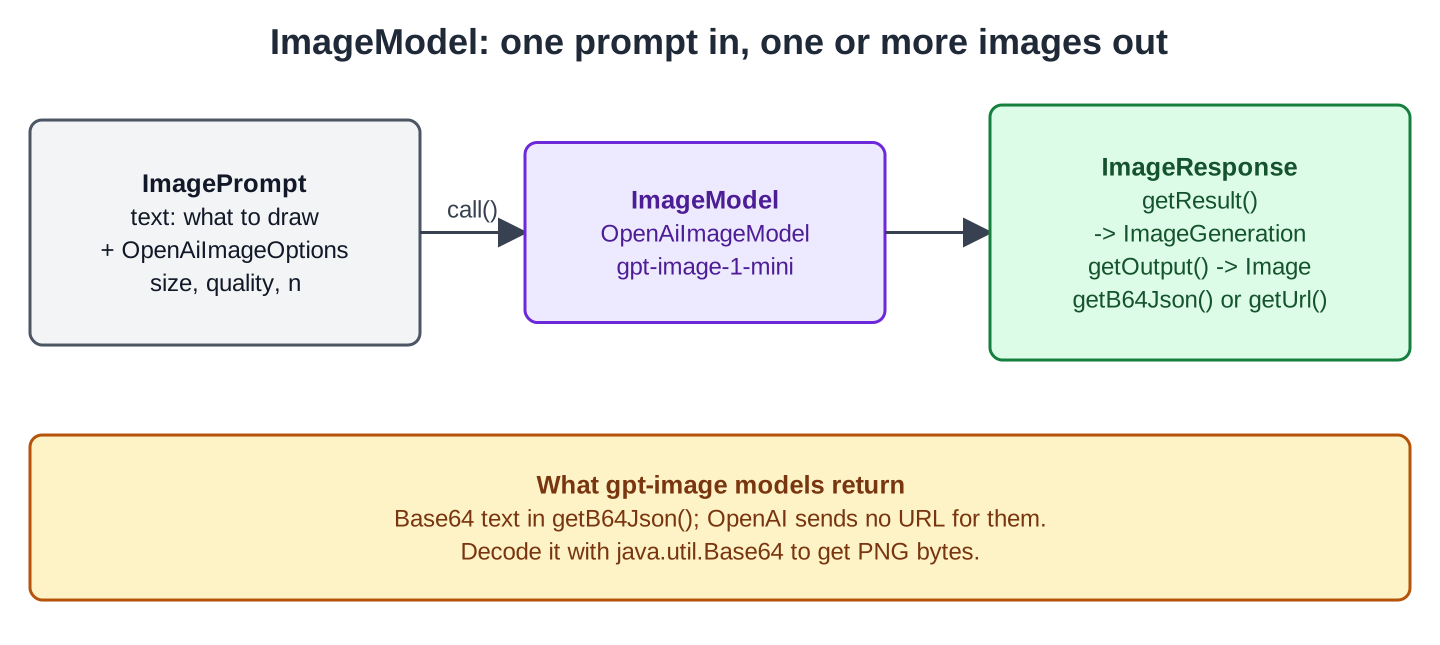
Base64 represents binary image data as text. The endpoint decodes the returned value into bytes before sending an image/png response. Treat the response representation separately from the image’s file format.
This example uses the OpenAI image integration rather than Ollama. Its recorded checks cover compilation and request construction, not successful generation or response decoding against OpenAI. FAQ 6.3 lists those limits.
2. Configure the Separate Media Application
This article is part of the OrderDesk series. Its code lives in orderdesk-media, a new Spring Boot 4.1 project next to OrderDesk in the same GitHub repository. It’s a separate project because it needs a paid OpenAI key. It runs on port 8082, and all its classes belong to the com.howtodoinjava.orderdesk.media package.
2.1. Creating the Project
Create a Maven project with this pom.xml. It uses the Spring Boot 4.1.1 parent, Java 21, and two starters. The Spring AI version comes from the BOM (bill of materials), a Maven file that fixes the versions of all Spring AI modules:
<?xml version="1.0" encoding="UTF-8"?>
<project xmlns="http://maven.apache.org/POM/4.0.0"
  xmlns:xsi="http://www.w3.org/2001/XMLSchema-instance"
  xsi:schemaLocation="http://maven.apache.org/POM/4.0.0 https://maven.apache.org/xsd/maven-4.0.0.xsd">
  <modelVersion>4.0.0</modelVersion>

  <parent>
    <groupId>org.springframework.boot</groupId>
    <artifactId>spring-boot-starter-parent</artifactId>
    <version>4.1.1</version>
    <relativePath/>
  </parent>

  <groupId>com.howtodoinjava</groupId>
  <artifactId>orderdesk-media</artifactId>
  <version>1.0.0</version>
  <name>orderdesk-media</name>

  <properties>
    <java.version>21</java.version>
  </properties>

  <dependencyManagement>
    <dependencies>
      <dependency>
        <groupId>org.springframework.ai</groupId>
        <artifactId>spring-ai-bom</artifactId>
        <version>2.0.1</version>
        <type>pom</type>
        <scope>import</scope>
      </dependency>
    </dependencies>
  </dependencyManagement>

  <dependencies>
    <dependency>
      <groupId>org.springframework.boot</groupId>
      <artifactId>spring-boot-starter-web</artifactId>
    </dependency>
    <dependency>
      <groupId>org.springframework.ai</groupId>
      <artifactId>spring-ai-starter-model-openai</artifactId>
    </dependency>
  </dependencies>

  <build>
    <plugins>
      <plugin>
        <groupId>org.springframework.boot</groupId>
        <artifactId>spring-boot-maven-plugin</artifactId>
      </plugin>
    </plugins>
  </build>
</project>
The OpenAI starter supplies the model integration and auto-configuration used by this application. The Maven plugin supplies the spring-boot:run command. Which model beans are active also depends on configuration.
The main class goes in com.howtodoinjava.orderdesk.media, so Spring Boot finds every class in that package:
package com.howtodoinjava.orderdesk.media;

import org.springframework.boot.SpringApplication;
import org.springframework.boot.autoconfigure.SpringBootApplication;

@SpringBootApplication
public class MediaApplication {

    public static void main(String[] args) {
        SpringApplication.run(MediaApplication.class, args);
    }
}
2.2. The API Key and Properties
The key needs an OpenAI account with billing set up, because every image is a paid request. You can create one at https://platform.openai.com/account/api-keys. Keep the key in an environment variable, not in a file that ends up in Git:
export SPRING_AI_OPENAI_API_KEY=sk-your-key
mvn spring-boot:run
On Windows, use set SPRING_AI_OPENAI_API_KEY=sk-your-key in the Command Prompt. Spring Boot maps the variable to the spring.ai.openai.api-key property. Without a key, the application doesn’t start:
Caused by: java.lang.IllegalStateException: At least one credential source must be specified: credential (apiKey), workloadIdentity, or adminApiKeyThese are the image lines in application.properties:
spring.application.name=orderdesk-media
server.port=8082

spring.ai.openai.image.model=gpt-image-1-mini
spring.ai.openai.image.size=1024x1024
The gpt-image-1-mini model is also the default model in Spring AI 2.0.1. The size set here applies to every call, and Step 1 sets a different size for the banner.
3. Generating a Product Banner
Step 1: Write the Banner Endpoint
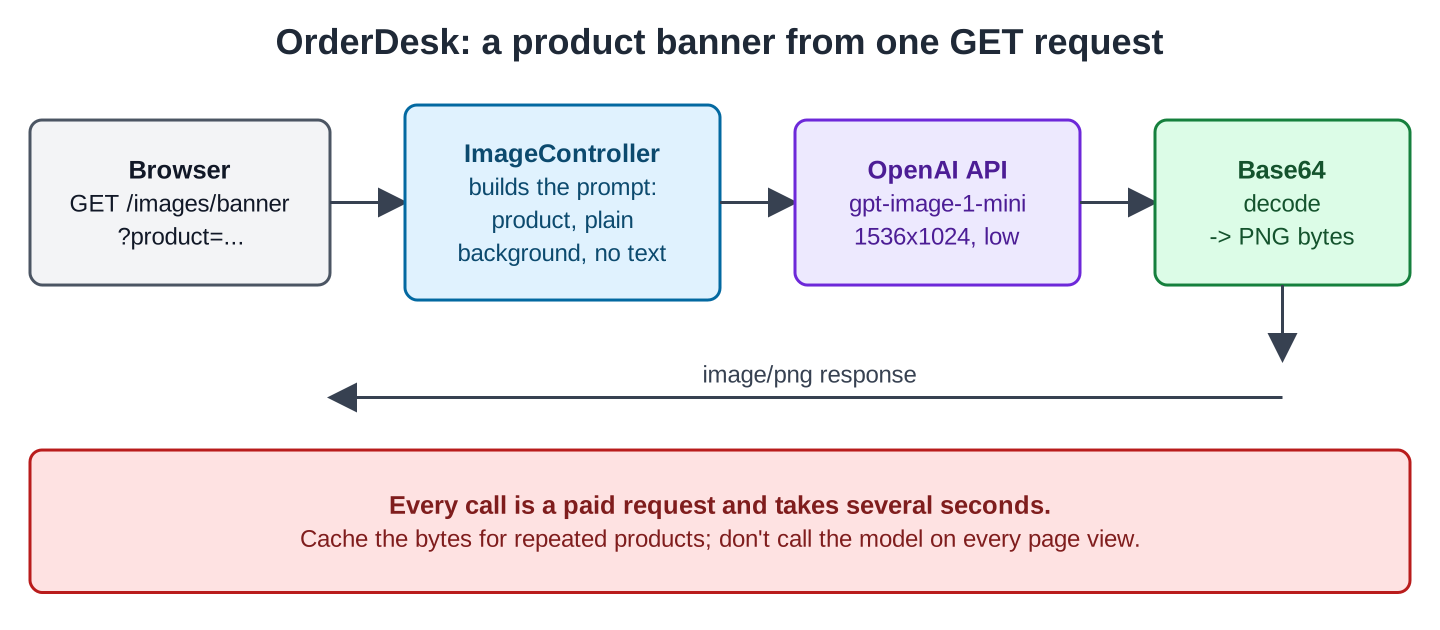
The /images/banner endpoint builds a prompt from the product name, asks for one wide image and returns it as a PNG:
package com.howtodoinjava.orderdesk.media;

import java.util.Base64;

import org.springframework.ai.image.ImageModel;
import org.springframework.ai.image.ImagePrompt;
import org.springframework.ai.image.ImageResponse;
import org.springframework.ai.openai.OpenAiImageOptions;
import org.springframework.http.MediaType;
import org.springframework.web.bind.annotation.GetMapping;
import org.springframework.web.bind.annotation.RequestParam;
import org.springframework.web.bind.annotation.RestController;

@RestController
public class ImageController {

    private final ImageModel imageModel;

    ImageController(ImageModel imageModel) {
        this.imageModel = imageModel;
    }

    // Generates a banner for a store promotion and returns it as a PNG
    @GetMapping(value = "/images/banner", produces = MediaType.IMAGE_PNG_VALUE)
    byte[] banner(@RequestParam String product) {
        String text = """
            A clean, bright e-commerce banner for an online store in India.
            Product: %s. Show the product on a plain light background.
            Do not draw any text, logos or people.""".formatted(product);

        ImageResponse response = imageModel.call(new ImagePrompt(text,
            OpenAiImageOptions.builder()
                .size("1536x1024")
                .quality("low")
                .n(1)
                .build()));

        // gpt-image models return the picture as Base64, not as a URL
        String base64 = response.getResult().getOutput().getB64Json();
        return Base64.getDecoder().decode(base64);
    }
}
The prompt describes the product, composition, background, and exclusions. Keeping promotional text in HTML lets the application control the wording and typography independently of generation. The endpoint’s image/png content type tells the browser how to display the returned bytes.
Step 2: Call the Endpoint
Open the URL in a browser, or save the image with curl -o:
curl -G localhost:8082/images/banner -o banner.png \
  --data-urlencode "product=steel water bottle"
The article does not include a generated banner from OpenAI. The recorded local server captures the outgoing request and returns an error; it verifies request construction only. Its temporary base URL is not part of normal provider configuration. The captured body targets /v1/images/generations:
{"prompt":"A clean, bright e-commerce banner for an online store in India.\nProduct: steel water bottle. Show the product on a plain light background.\nDo not draw any text, logos or people.","model":"gpt-image-1-mini","n":1,"quality":"low","size":"1536x1024"}The model comes from application.properties, while the size, quality, and count come from this request’s options. No response_format field is sent (see Section 4).
4. Choose Options Supported by the Selected Model
Properties supply defaults, while OpenAiImageOptions can override them for one call. Option support depends on the image model; the existence of a Java setter does not establish that every provider request accepts it.
| Option | Values for GPT image models | Notes |
|---|---|---|
| model | gpt-image-1-mini (default) or another GPT image model | Larger models cost more per image |
| size | 1024×1024, 1536×1024 (wide), 1024×1536 (tall), auto | Other sizes are rejected |
| quality | low, medium, high, auto | Low is fastest and cheapest; good for drafts |
| n | 1 to 10 | Each image is billed |
The style (vivid or natural) and response_format (url or b64_json) options apply only to the DALL-E models. OpenAiImageOptions still has these setters, so the code compiles. However, according to OpenAI’s documentation, a request to a GPT image model with these fields is rejected.
To get several images, set n(3) and read response.getResults(), a list with one ImageGeneration per image.
5. Common Traps
5.1. Treating the Result as a URL
Code written for DALL-E reads getUrl() and downloads the file. According to OpenAI’s documentation, GPT image models don’t return a URL, so getUrl() should return null. Read getB64Json() instead and decode it, as in Step 1.
5.2. Generating on Every Page View
The sample calls the provider whenever the endpoint is requested. In a shop, persist an approved generated asset and serve that file for subsequent page views. This avoids repeated inference charges and unpredictable generation latency.
5.3. Content Policy Errors
According to OpenAI’s documentation, OpenAI checks every prompt against its content policy and refuses some requests with an error instead of an image. In that case, imageModel.call() throws an exception. We didn’t trigger a real refusal. With the stub server, which returns HTTP 400, the call threw com.openai.errors.BadRequestException, and with a placeholder key, it threw com.openai.errors.UnauthorizedException. Both extend com.openai.errors.OpenAIServiceException. Catch it in the controller and return a placeholder image instead of an HTTP 500 to the shop page.
5.4. Names from Spring AI 1.0
Articles written for Spring AI 1.0 use spring.ai.openai.image.options.size. In 2.0.1, the .options. names still work but are deprecated, and the new names drop options, as in Section 2.2. The builder changed too: 1.0 has N(Integer), width(), and height(), while 2.0.1 has n(Integer), size(String), and quality(String).
6. FAQs
6.1. Can I generate images with Ollama?
This Spring AI example has no Ollama ImageModel implementation. Reading photos with a vision ChatClient is a different task. A compatible image-generation server can be used only if it supports the request and response features the OpenAI integration expects.
6.2. How do I save the image as a file?
Decode the Base64 text to a byte array and write it with java.nio.file.Files:
byte[] png = Base64.getDecoder().decode(base64);
Files.write(Path.of("banner.png"), png);
Files.write() throws IOException, so the method must catch or declare it. The default output format of GPT image models is PNG.
6.3. What was checked without an API key?
The original checks compiled the example with Spring Boot 4.1.1 and Spring AI 2.0.1 and captured its request using a local server. Startup used placeholder configuration where necessary. No real generated image or successful provider-response parsing was verified.
6.4. Can the model edit an existing product photo?
OpenAI has a separate image edit endpoint. Spring AI 2.0.1’s ImageModel has only call(ImagePrompt), which creates new images, so editing needs the OpenAI SDK directly.
7. Conclusion
Build an ImagePrompt, select model-compatible options, and decode the returned image representation before serving or saving it. The example demonstrates request construction; account-backed generation still requires valid provider access. Save approved assets so an ordinary product-page view does not create a new generation request.
All articles in order: Spring AI Tutorial
8. References
Drop me your questions related to Spring AI image generation in the comments.
Happy Learning !!
