
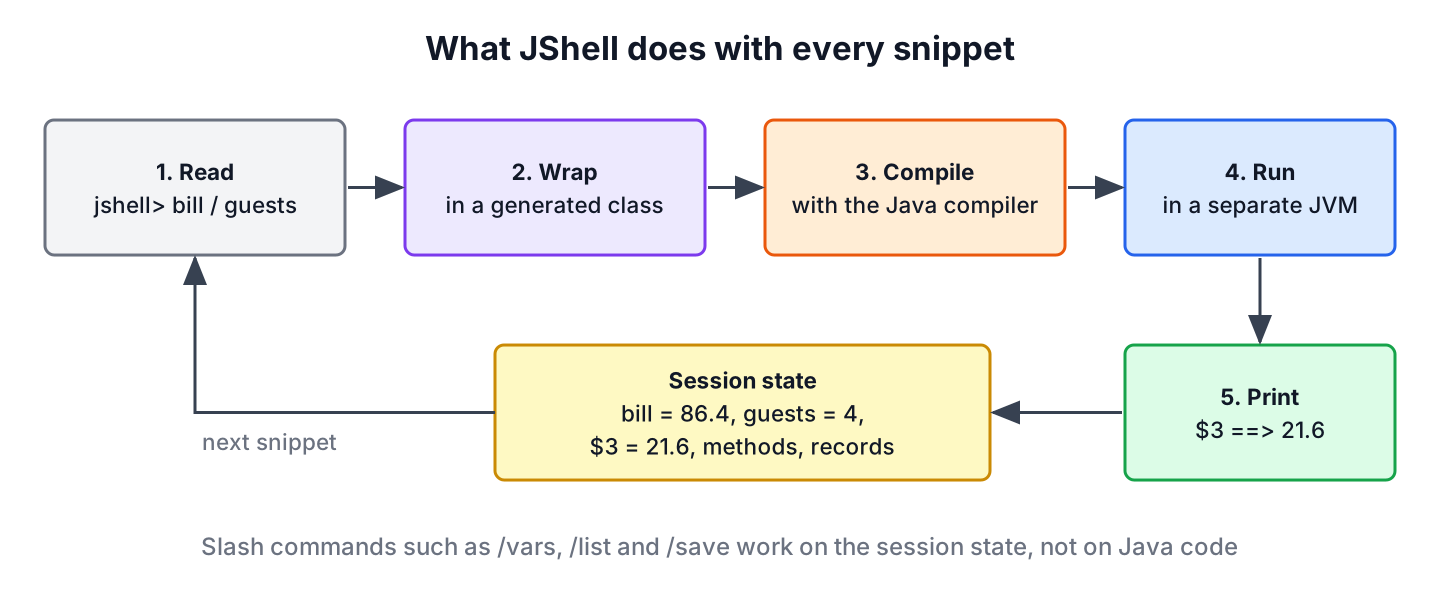
JShell is the interactive Java shell that ships with the JDK, a REPL (read-evaluate-print loop) that runs each Java statement, expression or declaration as soon as we press Enter and prints the result. There is no class to write, no main() method and no separate compile step.
We use JShell to try an API before putting it in our code, to check what an expression returns, to test a regex or a date pattern, and to teach or learn Java one line at a time. It does not replace an IDE, so once a snippet works, we copy it into the project.
The following example starts JShell and splits a restaurant bill between four guests.
$ jshell
|  Welcome to JShell -- Version 25.0.4.1
|  For an introduction type: /help intro

jshell> double bill = 86.40
bill ==> 86.4

jshell> int guests = 4
guests ==> 4

jshell> bill / guests
$3 ==> 21.6

jshell> String.format("%.2f each", bill / guests)
$4 ==> "21.60 each"

jshell> /exit
|  Goodbye
Notice that the lines need no semicolons, and that an expression without a variable gets a generated name such as $3. We start with snippets and the commands that manage them, and move on to imports, scripts, external JARs, shortcuts and a real debugging case.
1. Starting and Leaving JShell
JShell is part of the JDK, in the jdk.jshell module, and the jshell launcher sits in the JDK’s bin folder next to java and javac. If java -version prints the expected JDK, the jshell command works in the same terminal. Setting up the JDK and the PATH variable is covered in installing Java on Windows.
The tool supports a few start options that change what we see.
| Command | What it does |
|---|---|
| jshell | Starts a session with normal feedback |
| jshell -v | Starts with verbose feedback, which also prints the type of each new variable |
| jshell -q | Starts with concise feedback |
| jshell –class-path lib/app.jar | Adds a JAR or folder to the class path |
| jshell –enable-preview | Allows preview language features of the current JDK |
| jshell script.jsh | Runs the snippets in a script file after the startup scripts |
To leave the session, we type /exit or press Ctrl+D. JShell does not save anything on exit, so the snippets are lost unless we save them first with /save, as shown in section 5.
2. Writing Snippets in JShell
A snippet is one piece of Java code that JShell runs on its own, such as a variable declaration, an expression, a statement, a method or a class. JShell wraps each snippet in a generated class, compiles it and runs it, so the rules of Java still apply, but the code can live outside any class.
2.1. Variables, Expressions and Scratch Variables
A declaration prints the variable name and its value. An expression that we do not assign gets a scratch variable named $ plus the snippet number, and we can use that name in later snippets.
jshell> int guests = 4
guests ==> 4

jshell> String guests = "four"
guests ==> "four"
|  replaced variable guests : String
|    update overwrote variable guests : int
The session runs in verbose mode, started with jshell -v. Declaring guests again with another type replaces the old variable, which is not allowed in a normal Java method. JShell allows it because experiments often change their mind.
2.2. Methods and Forward References
Methods are declared at the top level, without a class around them. A method can call another method that does not exist yet, and JShell accepts it with a warning. The call works once the missing method is declared.
jshell> double share(double total, int people) { return round(total / people); }
|  created method share(double,int), however, it cannot be invoked until method round(double) is declared

jshell> double round(double value) { return Math.round(value * 100) / 100.0; }
|  created method round(double)

jshell> share(100, 3)
$5 ==> 33.33
To change a method, we type it again with the same signature, and JShell replaces it. A different parameter list creates an overload instead, the same as in a class.
2.3. Classes, Records and Interfaces
Type declarations work the same way. A record is often the fastest way to model test data in JShell, because one line gives us a class with a constructor, accessors and toString().
jshell> record Expense(String item, double amount) {}
|  created record Expense

jshell> var expenses = List.of(new Expense("pizza", 48.0), new Expense("drinks", 38.4))
expenses ==> [Expense[item=pizza, amount=48.0], Expense[item=drinks, amount=38.4]]

jshell> expenses.stream().mapToDouble(Expense::amount).sum()
$8 ==> 86.4
We can also declare a class with a main() method and call it, which is a quick way to try a small program from a tutorial.
jshell> class Greeter { public static void main(String[] args) { System.out.println("Hello, " + args[0]); } }
|  created class Greeter

jshell> Greeter.main(new String[] {"Lokesh"})
Hello, Lokesh
2.4. Exceptions and Checked Exceptions
When a snippet throws, JShell prints the exception and the stack trace and keeps the session alive. Checked exceptions need no try block at the top level, so Files.readString() runs without a throws clause.
jshell> Integer.parseInt("abc")
|  Exception java.lang.NumberFormatException: For input string: "abc"
|        at NumberFormatException.forInputString (NumberFormatException.java:67)
|        at Integer.parseInt (Integer.java:565)
|        at Integer.parseInt (Integer.java:662)
|        at (#11:1)
The last line, at (#11:1), points to snippet 11, line 1. We find that snippet with /list 11.
3. JShell Commands
Commands start with a slash and manage the session itself, whereas snippets are Java code. JShell accepts any unique prefix of a command, so /l works for /list, and /help followed by a command name prints its options.
| Command | What it does |
|---|---|
| /vars | Lists variables with their types and values |
| /methods | Lists methods with their parameter and return types |
| /types | Lists classes, interfaces, enums and records |
| /imports | Lists active imports |
| /list | Lists the active snippets with their IDs; /list -start shows the startup snippets |
| /edit name | Opens a snippet in the JShell Edit Pad or in the editor set with /set editor |
| /drop name | Removes a snippet by name or ID |
| /save file | Saves the active snippets to a file |
| /open file | Runs the snippets in a file |
| /reset | Discards all snippets and restarts the session |
| /reload | Restarts the session and replays the snippets |
| /history | Shows everything typed in the session, commands included |
| /env –class-path path | Changes the class path and replays the snippets |
| /set feedback mode | Switches between verbose, normal, concise and silent |
| /! or /id | Runs the last snippet again, or the snippet with that ID |
| /exit | Ends the session |
The listing commands show the state of the bill session from the previous section.
jshell> /vars
|    String guests = "four"
|    double $5 = 33.33
|    List<Expense> expenses = [Expense[item=pizza, amount=48.0], Expense[item=drinks, amount=38.4]]
|    double $8 = 86.4

jshell> /methods
|    double share(double,int)
|    double round(double)

jshell> /drop round
|  dropped method round(double)

jshell> share(100, 3)
|  attempted to call method share(double,int) which cannot be invoked until method round(double) is declared
Notice that /vars shows List<Expense> for a variable declared with var, because JShell reports the inferred type. Dropping round() makes share() unusable again, which shows that JShell tracks the dependencies between snippets.
For longer methods, /edit share opens the JShell Edit Pad, a small window with an Accept button. To use another editor, we set it once with /set editor -retain code -w for Visual Studio Code, or with the path of any other editor, and -retain keeps the setting for later sessions.
4. Imports Available in JShell
Since Java 25, JShell starts with import module java.base;, so every exported package of the java.base module is available without an import. That covers java.util, java.io, java.nio.file, java.time, java.math, java.util.stream and many more. Earlier JDKs imported only ten packages, and java.time was not one of them.
jshell> /list -start

  s1 : import module java.base;
The module import declaration is a Java 25 language feature that also works in normal source files, as described in our Java modules guide. Classes outside java.base, such as java.sql.Connection or anything from a library, still need a normal import statement.
Two other startup scripts ship with the JDK. The JAVASE script imports every Java SE package, and the PRINTING script adds print(), println() and printf() methods. In Java 25, we can also call IO.println() from java.lang.IO in any session.
$ jshell --startup DEFAULT --startup PRINTING

jshell> println("Each guest pays " + 21.6)
Each guest pays 21.6
Since the default startup is replaced when we pass –startup, we pass DEFAULT as well to keep the java.base import.
5. Saving Snippets and Running Script Files
A JShell script is a plain text file, by convention with the .jsh extension, that holds snippets and commands. We create one with /save, load it into a session with /open, or pass it to jshell on the command line.
jshell> double bill = 86.40
bill ==> 86.4

jshell> double tip(double amount) { return amount * 0.15; }
|  created method tip(double)

jshell> /save bill.jsh

jshell> /reset
|  Resetting state.

jshell> /open bill.jsh

jshell> tip(bill)
$3 ==> 12.96
The saved file contains the snippets as source code, with the semicolons that JShell added. The options /save -history and /save -all include the commands and the failed snippets as well.
A script can also run without the interactive prompt. When the last line is /exit, the session ends after the script, which makes JShell usable for small automation tasks.
$ cat split.jsh
double bill = 86.40;
int guests = 4;
System.out.printf("Each guest pays %.2f%n", bill / guests);
/exit

$ jshell split.jsh
Each guest pays 21.60
The dash argument reads snippets from standard input, as in echo ‘IO.println(2 + 3)’ | jshell –, which prints 5.
6. Using External JARs in JShell
JShell uses the same class path rules as java. We pass a JAR at startup with –class-path, or add it to a running session with /env –class-path. The second form restarts the session and replays our snippets, so nothing is lost.
jshell> /env --class-path commons-lang3-3.21.0.jar
|  Setting new options and restoring state.

jshell> import org.apache.commons.lang3.StringUtils

jshell> StringUtils.isBlank("  ")
$2 ==> true
For a Maven project, the command mvn dependency:build-classpath prints the full class path of the project, and we pass that value to –class-path. Library modules go on –module-path together with –add-modules. The Java classpath article explains the separators for Windows and Linux.
7. Shortcuts and Feedback Modes
JShell has tab completion for names, commands and command arguments. Pressing Tab after the first letters of a method lists the matching methods, and pressing Tab again shows the Javadoc of the method. Three Shift+Tab shortcuts turn the current line into code, and the /help shortcuts command describes them.
| Keys | Result |
|---|---|
| Tab | Completes the name or lists the candidates; a second Tab shows the documentation |
| Shift+Tab followed by v | Turns the expression into a variable declaration of the right type |
| Shift+Tab followed by m | Turns the expression or statement into a method declaration |
| Shift+Tab followed by i | Proposes imports for an unknown class name |
Feedback modes control how much JShell prints after each snippet. The verbose mode explains every change and suits learning, normal is the default, concise prints only values, and silent prints nothing except output and errors. We switch with /set feedback concise, or start with -v, -q or -s.
8. Checking a Date Pattern in JShell
A real case shows why JShell saves time. An invoicing app prints dates with the pattern YYYY-MM-dd, and a customer reports an invoice from December 29, 2025 that shows the year 2026. Instead of writing a unit test and rebuilding the app, we try the pattern in JShell.
jshell> var date = LocalDate.of(2025, 12, 29)
date ==> 2025-12-29

jshell> date.format(DateTimeFormatter.ofPattern("YYYY-MM-dd"))
$2 ==> "2026-12-29"

jshell> date.format(DateTimeFormatter.ofPattern("yyyy-MM-dd"))
$3 ==> "2025-12-29"
Two lines confirm the bug. In DateTimeFormatter patterns, YYYY is the week-based year and yyyy is the year of era, and December 29, 2025 belongs to the first week of 2026. The fix is a one-letter change, and the date formatting guide lists the other pattern letters. No imports were needed, because java.time is part of java.base.
9. JShell Version History
JShell arrived in Java 9 and its commands have changed little since. The biggest later change concerns the default imports in Java 25, which is one of many new Java features of that release.
| Java version | Change | JEP |
|---|---|---|
| Java 9 | JShell tool and the jdk.jshell API | JEP 222 |
| Java 25 | Default startup imports module java.base instead of ten packages | JEP 511 |
| Java 25 | java.lang.IO with IO.println(), usable in every session | JEP 512 |
10. JShell FAQs
A first JShell session raises questions about semicolons, the JRE, resetting the session and IDE support.
10.1. Do we need semicolons in JShell?
No, not for a single statement or expression on one line, because JShell adds the semicolon. We still need semicolons between statements inside a method body or a block, the same as in a source file.
10.2. Is JShell included in the JRE?
No. JShell is a development tool in the jdk.jshell module, so it ships with the JDK. A runtime image built with jlink for an app does not contain it unless we add that module.
10.3. How do we clear the JShell session?
We type /reset. It removes all snippets and restarts the session with the startup script. The /reload command restarts as well, but replays the snippets, which is useful after a change to the class path.
10.4. Can we use JShell inside IntelliJ IDEA?
Yes. IntelliJ IDEA has a JShell Console in the Tools menu, which runs snippets with the project’s class path. In the terminal, we get the same result by passing the project class path to jshell –class-path.
10.5. Can we use JShell from Java code?
Yes. The jdk.jshell module has a public API. The method JShell.create() starts an engine, and eval(String) runs a snippet and returns a list of SnippetEvent objects with the results. Online Java playgrounds and teaching tools use this API.
11. Conclusion
JShell runs Java snippets one at a time and prints each result, which makes it the fastest way to try an API, check an expression or reproduce a small bug. Variables, methods, records and classes can be declared at the top level, and redeclaring a name replaces the old version.
The slash commands manage the session. We list snippets with /vars, /methods and /list, save and load them with /save and /open, add JARs with /env –class-path and start over with /reset.
Since Java 25, every package of java.base is imported at startup, so classes such as LocalDate and Files work without import lines. For the language basics that we try in JShell, the Java tutorial is a good starting point.
12. References
- The jshell Command (JDK 25)
- Java Platform, Standard Edition Java Shell User’s Guide
- JEP 222, The Java Shell
- JEP 511, Module Import Declarations
- jdk.jshell JShell API Javadoc
Happy Learning !!

Hi Lokesh:
1) I’m running Windows 10 Pro and my environment variables do not have a JAVA_HOME variable as you showed:
JAVA_HOME=C:\Program Files\Java\jdk-9
So my question is do I really need a JAVA_HOME environment variable?
2) Also, I think you made an error in your comment and should replace ’till’ with ‘to’:
PATH=C:\Program Files\Java\jdk-9\bin //Path till bin folder <===!!! 'till' should be 'to'
3) I added the "jdk" download you pointed us to in your article (openjdk-9.0.4_windows-x64_bin\openjdk-9.0.4_windows-x64_bin\jdk-9.0.4\bin) to the end of my PATH variable. (The beginning of that PATH variable contains the "jre"). Is that ok?
Thanks for your very informative article,
Dan