
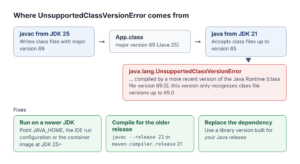
We build a project, start it, and the JVM stops before our code runs a single line:
Error: LinkageError occurred while loading main class com.howtodoinjava.Hello
	java.lang.UnsupportedClassVersionError: com/howtodoinjava/Hello has been compiled by a more recent version of the Java Runtime (class file version 69.0), this version of the Java Runtime only recognizes class file versions up to 65.0
The code is fine. The problem is that it was compiled for a newer Java than the one trying to run it. The fix is to make them match: run on a Java at least as new as the compiler, or compile with –release for the oldest Java we run on.
In this tutorial, we’ll decode the two numbers in the message and check which Java versions are really involved. Then we’ll walk through the three ways this error happens, each with its fix.
1. What the Error Means
Every .class file starts with a small header, and part of that header is a version number, called the class file major version. The compiler writes it, and it says which Java release the bytecode targets. Java 25’s javac writes 69 by default, Java 21’s writes 65, and so on.
When the JVM loads a class, it reads that number first. A JVM accepts class files from its own release and every older one, but never from a newer one. A newer class file may use bytecode features that the older JVM doesn’t know. So the message above says: this class file is version 69, and this JVM only understands up to 65.
To turn the numbers into Java releases, we subtract 44. That rule holds for every release since Java 1.2, as listed in the JVM Specification, and we confirmed it by compiling for releases 10 to 25. Here are the versions we meet most often:
| Java release | Class file major version |
|---|---|
| Java 8 | 52 |
| Java 11 | 55 |
| Java 17 | 61 |
| Java 21 | 65 |
| Java 25 | 69 |
So “69.0 … up to 65.0” means a Java 25 class file met a Java 21 runtime. The “.0” is the minor version, which is 0 for normal classes. We’ll see the one exception in section 6.
The error we saw comes from this small class, compiled with JDK 25 and started with Java 21:
package com.howtodoinjava;

public class Hello {
    public static void main(String[] args) {
        System.out.println("Hello from Java " + Runtime.version().feature());
    }
}
These are the two commands:
/usr/lib/jvm/java-25-openjdk-amd64/bin/javac -d out Hello.java
/usr/lib/jvm/java-21-openjdk-amd64/bin/java -cp out com.howtodoinjava.Hello
The launcher reports a LinkageError first because UnsupportedClassVersionError is a subclass of ClassFormatError, which is a LinkageError. On Java 8, the wording around it differs (“A JNI error has occurred”), and the limit reads “up to 52.0”.
2. Checking the Versions Involved
Before fixing anything, we should confirm both sides of the mismatch: the version of the class file, and the Java that actually ran it. Guessing is how people end up “fixing” the wrong JDK.
2.1. Checking the Version of a Class File
The javap tool that ships with every JDK prints the header of a class file:
javap -v -cp out com.howtodoinjava.Hello | grep -E "minor|major"The output shows the same numbers as the error message:
  minor version: 0
  major version: 69
On Linux and macOS, the file command reads the same header and prints something like “compiled Java class data, version 69.0”. The example project also has a small ClassFileVersion utility that reads these bytes in plain Java and prints “69.0 (Java 25)” for our class.
2.2. Checking Which Java Runs the Code
The other side is the runtime. On the command line, two settings decide it, and they often disagree:
java -version
echo $JAVA_HOME
The terminal runs the java found on the PATH, while many tools follow JAVA_HOME. On Windows, where java lists every java.exe on the PATH, and echo %JAVA_HOME% prints the variable.
Maven runs on its own JDK, which mvn -version shows:
Apache Maven 3.9.11 (3e54c93a704957b63ee3494413a2b544fd3d825b)
Java version: 25.0.4.1, vendor: Ubuntu, runtime: /usr/lib/jvm/java-25-openjdk-amd64
IDEs, application servers and Docker images each choose their own runtime as well. In IntelliJ IDEA, for example, the JRE of a run configuration and the Gradle JVM are separate settings. The rule is to check the runtime that failed, not the one in our terminal.
With both versions known, the cause is usually one of three situations.
3. Cause 1: Running on an Older Java Than We Compiled With
This is the case from our example: we build with JDK 25 and run on Java 21. Which fix we pick depends on one question: can we change the runtime?
3.1. Running on a Newer Java
If we can, we run the code on a Java at least as new as the compiler:
/usr/lib/jvm/java-25-openjdk-amd64/bin/java -cp out com.howtodoinjava.HelloThe program prints “Hello from Java 25”. In practice, this means pointing JAVA_HOME and the PATH at the newer JDK, or changing the IDE run configuration or the Docker base image. Our article on Unsupported Class File Major Version 69 shows the IntelliJ IDEA and Docker settings step by step.
3.2. Compiling for the Older Java
If production has to stay on Java 21, we keep JDK 25 as our compiler but tell it to write Java 21 class files. That’s what the –release option of javac does. It was added in Java 9 by JEP 247:
/usr/lib/jvm/java-25-openjdk-amd64/bin/javac --release 21 -d out Hello.java
/usr/lib/jvm/java-21-openjdk-amd64/bin/java -cp out com.howtodoinjava.Hello
The class file now has major version 65, and Java 21 prints “Hello from Java 21”. In Maven, we set the same option with the maven.compiler.release property:
<properties>
    <maven.compiler.release>21</maven.compiler.release>
</properties>
This property needs maven-compiler-plugin 3.6 or later. Projects that inherit from the Spring Boot parent set java.version instead, and the parent passes it on.
Gradle has the same idea with a twist. Its toolchain is the JDK that Gradle uses to compile, which can be different from the JDK that runs Gradle itself. We pick the toolchain and set the release separately:
java {
    toolchain {
        languageVersion = JavaLanguageVersion.of(25)
    }
}

tasks.withType(JavaCompile).configureEach {
    options.release = 21
}
We ran this with Gradle 8.14.3, and the compiled class has major version 65. If we only need Java 21 class files, a Java 21 toolchain without options.release is simpler. The Gradle toolchains documentation explains how Gradle finds the JDK.
Note that –release can only go down from the compiler’s own version. If the JDK running javac is older than the requested release, the build fails with “release version 25 not supported”, which we covered in Maven: release version 25 not supported.
3.3. Why –release Is Safer Than -source and -target
Many older answers fix this error with -source and -target instead of –release. Those options set the language level and the class file version, so the error goes away. But they leave out one thing: the class library the compiler checks our code against, called the bootstrap class path. Without –release, that’s still the library of the JDK running javac.
Let’s see what goes wrong. This code uses List.of(), which was added in Java 9:
List<String> genres = List.of("Fantasy", "Sci-Fi");
System.out.println(genres);
With -source 8 -target 8, JDK 25 compiles it, writes a Java 8 class file (major version 52), and prints this warning among several others about obsolete options:
warning: [options] bootstrap class path is not set in conjunction with -source 8
  not setting the bootstrap class path may lead to class files that cannot run on JDK 8
    --release 8 is recommended instead of -source 8 -target 8 because it sets the bootstrap class path automatically
On Java 8, the class loads fine, so the UnsupportedClassVersionError is gone. Instead, the program fails when it reaches the method that doesn’t exist on Java 8:
Exception in thread "main" java.lang.NoSuchMethodError: java.util.List.of(Ljava/lang/Object;Ljava/lang/Object;)Ljava/util/List;
	at com.howtodoinjava.Genres.main(Genres.java:7)
With –release 8, the compiler checks the code against the Java 8 library and stops at build time:
error: cannot find symbol
    List<String> genres = List.of("Fantasy", "Sci-Fi");
                              ^
  symbol:   method of(String,String)
  location: interface List
A compile error is much cheaper than a crash in production, so on JDK 9 and later we should always use –release.
4. Cause 2: A Dependency Built for a Newer Java
Sometimes we compiled our own code correctly, and the error still appears, but it names a class we never wrote. Then a library on the classpath was built for a newer Java than our runtime.
4.1. Finding the Library
To reproduce this, we built a small acme-pricing library with JDK 25, and an app with –release 21. The app prints “Starting checkout” and then calls the library’s TaxCalculator. On Java 21, we get:
Starting checkout
Exception in thread "main" java.lang.UnsupportedClassVersionError: com/acme/pricing/TaxCalculator has been compiled by a more recent version of the Java Runtime (class file version 69.0), this version of the Java Runtime only recognizes class file versions up to 65.0
	at java.base/java.lang.ClassLoader.defineClass1(Native Method)
	...
	at com.howtodoinjava.Checkout.main(Checkout.java:8)
Notice that the program started and printed its first line. The JVM loads a class the first time the code uses it, so this error can show up long after startup, in a code path that runs rarely.
The class name tells us what to look for. “Go to Class” in the IDE shows which library contains it, or we can list the dependencies with mvn dependency:tree, which shows com.acme:acme-pricing:jar:1.0.0 here. Then javap confirms the version of that class inside the JAR:
javap -v -cp acme-pricing.jar com.acme.pricing.TaxCalculator | grep majorThe output is “major version: 69”, so this library needs Java 25. If we compiled the app with JDK 21, javac would already complain with “class file has wrong version 69.0, should be 65.0”.
4.2. Fixing It and Blocking It in the Build
We have two fixes: run the app on a Java that the library supports, or use a release of the library that still supports our Java. Library release notes usually state the minimum Java version, and major releases often raise it.
To catch this before it reaches production, the enforceBytecodeVersion rule from MojoHaus Extra Enforcer Rules checks the class files of every dependency. We add it to the Maven Enforcer Plugin:
<plugin>
    <groupId>org.apache.maven.plugins</groupId>
    <artifactId>maven-enforcer-plugin</artifactId>
    <version>3.6.3</version>
    <dependencies>
        <dependency>
            <groupId>org.codehaus.mojo</groupId>
            <artifactId>extra-enforcer-rules</artifactId>
            <version>1.12.1</version>
        </dependency>
    </dependencies>
    <executions>
        <execution>
            <id>enforce-bytecode-version</id>
            <goals>
                <goal>enforce</goal>
            </goals>
            <configuration>
                <rules>
                    <enforceBytecodeVersion>
                        <maxJdkVersion>21</maxJdkVersion>
                    </enforceBytecodeVersion>
                </rules>
            </configuration>
        </execution>
    </executions>
</plugin>
Now mvn validate fails and names both the dependency and the class:
[INFO] Restricted to JDK 21 yet com.acme:acme-pricing:jar:1.0.0:compile contains com/acme/pricing/TaxCalculator.class targeted to JDK 25
[ERROR] Found Banned Dependency: com.acme:acme-pricing:jar:1.0.0
We set maxJdkVersion to the oldest Java we deploy on, the same value as maven.compiler.release.
5. Cause 3: Classes Compiled With Preview Features
The last case looks different. Preview features are language features that a JDK ships early for feedback, before they’re final. To use one, we compile with –enable-preview and the matching release:
javac --release 25 --enable-preview -d out Preview.javaThe compiler marks such a class by writing 65535 as its minor version, so javap shows “minor version: 65535” and “major version: 69”. If we run it without the flag, even on Java 25 itself, we get the same error with a different message:
Error: LinkageError occurred while loading main class com.howtodoinjava.Preview
	java.lang.UnsupportedClassVersionError: Preview features are not enabled for com/howtodoinjava/Preview (class file version 69.65535). Try running with '--enable-preview'
The fix is to pass the flag to the java launcher too, on a Java 25 runtime:
java --enable-preview -cp out com.howtodoinjava.PreviewThis only works on the same release. The JVM Specification lets a JVM load preview class files only from its own release, so a later JDK rejects them even with the flag. Code with preview features has to be recompiled for every new JDK, which is a good reason to keep them out of libraries.
6. A Checklist for the Next Time
When UnsupportedClassVersionError shows up again, these steps find the cause quickly:
- Read the two versions in the message and subtract 44 from each to get the Java releases.
- If the minor version is 65535, it’s the preview case: run with –enable-preview on the same JDK, or remove the preview features.
- Check whether the named class is ours or comes from a dependency.
- Find the runtime that actually failed: java -version, JAVA_HOME, the IDE run configuration, or the Docker base image.
- If we can upgrade that runtime, run on a Java at least as new as the class file.
- Otherwise, compile with –release set to the oldest Java we run on, in javac, Maven or Gradle.
- For a dependency, use a release that supports our Java, and add enforceBytecodeVersion to the build.
7. Conclusion
In this article, we saw that UnsupportedClassVersionError means a class file is newer than the JVM loading it. Subtracting 44 from the version numbers tells us which Java releases are involved. We fixed the mismatch by running on a newer Java, compiling with –release, replacing a dependency, or enabling preview on the same JDK. The safest default is to set –release to the oldest Java we deploy on, because it prevents both this error and missing-API crashes at build time.
