
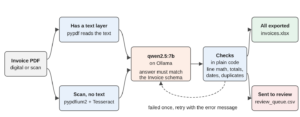
Suppose our business receives invoices from several suppliers. Someone needs to open each file and copy the supplier name, invoice number, dates, and amounts into a spreadsheet. The information is similar, but every supplier puts it in a different place. Scanned invoices make the work harder because we cannot simply copy their text.
We can ask AI to help with this reading. We give the model the invoice text and tell it which details we need. It returns those details in a format our Python code can use. We then check the amounts and dates and put anything questionable aside for someone to review.
In this article, we build an invoice extractor with Python and a model running locally through Ollama. It reads digital PDFs and scans, then exports the results to CSV and Excel. We use 24 sample invoices to see where it works and where it makes mistakes. The goal is to reduce manual copying while keeping a way to check every extracted value against the invoice.
1. How AI Invoice Extraction Works
The first step is getting readable text from the file. A digital PDF usually stores the characters on the page, so a library can read them directly. A scan contains a picture of the page instead. For that, we use optical character recognition, or OCR, to recognize the printed words and numbers.
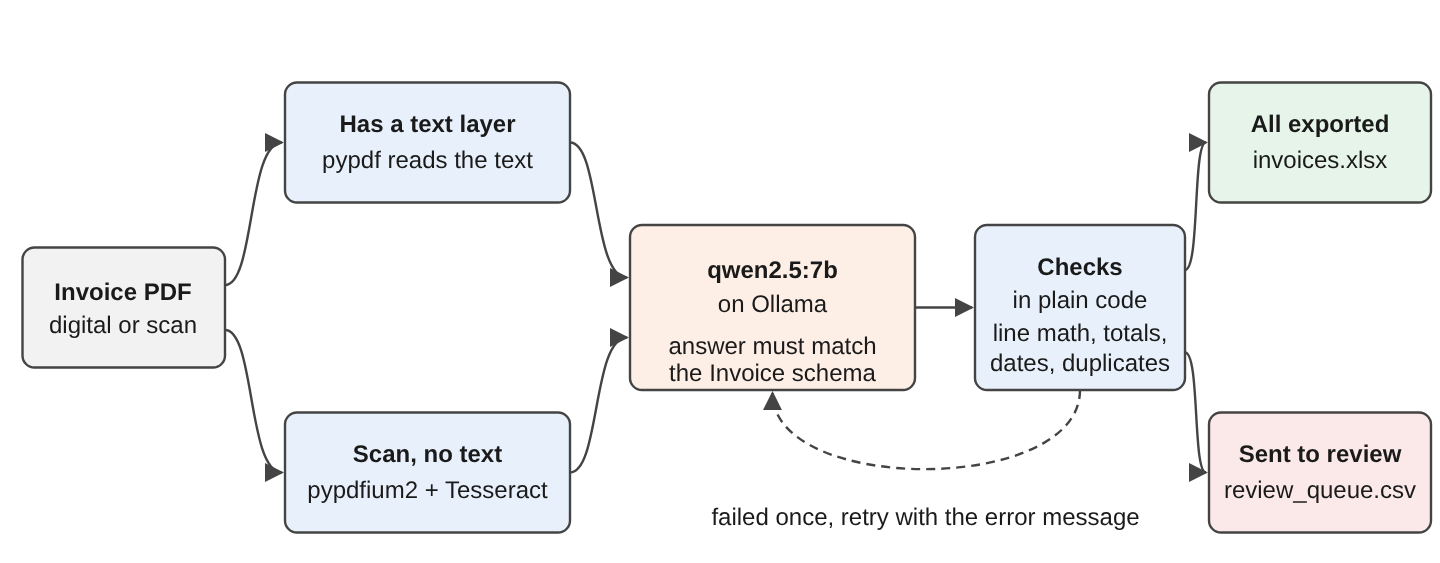
Once we have the text, we ask the model to fill in fields such as invoice_number, subtotal, and total. We describe those fields with a schema, which tells it what information to return and how to organize it. The response comes back as JSON, a text format with named fields that our script can read.
A correctly formatted answer can still contain the wrong amount or date. Our code checks the line-item arithmetic, totals, dates, and duplicate invoice numbers. If a check fails, we give the model one chance to reread the text. Any remaining problems go to a review file. Later, we add review rules for mistakes that these initial checks missed.
2. Setup
We need Python 3.12 or later, Ollama, and Tesseract. Ollama runs the language model, while Tesseract reads text from scanned pages. The recorded example used Python 3.13, Ollama 0.40.11, qwen2.5:7b, and Tesseract 5.3.4.
The Python packages used were ollama 0.6.3, pydantic 2.14.1, pypdf 6.21.2, pypdfium2 5.14.0, pytesseract 0.3.13, pandas 3.1.0, and openpyxl 3.1.5. We introduce their roles as we use them.
Before running the script, we need Ollama running on our machine. Our local-model guide covers its installation. We can then download the model and check that the local server responds on port 11434.
ollama pull qwen2.5:7b
ollama list                        # qwen2.5:7b should be in the list
curl http://localhost:11434        # prints "Ollama is running"
We create a virtual environment so the project has its own Python packages, then install the versions listed in requirements.txt. The activation command below uses Bash; the comment gives the Windows command.
python3 -m venv .venv
source .venv/bin/activate          # Windows: .venv\Scripts\activate
pip install -r requirements.txt
If we use uv to manage Python environments, uv venv –seed .venv can replace the first command. The –seed option includes pip, so the installation command stays the same.
Installing pytesseract does not install the OCR engine itself. We also need the Tesseract program. On Ubuntu we can use sudo apt install tesseract-ocr, and on macOS we can use brew install tesseract. The Tesseract installation guide covers other setups.
For the demo, generate_invoices.py creates 24 PDFs in invoices/ and saves their expected values in labels/. Because we know what each invoice contains, we can check the extracted fields rather than judge the output by appearance.
The invoices use three layouts and three date formats. Dates such as 12/09/2026 use day-first order. Invoice 7 is a credit note, which reverses an earlier charge and therefore has negative amounts. Invoice 12 contains a deliberate supplier error, with a printed total 10.00 higher than subtotal plus tax. Invoices 17 to 24 are blurred scans at 150 dots per inch, or DPI. These cases help us see what happens when the document itself is harder to read or does not add up.
3. Building the Invoice Extractor
We build the extractor in the following steps. The model handles finding fields in the invoice text. Python handles reading files, checking the answer, and writing the output.
| Step | Code | What you have afterwards |
|---|---|---|
| 1 | Invoice and LineItem | A JSON schema for the model |
| 2 | get_invoice_text() | The text of each PDF |
| 3 | ask_model() | A JSON answer that matches the schema |
| 4 | check_invoice() | A list of problems per invoice |
| 5 | extract() | A checked answer, retried once on failure |
| 6 | main() | invoices.csv, invoices.xlsx and review_queue.csv |
| 7 | evaluate.py | Accuracy per field |
We organize the application in extract.py. The outline below shows how its parts fit together; the later snippets provide the function bodies. For each PDF, main() calls extract(), adds the extra review checks from Section 5, and remembers the invoice number for duplicate checking. It writes invoice details and line items to separate tables and records any review reasons.
"""Extract invoice fields from PDFs with a local Ollama model, check them, export them."""
import json
import sys
import time
from datetime import date, timedelta
from pathlib import Path

import ollama
import pandas as pd
import pypdfium2 as pdfium
import pytesseract
from pydantic import ValidationError
from pypdf import PdfReader

from invoice_schema import Invoice


def get_invoice_text(pdf_path):
    """Step 2. Returns (text, "text layer" or "OCR")."""

def ask_model(messages):
    """Step 3. Returns the model's JSON answer as a string."""

def check_invoice(inv: Invoice, seen_numbers):
    """Step 4. Returns a list of problems; empty means the invoice passes."""

def extract(pdf_path, seen_numbers):
    """Step 5. Returns (invoice, problems, source, history)."""

def extra_review_rules(invoice: Invoice, history, today=None):
    """Section 5. Returns a list of reasons to send the invoice to review."""


def main(folder="invoices"):
    pdfs = sorted(Path(folder).rglob("*.pdf"))
    seen, invoice_rows, item_rows, review_rows, results = set(), [], [], [], {}
    for pdf in pdfs:
        start = time.perf_counter()
        invoice, problems, source, history = extract(pdf, seen)
        if invoice:
            problems = problems + extra_review_rules(invoice, history)
        attempts = len(history)
        seconds = time.perf_counter() - start
        print(f"{pdf.name}: {source}, {attempts} attempt(s), {seconds:.0f}s, "
              f"{'OK' if not problems else 'REVIEW: ' + '; '.join(problems)}")
        results[pdf.stem] = {
            "invoice": invoice.model_dump(mode="json") if invoice else None,
            "problems": problems, "source": source, "attempts": attempts,
            "seconds": round(seconds, 1), "history": history,
        }
        if problems:
            review_rows.append({"file": pdf.name, "problems": "; ".join(problems)})
        if invoice:
            seen.add(invoice.invoice_number)
            row = invoice.model_dump(exclude={"line_items"})
            invoice_rows.append({"file": pdf.name, **row, "needs_review": bool(problems)})
            for item in invoice.line_items:
                item_rows.append({"invoice_number": invoice.invoice_number,
                                  **item.model_dump()})

    invoices_df, items_df = pd.DataFrame(invoice_rows), pd.DataFrame(item_rows)
    invoices_df.to_csv("invoices.csv", index=False)
    with pd.ExcelWriter("invoices.xlsx") as writer:      # uses openpyxl
        invoices_df.to_excel(writer, sheet_name="Invoices", index=False)
        items_df.to_excel(writer, sheet_name="Line items", index=False)
    review_df = pd.DataFrame(review_rows, columns=["file", "problems"])
    review_df.to_csv("review_queue.csv", index=False)
    Path("results.json").write_text(json.dumps(results, indent=2))
    print(f"{len(invoice_rows)} invoices exported, {len(review_rows)} sent to review")


if __name__ == "__main__":
    main(*sys.argv[1:])
The results.json file keeps every model answer and its check results, including the first answer when a retry was needed. We use those records when examining mistakes later.
Step 1. Define the Invoice Schema
We first decide what information we want from each invoice. Invoice holds the supplier, dates, currency, amounts, and a list of purchased items. LineItem describes one item, including its quantity, unit price, and printed amount. Both extend Pydantic’s BaseModel, which lets us validate the returned data. The descriptions in Field() also give the model hints, such as distinguishing the supplier from the customer.
"""The fields we want from every invoice."""
from datetime import date

from pydantic import BaseModel, Field


class LineItem(BaseModel):
    description: str
    quantity: float
    unit_price: float
    amount: float = Field(description="The line total as printed on the invoice")


class Invoice(BaseModel):
    vendor_name: str = Field(
        description="The company that sent the invoice, not the customer")
    invoice_number: str
    invoice_date: date
    due_date: date | None = None
    currency: str = Field(description="Three-letter code such as EUR, GBP or USD")
    line_items: list[LineItem]
    subtotal: float
    tax: float
    total: float
Calling Invoice.model_json_schema() produces the schema we send to the model. When we read its answer, Pydantic checks the expected types. The date field, for example, rejects an impossible date such as 2026-02-30. Only due_date may be absent or null. Relationships between values need separate checks. A subtotal can be a valid number without matching the sum of the line items, so we check that in Step 4.
Step 2. Get the Text With pypdf or Tesseract OCR
We try reading the PDF’s stored text first with pypdf. If the result has more than 50 characters, this example uses it. Otherwise, pypdfium2 renders the pages as images and pytesseract sends them to Tesseract for OCR.
The 50-character threshold is a simple shortcut for these samples. It does not prove the extracted text is complete. A PDF could contain a readable heading and an invoice table stored as an image. For unfamiliar invoice layouts, we need to inspect what the extraction actually returns.
def read_text_layer(pdf_path):
    """Return the text a digital PDF contains, or an empty string for a scan."""
    reader = PdfReader(pdf_path)
    return "\n".join(page.extract_text() or "" for page in reader.pages).strip()


def ocr_scan(pdf_path):
    """Render each page to an image and read it with Tesseract."""
    pdf = pdfium.PdfDocument(pdf_path)
    texts = []
    for page in pdf:
        image = page.render(scale=300 / 72).to_pil()     # 300 DPI suits OCR
        texts.append(pytesseract.image_to_string(image))
    return "\n".join(texts).strip()


def get_invoice_text(pdf_path):
    text = read_text_layer(pdf_path)
    if len(text) > 50:
        return text, "text layer"
    return ocr_scan(pdf_path), "OCR"
PDF dimensions use points, with 72 points per inch. Rendering at scale=300 / 72 creates an image at 300 DPI. This gives Tesseract a larger image to work with, although enlarging a blurred scan cannot restore details that were already lost.
The OCR output shows why it is worth inspecting this text. On invoices 19, 21, and 22, Tesseract read the table by column and omitted the quantity column. The following excerpt from invoice 21 shows two rows of descriptions, prices, and amounts, but no quantities.
Description
Wireless mouse
Office chair mat

Unit price
18.40
45.00

Amount
92.00
135.00
If OCR leaves out a value, the model cannot copy that value from the supplied text. It might infer a quantity by dividing the amount by the unit price, but that is a calculation rather than an extraction. We need to distinguish those behaviors when checking the answer.
Step 3. Ask the Model for Structured JSON
We now send the invoice text to the model with instructions about what to copy. The system message contains those instructions, and the user message contains the extracted text. If we retry later, an assistant message carries the model’s previous answer so it can see which values failed our checks.
MODEL = "qwen2.5:7b"
SYSTEM_PROMPT = """You extract data from supplier invoices.
Copy values exactly as they appear on the invoice. Do not calculate or correct anything.
Write dates as YYYY-MM-DD. Dates on these invoices are written day first (DD/MM/YYYY).
Credit notes show negative amounts; keep the minus sign.
If a field is missing, use null."""


def ask_model(messages):
    response = ollama.chat(
        model=MODEL,
        messages=messages,
        format=Invoice.model_json_schema(),   # the answer must match this JSON schema
        options={"temperature": 0},
    )
    return response.message.content
The format argument supplies our schema to Ollama. We use temperature 0 to make responses more repeatable, although it does not guarantee identical answers. The response still needs to be parsed and checked before we use its values.
We specify day-first dates because 06/10/2026 could mean October 6 or June 10. That instruction describes our sample invoices; it needs changing if another supplier uses month-first dates. Dates such as 2026-09-12 already start with the year. Also, although the prompt says to return null for missing fields, this schema only permits it for due_date. A missing required value may therefore produce a validation error or an unreliable model answer that needs review.
Step 4. Validate the Extracted Invoice
Now that the answer has fields we can read, we check whether the values make sense together. For example, the line amounts should add up to the subtotal, and subtotal plus tax should equal the printed total. check_invoice() collects any problems rather than silently changing the amounts.
def check_invoice(inv: Invoice, seen_numbers):
    """Rules the JSON schema can't express. Returns a list of problems."""
    problems = []
    for item in inv.line_items:
        if abs(abs(item.amount) - item.quantity * item.unit_price) > 0.01:
            problems.append(f"line '{item.description}': quantity x unit price != amount")
    lines_sum = sum(item.amount for item in inv.line_items)
    if abs(lines_sum - inv.subtotal) > 0.01:
        problems.append(
            f"line items add up to {lines_sum:.2f}, subtotal is {inv.subtotal:.2f}")
    if abs(inv.subtotal + inv.tax - inv.total) > 0.01:
        problems.append(
            f"subtotal + tax = {inv.subtotal + inv.tax:.2f}, total is {inv.total:.2f}")
    if inv.due_date and inv.due_date < inv.invoice_date:
        problems.append("due date is before the invoice date")
    if inv.invoice_date > date.today():
        problems.append("invoice date is in the future")
    if inv.invoice_number in seen_numbers:
        problems.append("duplicate invoice number")
    return problems
We allow a difference of 0.01 in the amount comparisons to accommodate small floating-point differences. For the line-item check, we compare the absolute amount with quantity times unit price. This lets a credit-note line of -199.95 match a positive quantity of 5 at 39.99 each. If the model instead returns a quantity of -5, this particular check fails. Our sample credit note kept positive quantities. These conventions need checking against the invoices we actually process. For accounting use, decimal arithmetic is preferable to treating this demonstration’s float tolerance as a complete money-handling solution.
Invoice 12 illustrates an important distinction. The model copied the printed values correctly, but the supplier’s subtotal and tax did not add up to the printed total. The check kept the invoice in review, as shown in the recorded output.
invoice-12.pdf: text layer, 2 attempt(s), 114s, REVIEW: subtotal + tax = 62.16, total is 72.16
Step 5. Retry Once With the Error Message
A failed check may come from a copying mistake, so we let the model try once more. extract() sends its earlier answer back along with the problems we found. We ask it to reread the invoice text and correct copied values, while keeping a supplier’s printed mistake unchanged. After the second attempt, the function returns the answer and any remaining problems.
def extract(pdf_path, seen_numbers):
    text, source = get_invoice_text(pdf_path)
    messages = [
        {"role": "system", "content": SYSTEM_PROMPT},
        {"role": "user", "content": f"Invoice text:\n\n{text}"},
    ]
    problems, history = [], []
    for attempt in (1, 2):
        answer = ask_model(messages)
        try:
            invoice = Invoice.model_validate_json(answer)
        except ValidationError as e:
            invoice, problems = None, [f"invalid JSON: {e.errors()[0]['msg']}"]
        else:
            problems = check_invoice(invoice, seen_numbers)
        history.append({"answer": answer, "problems": problems})
        if not problems or attempt == 2:
            break
        # Retry once: show the model its answer and what is wrong with it
        messages += [
            {"role": "assistant", "content": answer},
            {"role": "user", "content": "These checks failed: " + "; ".join(problems)
             + ". Read the invoice text again and correct only values you copied wrongly."
             " If the invoice itself contains the mistake, keep the printed values."},
        ]
    return invoice, problems, source, history
Pydantic’s model_validate_json() raises ValidationError when the response does not fit the schema. All 33 responses in the recorded run could be parsed, including 24 initial answers and nine retries. The more revealing question is whether the retries improved the values.
The retry produced the expected values for invoices 20 and 22. Invoice 22 is a revealing case because its OCR text had no quantities. The model returned the correct quantities anyway, apparently calculating them from the other amounts despite the instruction not to calculate.
For invoice 21, the retry made the result worse. The first answer used a quantity of 1 on every line, giving a subtotal of 95.40 instead of the printed 355.00. On retry, the model kept those incorrect lines and changed the subtotal to 95.40 and the total to 166.40. Those values added up, so the checks passed, but the printed total was 426.00. A retry can make the numbers consistent without making them faithful to the invoice.
Step 6. Export to CSV and Excel
At the end of main(), we use pandas to write the collected rows. ExcelWriter creates a workbook, and each to_excel() call adds a sheet. The recorded run exported 24 invoice rows and 89 line-item rows, with six invoices listed in review_queue.csv. Flagged invoice values still appear in the export with needs_review set, so an exported row should not be treated as approved for payment.
Step 7. Measure Field-Level Accuracy
We can now compare the extracted data with the known values saved by the generator. evaluate.py reads results.json and the corresponding label files. The same() function compares one field, while items_match() in the complete evaluation code checks every quantity, unit price, and amount.
def same(field, got, expected):
    if got is None:
        return False
    if field in ("subtotal", "tax", "total"):
        return abs(float(got) - float(expected)) <= 0.01
    if field == "vendor_name":
        return got.strip().lower() == expected.strip().lower()
    return str(got).strip() == str(expected).strip()


def score(answers):
    """answers: {invoice id: extracted invoice dict or None}"""
    correct = {f: 0 for f in FIELDS + ["line_items", "all fields"]}
    for name, inv in answers.items():
        label = json.loads(Path(f"labels/{name}.json").read_text())
        ok = [same(f, inv and inv.get(f), label[f]) for f in FIELDS]
        ok.append(items_match(inv and inv.get("line_items"), label["line_items"]))
        for f, good in zip(FIELDS + ["line_items"], ok):
            correct[f] += good
        correct["all fields"] += all(ok)
    return correct
For each field, score() counts how many invoices matched the expected value. The all fields count is stricter. An invoice contributes to it only when every checked field and its line items match. Running python evaluate.py compares both the first answers and the answers after retry.
4. Results on 24 Invoices
The table shows how many invoices had each field right after the retry.
| Field | Digital PDFs, text layer (16) | Scans, Tesseract OCR (8) |
|---|---|---|
| Vendor name | 16/16 | 8/8 |
| Invoice number | 16/16 | 8/8 |
| Invoice date | 15/16 | 7/8 |
| Due date | 14/16 | 8/8 |
| Currency | 16/16 | 8/8 |
| Subtotal | 16/16 | 5/8 |
| Tax | 14/16 | 7/8 |
| Total | 16/16 | 6/8 |
| All line items | 16/16 | 5/8 |
| Every field correct | 12/16 | 3/8 |
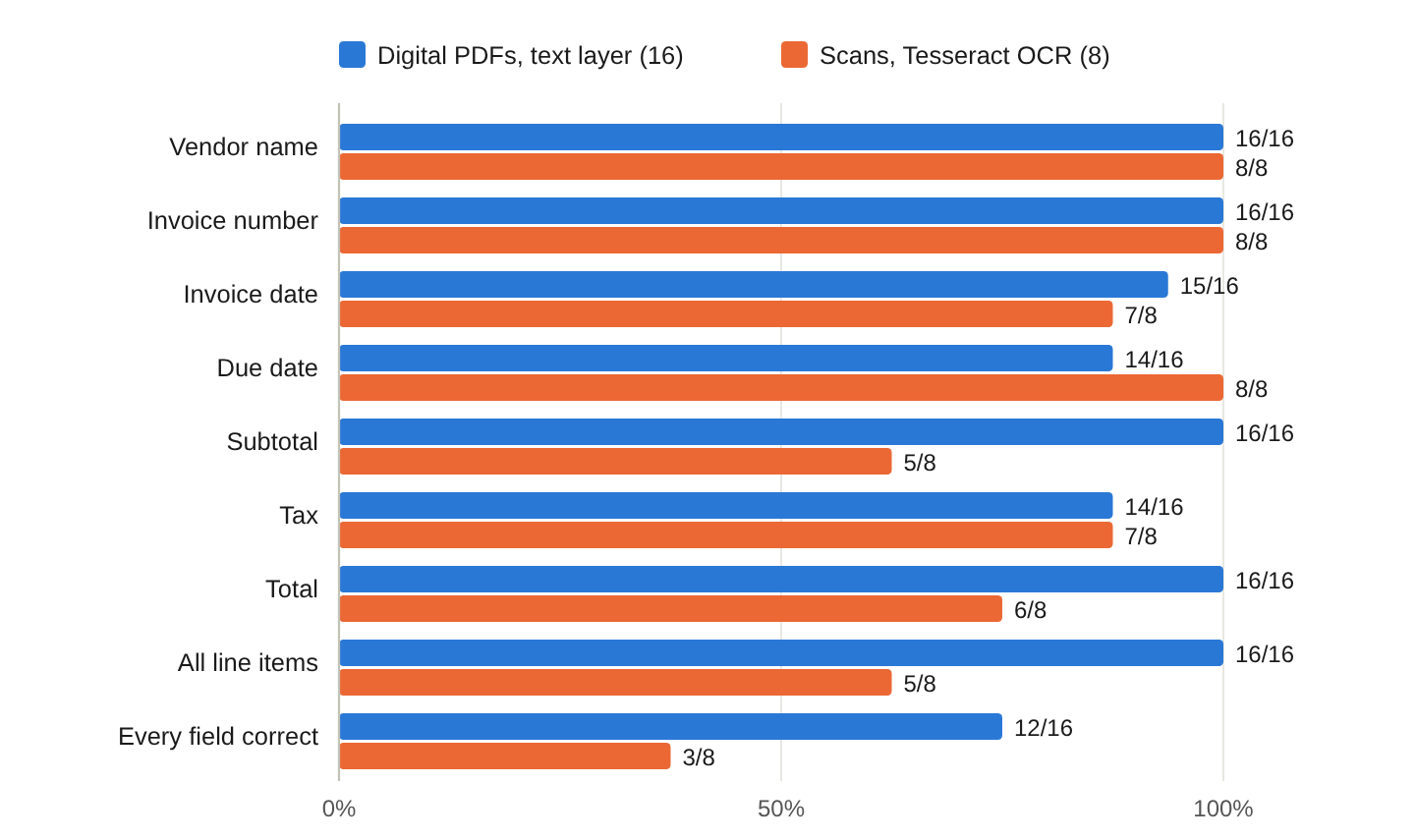
OCR was involved in three of the five scans with an incorrect final result. Two lost their quantity column, and another turned a unit price of 11.25 into 41.25. These are problems in the text passed to the model, before it starts extracting fields.
Three digital PDFs and six scans needed a retry. After those attempts, three of each type remained in review. The initial checks caught five of the nine invoices with an incorrect field, as well as the supplier’s incorrect printed total. Some failures were easy to explain. For invoices 4 and 11, the model returned value-added tax, or VAT, as a negative amount. For invoice 23, it used the VAT rate where the tax amount belonged.
Four invoices passed the initial checks despite having an incorrect field. The credit note’s date, 10 Sep 2026, became 1009-10-20, and its due date was missing. Invoice 13 also lost its due date. Invoice 17 turned 10/10/2026 into 1020-10-20. The fourth was invoice 21, whose retry had changed the totals. Arithmetic alone does not expose these mistakes.
The run took 2,724 seconds on a 2-core CPU with a shared Ollama server, a mean of 113 seconds per invoice. The median (the middle value of the sorted times) was 97 seconds for digital PDFs and 190 for scans. The means were 90 and 160, because a few invoices took only about 45 seconds.
The digital PDFs worked better than the scans in this small set. Their subtotal, total, and line items were correct on all 16 invoices, but only 12 were completely correct once dates and tax were included. Only three of the eight scans were fully correct. Before choosing this approach for our own invoices, we need to test representative files. For difficult scans, better OCR or a model that reads page images may help, but neither alternative was tested here.
5. Adding Review Rules for the Errors the Checks Missed
We can use the mistakes above to decide what else should go to a person. extra_review_rules() flags missing due dates, unusually old invoice dates, and a retry that changed the subtotal or total. Unlike the earlier checks, these rules do not ask the model to try again. main() applies them after extract() has finished.
def extra_review_rules(invoice: Invoice, history, today=None):
    """Rules that only send an invoice to review. They never trigger a retry."""
    today = today or date.today()
    flags = []
    if invoice.due_date is None:
        flags.append("due date is missing")
    if invoice.invoice_date < today - timedelta(days=365):
        flags.append("invoice date is more than 365 days old")
    if len(history) > 1:                       # the invoice needed a retry
        try:
            first = json.loads(history[0]["answer"])
            changed = any(abs(float(first[key]) - getattr(invoice, key)) > 0.01
                          for key in ("subtotal", "total"))
        except (ValueError, KeyError, TypeError):
            changed = True                     # no usable first answer to compare
        if changed:
            flags.append("the retry changed the subtotal or total")
    return flags
For this demo, a missing due date or an invoice date more than 365 days old needs review. These are review policies, not proof that the document is invalid. Some suppliers may legitimately omit a due date, and an old invoice may still need processing. We also flag changed totals because the retry might have adjusted the document’s values to satisfy our checks. A changed total can be a valid correction of a copying error too; a person needs to compare it with the PDF.
The extraction run reported in Section 4 happened before we added these rules. We did not call the model again to test them. Instead, python replay_rules.py applied the rules to the stored answers in results.json. The following output shows the four incorrect invoices that had previously passed.
invoice-07: accepted, WRONG, flagged: due date is missing; invoice date is more than 365 days old
invoice-13: accepted, WRONG, flagged: due date is missing
invoice-17: accepted, WRONG, flagged: invoice date is more than 365 days old
invoice-21: accepted, WRONG, flagged: the retry changed the subtotal or total
accepted with a wrong field: 4, now flagged: 4, correct invoices newly flagged: 0
The replay flagged all four previously accepted invoices with errors and did not newly flag a correct invoice in this set. It also flagged invoices 19 and 24, which were already in review. Combined with the original six, the review queue would contain ten invoices. These rules were chosen after inspecting the mistakes, so this result does not tell us how well they will work on new invoices. We need a fresh set of documents to check that.
6. FAQs
6.1. What is the best OCR model for invoices?
We only used Tesseract in this example, so we cannot name a best OCR engine from these results. Start with scans like the ones your suppliers actually send and compare the extracted text. Tesseract’s image-quality guide explains common problems such as low resolution, skew, and tables. If a quantity or price is missing from the OCR text, changing the language-model prompt will not restore the original evidence.
7. Conclusion
We built an extractor that reads an invoice, asks a local model for the fields we need, and writes the result to files we can inspect. The checks caught several mistakes, but the retry on invoice 21 showed why matching totals are not enough. We still need a way to compare questionable values with the original document.
The next step is to try the process on representative invoices and review the errors before connecting it to an accounting workflow. The sample rules help us decide what to inspect; they do not authorize a payment.
Drop me your questions related to extracting invoice data with AI in the comments.
Happy Learning!
