

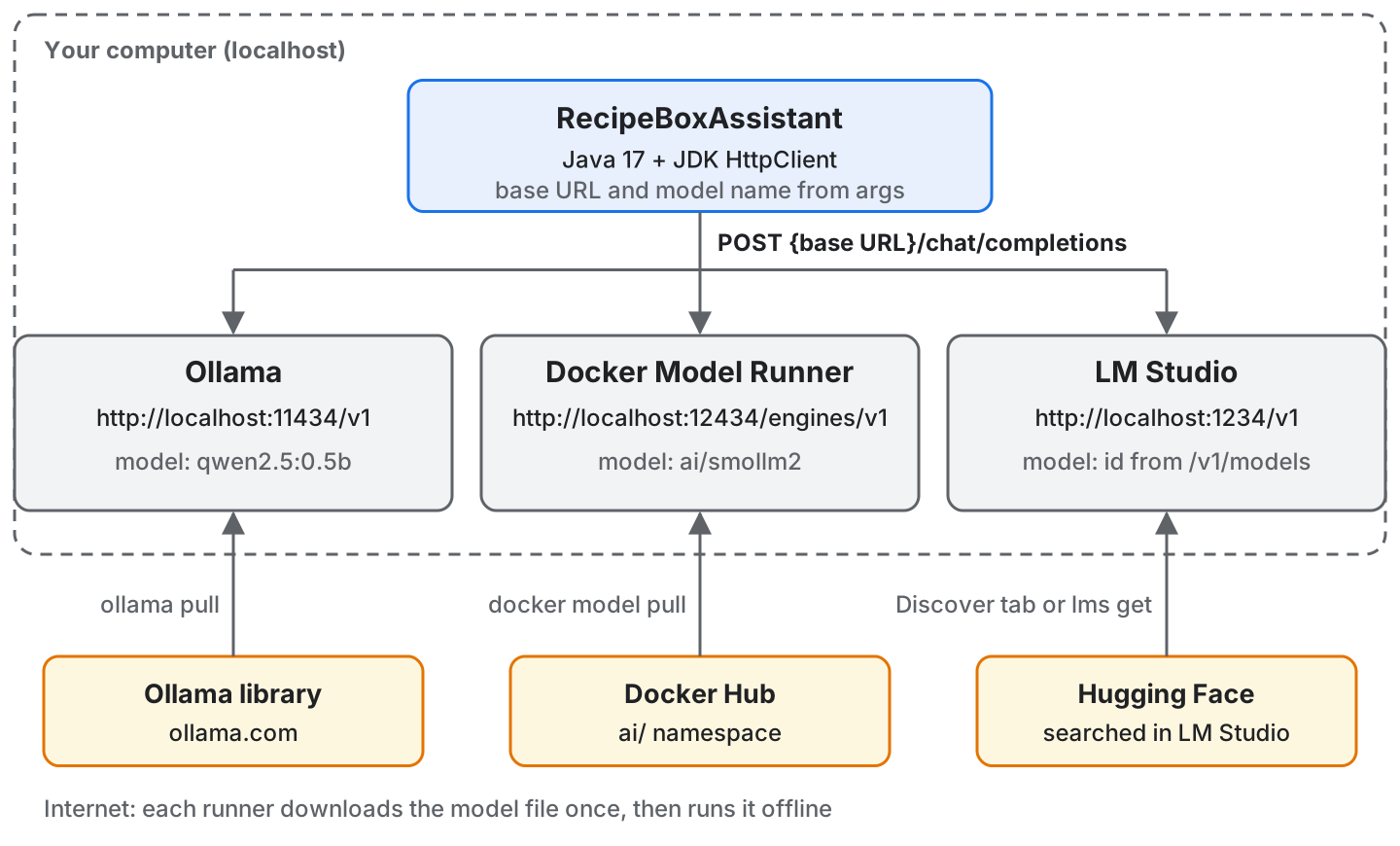
To run LLMs locally, we install a local runner that downloads an open model and serves it on our own machine, so the prompts never leave the computer and no request costs money. This tutorial compares the three common runners (Ollama, Docker Model Runner and LM Studio) and calls each of them from one plain Java 17 class that uses the JDK’s HttpClient and no framework.
1. Prerequisites
The example needs the tools that come with Java and nothing else, apart from the runner you pick.
- JDK 17 or newer.
- Maven 3.9 or newer.
- About 8 GB of RAM, which is plenty for the small model we use.
- No GPU. The small model in this article runs on the CPU.
2. What a Local LLM Runner Is
An LLM (large language model) is a neural network trained on text that writes an answer one word piece at a time, and it ships as a file of weights (the numbers learned in training). A local runner is the program that runs such a LLM on your own computer. It downloads the model file and loads it into memory. Then it starts an HTTP server on localhost, so any program on the same machine can send it a question and get the answer back.
The three runners in this article share one more thing. Each one serves an OpenAI-compatible API, which means it accepts the same JSON request and returns the same JSON response as OpenAI’s Chat Completions API.
A client written for that API works with a local runner when we change two values: the base URL (the part of the address before /chat/completions) and the model name.
The request our Java class sends is a model name and a list of messages, each with a role (system for the instructions, user for the question):
{
  "model": "qwen2.5:0.5b",
  "messages": [
    {
      "role": "system",
      "content": "You are a Recipe Box assistant. Answer in two sentences."
    },
    {
      "role": "user",
      "content": "What can I cook tonight with rice, eggs and spring onions?"
    }
  ],
  "temperature": 0.0
}
The temperature field controls how random the wording is, and 0.0 asks for the most predictable answer, which makes repeated runs easier to compare. Ollama answered that exact request with this response (formatted here for reading):
{
  "id": "chatcmpl-58",
  "object": "chat.completion",
  "created": 1792323543,
  "model": "qwen2.5:0.5b",
  "system_fingerprint": "fp_ollama",
  "choices": [
    {
      "index": 0,
      "message": {
        "role": "assistant",
        "content": "You can cook rice, eggs, and spring onions with a simple stir-fry."
      },
      "finish_reason": "stop"
    }
  ],
  "usage": {
    "prompt_tokens": 38,
    "prompt_tokens_details": {
      "cached_tokens": 37
    },
    "completion_tokens": 18,
    "total_tokens": 56
  }
}
The answer text is in choices[0].message.content; the usage block only counts tokens and our class ignores it.
3. Ollama vs Docker Model Runner vs LM Studio
The table compares the three runners on what you need to decide between them, as stated in each vendor’s documentation in October 2026. Read the “Best for” row first, then check the base URL row, because that value is the one our Java class needs.
| Ollama | Docker Model Runner | LM Studio | |
|---|---|---|---|
| Install | Installer app on macOS and Windows; install script on Linux | Built into Docker Desktop 4.40+ (macOS) and 4.41+ (Windows); docker-model-plugin package for Docker Engine on Linux | Desktop app for macOS (Apple Silicon, macOS 14+), Windows and Linux |
| Where models come from | The Ollama model library on ollama.com | Docker Hub (the ai/ namespace) and Hugging Face | Hugging Face, searched from inside the app |
| Base URL (default port) | http://localhost:11434/v1 (11434) | http://localhost:12434/engines/v1 (12434, after host-side TCP is enabled) | http://localhost:1234/v1 (1234) |
| GPU support | NVIDIA, AMD, Apple Silicon | NVIDIA, Apple Silicon; AMD on Linux | Apple Silicon; GPU offload on Windows and Linux |
| GUI | Chat app on macOS and Windows; command line everywhere | Models tab in the Docker Desktop Dashboard | Full desktop app with model search, chat and server controls |
| Licence | Open source (MIT) | Open source (Apache 2.0); Docker Desktop is paid for larger companies | Proprietary, free for home and work |
| Best for | The default choice, from the terminal | Teams that already use Docker Desktop or Docker Compose | Browsing and trying models in a GUI before writing code |
None of the three needs an API key on localhost by default. Ollama ignores the key when one is sent, and LM Studio has an optional authentication switch in its server settings.
4. Ollama
Ollama is a command line tool and background server that pulls models from its own library and serves them on port 11434. We install it, pull a small model, check the endpoint with curl, and then call it from Java. The Java class we write here is the one the next two sections reuse.
4.1. Install Ollama
On macOS and Windows, download the installer from the Ollama download page and open the app; the server starts with it. On Windows, the PowerShell line irm https://ollama.com/install.ps1 | iex does the same from a terminal. On Linux, the install script sets Ollama up as a service:
curl -fsSL https://ollama.com/install.sh | sh
ollama --version
The second command prints the installed version, which was ollama version is 0.40.6 for this article. If the server is not running (the version command then also prints could not connect to a running Ollama instance), start it in a separate terminal with ollama serve.
4.2. Pull a Small Model
Now we download a model. For a first test, a small model is the better choice, because the download is under 400 MB and it runs on any laptop, even without a GPU. We use qwen2.5:0.5b, a 0.5 billion parameter model from the Qwen 2.5 family:
ollama pull qwen2.5:0.5b
ollama list
The pull prints progress bars and ends with these lines, and ollama list then shows the model and its size on disk:
verifying sha256 digest
writing manifest
removing unused layers
success
NAME ID SIZE MODIFIED
qwen2.5:0.5b a8b0c5157701 397 MB 8 minutes agoThe name in the NAME column (qwen2.5:0.5b) is the exact model name our Java class sends. A name without the size tag, such as qwen2.5, means a different download, and the API will not find it.
Before writing any Java, we check that the OpenAI-compatible endpoint answers. The /v1/models endpoint lists the models the server can run:
curl -s http://localhost:11434/v1/modelsThe response (formatted here for reading) has one entry, and its id is the model name:
{
  "object": "list",
  "data": [
    {
      "id": "qwen2.5:0.5b",
      "object": "model",
      "created": 1792323269,
      "owned_by": "library"
    }
  ]
}
4.3. Create the Maven Project
The example is a small Maven project with one class, laid out like this:
run-llms-locally-java
|-- pom.xml
`-- src/main/java/com/howtodoinjava/localllm/RecipeBoxAssistant.java
The pom.xml sets Java 17, adds Jackson (a JSON library) to turn Java records into the request JSON and to read the response, and configures the exec-maven-plugin so that mvn exec:java runs our class:
<?xml version="1.0" encoding="UTF-8"?>
<project xmlns="http://maven.apache.org/POM/4.0.0"
         xmlns:xsi="http://www.w3.org/2001/XMLSchema-instance"
         xsi:schemaLocation="http://maven.apache.org/POM/4.0.0
                             https://maven.apache.org/xsd/maven-4.0.0.xsd">
  <modelVersion>4.0.0</modelVersion>

  <groupId>com.howtodoinjava</groupId>
  <artifactId>run-llms-locally-java</artifactId>
  <version>1.0.0</version>

  <properties>
    <maven.compiler.release>17</maven.compiler.release>
    <project.build.sourceEncoding>UTF-8</project.build.sourceEncoding>
  </properties>

  <dependencies>
    <dependency>
      <groupId>com.fasterxml.jackson.core</groupId>
      <artifactId>jackson-databind</artifactId>
      <version>2.22.4</version>
    </dependency>
  </dependencies>

  <build>
    <plugins>
      <plugin>
        <groupId>org.apache.maven.plugins</groupId>
        <artifactId>maven-compiler-plugin</artifactId>
        <version>3.16.0</version>
      </plugin>
      <plugin>
        <groupId>org.codehaus.mojo</groupId>
        <artifactId>exec-maven-plugin</artifactId>
        <version>3.6.4</version>
        <configuration>
          <mainClass>com.howtodoinjava.localllm.RecipeBoxAssistant</mainClass>
        </configuration>
      </plugin>
    </plugins>
  </build>
</project>
4.4. Call the Model from Java
The class RecipeBoxAssistant asks the model a Recipe Box question. It builds the request from two records, sends it with java.net.http.HttpClient (part of the JDK since Java 11), and reads the answer out of the response:
package com.howtodoinjava.localllm;

import java.io.IOException;
import java.net.URI;
import java.net.http.HttpClient;
import java.net.http.HttpRequest;
import java.net.http.HttpResponse;
import java.time.Duration;
import java.util.List;

import com.fasterxml.jackson.databind.JsonNode;
import com.fasterxml.jackson.databind.ObjectMapper;

public class RecipeBoxAssistant {

    // Request body of POST /chat/completions in the OpenAI format
    record Message(String role, String content) {}

    record ChatRequest(String model, List<Message> messages, double temperature) {}

    private static final String DEFAULT_BASE_URL = "http://localhost:11434/v1";
    private static final String DEFAULT_MODEL = "qwen2.5:0.5b";
    private static final String SYSTEM_PROMPT =
            "You are a Recipe Box assistant. Answer in two sentences.";

    private final HttpClient http = HttpClient.newBuilder()
            .connectTimeout(Duration.ofSeconds(5))
            .build();
    private final ObjectMapper json = new ObjectMapper();

    private final String baseUrl;
    private final String model;

    public RecipeBoxAssistant(String baseUrl, String model) {
        this.baseUrl = baseUrl;
        this.model = model;
    }

    public String ask(String question) throws IOException, InterruptedException {
        ChatRequest body = new ChatRequest(model, List.of(
                new Message("system", SYSTEM_PROMPT),
                new Message("user", question)), 0.0);

        String requestJson = json.writeValueAsString(body);

        HttpRequest request = HttpRequest.newBuilder()
                .uri(URI.create(baseUrl + "/chat/completions"))
                .header("Content-Type", "application/json")
                .timeout(Duration.ofSeconds(120))
                .POST(HttpRequest.BodyPublishers.ofString(requestJson))
                .build();

        HttpResponse<String> response =
                http.send(request, HttpResponse.BodyHandlers.ofString());

        if (response.statusCode() != 200) {
            throw new IllegalStateException(
                    "HTTP " + response.statusCode() + ": " + response.body());
        }

        JsonNode root = json.readTree(response.body());
        return root.at("/choices/0/message/content").asText();
    }

    public static void main(String[] args) throws Exception {
        String baseUrl = setting(args, 0, "LLM_BASE_URL", DEFAULT_BASE_URL);
        String model = setting(args, 1, "LLM_MODEL", DEFAULT_MODEL);

        RecipeBoxAssistant assistant = new RecipeBoxAssistant(baseUrl, model);
        String question = "What can I cook tonight with rice, eggs and spring onions?";

        long start = System.currentTimeMillis();
        String answer = assistant.ask(question);
        long millis = System.currentTimeMillis() - start;

        System.out.println("Runner: " + baseUrl + " (model " + model + ")");
        System.out.println("Question: " + question);
        System.out.println("Answer: " + answer);
        System.out.println("Took: " + millis + " ms");
    }

    // Program argument first, then environment variable, then the default
    private static String setting(String[] args, int index,
                                  String env, String fallback) {
        if (args.length > index && !args[index].isBlank()) {
            return args[index];
        }
        String value = System.getenv(env);
        return (value == null || value.isBlank()) ? fallback : value;
    }
}
A few lines decide how the class behaves:
- The records Message and ChatRequest have the same field names as the JSON in section 2, so Jackson writes the request body from them without any annotations.
- The URL is the base URL plus /chat/completions. Every runner in this article uses that same path after its own base URL.
- root.at(“/choices/0/message/content”) is a JSON Pointer, a path into the response tree, and it returns the answer text of the first choice.
- The request timeout is 120 seconds, because the first call after a pause also loads the model into memory.
- The method setting() reads the base URL and the model name from the program arguments first, then from the environment variables LLM_BASE_URL and LLM_MODEL, and falls back to the Ollama defaults.
4.5. Run the Class Against Ollama
With Ollama running, we compile and run the class from the project folder:
mvn compile exec:javaThe class prints the runner it called, the question, the model’s answer and the time the call took:
Runner: http://localhost:11434/v1 (model qwen2.5:0.5b)
Question: What can I cook tonight with rice, eggs and spring onions?
Answer: You can cook rice, eggs, and spring onions with a simple stir-fry.
Took: 807 ms
The answer is short and generic, which is what a 0.5B model gives; the point of this run is that the whole path works. The 807 ms was measured in a CPU-only Linux container with the model already loaded. The first call after starting Ollama took 2,760 ms because it also loaded the model, and Ollama unloads a model 5 minutes after the last request by default, so the slower call comes back after a pause.
When the model name does not match a pulled model, the runner answers with HTTP 404 and our class throws an IllegalStateException that carries the body. With the model name qwen2.5 the body was:
{
  "error": {
    "message": "model 'qwen2.5' not found",
    "type": "not_found_error",
    "param": null,
    "code": null
  }
}
The fix is to copy the name from ollama list or from the id field of /v1/models, including the tag after the colon.
5. Docker Model Runner
Docker Model Runner is a feature of Docker Desktop that downloads models from Docker Hub and serves them over HTTP. On Linux without Docker Desktop, it comes as a plugin for Docker Engine. We enable it with TCP access from the host, pull a model, and point the same Java class at it.
5.1. Enable Docker Model Runner
In Docker Desktop, the setting lives in the AI tab:
- Open Settings and select the AI tab.
- Select Enable Docker Model Runner.
- Select Enable host-side TCP support and keep the port at 12434.
- On Windows with a supported NVIDIA GPU, also select Enable GPU-backed inference.
- Select Apply.
If you prefer the terminal, this one command replaces steps 1, 2, 3 and 5. It turns on Model Runner with TCP access on port 12434:
docker desktop enable model-runner --tcp 12434The command has no option for GPU-backed inference, so on Windows with an NVIDIA GPU you still select that box in the AI tab.
On Linux with Docker Engine (no Docker Desktop), install the plugin from Docker’s package repository with sudo apt-get install docker-model-plugin (or sudo dnf install docker-model-plugin). There, TCP access on port 12434 is on by default.
Host-side TCP support is the setting our Java class depends on. Without it, Docker Desktop does not listen on port 12434, and a call from Java fails before any HTTP exchange:
Exception in thread "main" java.net.ConnectException
    at java.net.http/jdk.internal.net.http.HttpClientImpl.send(HttpClientImpl.java:923)
    at java.net.http/jdk.internal.net.http.HttpClientFacade.send(HttpClientFacade.java:133)
5.2. Pull a Model from Docker Hub
Docker Model Runner names models like images, with a namespace and an optional tag. Docker publishes ready-to-run models under the ai/ namespace, and we pull ai/smollm2 (a small model from the SmolLM2 family; its latest tag is about 258 MB):
docker model pull ai/smollm2
curl -s http://localhost:12434/engines/v1/models
The second command is the same check as in section 4.2, against the Docker Model Runner base URL. The model name to send from Java is the full name with its namespace, ai/smollm2. The docker model run ai/smollm2 command opens a chat in the terminal if you want to try the model before calling it from code.
5.3. Point the Java Class at Docker Model Runner
The class from section 4.4 needs no change. We pass the Docker Model Runner base URL and the model name as program arguments:
mvn compile exec:java -Dexec.args="http://localhost:12434/engines/v1 ai/smollm2"The output has the same four lines as the Ollama run, with the Docker Model Runner URL and model in the first line. In PowerShell, put the whole -Dexec.args=… option in double quotes. The environment variables work as well: LLM_BASE_URL=http://localhost:12434/engines/v1 LLM_MODEL=ai/smollm2 mvn exec:java in a Linux or macOS shell.
A Java application that itself runs in a container under Docker Desktop reaches the runner at http://model-runner.docker.internal/engines/v1 instead of localhost.
6. LM Studio
LM Studio is a desktop app that searches Hugging Face for models, downloads them, and runs them in a chat window or behind a local server. We download a model in the app, start the server, and point the same Java class at it. LM Studio also installs a command line tool, lms, which can do each of these steps from a terminal.
6.1. Download a Model in LM Studio
Download LM Studio from its website, install it, and open it once (that also sets up the lms command). Then download the same small model we used with Ollama:
- Open the Discover tab (Cmd+2 on macOS, Ctrl+2 on Windows and Linux).
- Search for qwen2.5 0.5b.
- Pick a 4-bit download option (a name with Q4 in it, such as Q4_K_M) and select Download.
LM Studio lists several download options for one model, which are copies of the same model at different file sizes and quality. The LM Studio docs recommend 4-bit or higher, and for a first test the 4-bit option is the smallest one that follows that advice.
From a terminal, lms get qwen2.5-0.5b searches for the model and asks which download option to take.
6.2. Start the LM Studio Server
LM Studio uses two different names for a model, and they go to different places:
- The model key, which lms ls prints for each downloaded model. It goes to lms load.
- The model id, which GET /v1/models returns for each loaded model. It goes into our Java call as the model name.
The server is off until we start it. In the app, open the Developer tab, select the downloaded model to load it, and turn on the Start server switch. From a terminal, we list the models, load one, start the server and read the id:
lms ls
lms load
lms server start --port 1234
curl -s http://localhost:1234/v1/models
The lms load command without a key lists the downloaded models and asks which one to load, so you don’t have to type the key. We pass –port 1234 because the server otherwise starts on the port it used last time. The last command prints the loaded models; copy the value of the id field.
6.3. Point the Java Class at LM Studio
Again only the arguments change. Replace MODEL_ID with the id value that your /v1/models call printed:
mvn compile exec:java -Dexec.args="http://localhost:1234/v1 MODEL_ID"If you turned on Require Authentication in LM Studio’s server settings, the server rejects requests without an Authorization header. Our class sends none, so keep the switch off for local work, or add .header(“Authorization”, “Bearer ” + token) to the request builder with the token read from an environment variable.
7. Which One to Pick to Run LLMs Locally
All three runners serve the same API to our Java code, so the choice depends on the rest of your setup and not on the code. Start with Ollama unless Docker Desktop or a GUI is already part of your day. Answer three questions in order, and the first answer that names a runner is your pick.

The table holds the same three questions with both answers.
| Question | Yes | No |
|---|---|---|
| 1. Does your app already run with Docker Desktop or Docker Compose? | Docker Model Runner | Go to question 2 |
| 2. Do you want to browse and chat with models in a window before writing code? | Go to question 3 | Ollama |
| 3. Is a proprietary licence (free for home and work) acceptable to you? | LM Studio | Ollama, with its chat app on macOS and Windows |
Switching later means changing the base URL and the model name, as section 5.3 and section 6.3 showed, so the first pick is not a lock-in.
8. FAQs
8.1. How much RAM do I need to run an LLM locally?
It depends on the model, because the runner loads the whole model file into memory. With 8 GB of RAM, qwen2.5:0.5b (398 MB), qwen2.5:1.5b (986 MB) and qwen2.5:3b (1.9 GB) fit next to your IDE and browser. The qwen2.5:7b model (4.7 GB) loads too, but it leaves about 3 GB for everything else, which is tight; LM Studio recommends 16 GB for general use. The sizes are the download sizes on the Ollama library page, and ollama list shows the same for what you pulled.
8.2. Can I use Spring AI or LangChain4j instead of HttpClient?
Yes. Both frameworks have an OpenAI client that accepts a base URL, so they connect to any of the three runners the same way our class does; in Spring AI this is the spring.ai.openai.base-url property (set without the trailing /v1, because Spring AI adds that part to the path itself), and in LangChain4j it is baseUrl() on the OpenAiChatModel builder. Both also have a dedicated Ollama module, and Setting Up Ollama and Connecting with Spring AI walks through that setup.
8.3. Which model size should I start with?
Start with a model under 1B parameters, such as qwen2.5:0.5b, to prove that the runner and your code work together. Its answers are short and shallow, as the run in section 4.5 shows. The next step up is qwen2.5:3b (ollama pull qwen2.5:3b), and with 16 GB of RAM qwen2.5:7b. In the Java class, only the model name changes.
8.4. Do I need a GPU to run a local LLM?
No. The Ollama runs in this article used a CPU-only Linux container. A GPU makes larger models fast enough for interactive use, and the table in section 3 lists which GPUs each runner supports.
9. Conclusion
To run LLMs locally from Java, pick Ollama by default, Docker Model Runner when Docker Desktop is already your daily tool, and LM Studio when you want a GUI. All three speak the OpenAI Chat Completions format on localhost, so the RecipeBoxAssistant class works against each of them, and switching runners means changing the base URL and the model name. The one trap to remember is that the model name must match the runner’s own id exactly, and on Docker Desktop, host-side TCP support must be on before Java can reach port 12434.
Once a model runs on your machine, the next step is to make it answer from your own documents. RAG Explained: Retrieval Augmented Generation for Java builds that on top of Ollama. To choose between RAG, fine-tuning and a better prompt, read Fine-Tuning vs RAG vs Prompt Engineering for LLM Apps.
10. References
- Ollama: OpenAI compatibility
- Ollama: FAQ
- Ollama: Hardware support
- Docker Model Runner: Get started
- Docker Model Runner: API reference
- docker desktop enable model-runner
- LM Studio: OpenAI compatibility endpoints
- LM Studio: Download a model
- LM Studio: lms load
- Java 17 HttpClient Javadoc
Drop me your questions related to running LLMs locally with Java in the comments.
Happy Learning !!
