
Spring AI streaming lets a chat endpoint send the model’s answer in small pieces while the model is still writing it. In this example, we turn a slow Spring AI endpoint into a streaming one and show the answer in the browser as it arrives. Along the way, we fix one trap: the browser drops the spaces between words.
1. call() vs stream(): What the User Sees
A Spring AI ChatClient gives us two ways to run a prompt. With call().content(), we wait until the model has written the whole answer, and then get it as one String. With stream().content(), we get a Flux<String> instead. A Flux is a type from Reactor, a Java library for working with values that arrive over time. A Flux holds a sequence of such values. Here each value is one piece of the answer, usually a word or a part of a word.
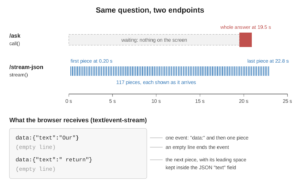
We asked our example app the same question through both kinds of endpoint: “Explain your return policy for a damaged parcel in four sentences.” These are the times we measured:
/ask: whole answer after 19.5 s, 528 bytes
/stream-json: first piece after 0.20 s, 117 pieces, last after 22.8 s
The /ask endpoint uses call(). The /stream-json endpoint uses stream(), and we build it in Section 4.
Streaming doesn’t make the model faster. The full answer still takes about 20 seconds. The difference is how long the user waits before seeing something: 0.20 seconds instead of 19.5.
2. What Server-Sent Events Are
Server-Sent Events (SSE) is a web standard for sending a stream of text messages from a server to a browser over one long HTTP response. The response has the content type text/event-stream. A content type is the HTTP header that tells the client what kind of data the body holds. Each message is called an event.
In the response body, each event is a line that starts with data:, followed by an empty line:
data:Our

data: delivery

data: charges
The browser has a built-in JavaScript class for this format, called EventSource. It opens the connection, splits the body into events, and calls our JavaScript function once per event. On the server side, Spring MVC writes this format for us when an endpoint returns a Flux and says it produces text/event-stream.
SSE only goes one way, from the server to the browser. That’s all a chat answer needs, because the browser sends the question once, at the start, in the request.
3. The Example App
This article is part of the OrderDesk series. OrderDesk is the support assistant of a demo online store. The code for this article lives in the com.howtodoinjava.orderdesk.streaming package and the src/main/resources/static/chat.html page. The full app is on GitHub in the orderdesk folder.
The example uses Spring Boot 4.1.1, Spring AI 2.0.1, and Java 21, with the qwen2.5:3b model running in Ollama on our own computer, so we don’t need an API key. For the basic setup (Ollama, the model, the Spring Boot project, the Spring AI BOM, and the Ollama starter), see Getting Started with Spring AI.
Streaming adds nothing to that setup. Reactor comes with the Spring AI starter, and the spring-boot-starter-web dependency from Getting Started knows how to send a Flux as SSE. So we don’t add the WebFlux starter or any other dependency.
The project from Getting Started also has the supportClient bean, a ChatClient defined in the ChatClientConfig class, and the streaming endpoints use this bean. Its system prompt (the fixed instructions sent to the model with every question) holds the store’s delivery rules. These rules explain the answers we see later:
package com.howtodoinjava.orderdesk.chat;

import org.springframework.ai.chat.client.ChatClient;
import org.springframework.context.annotation.Bean;
import org.springframework.context.annotation.Configuration;

@Configuration
public class ChatClientConfig {

    static final String SUPPORT_RULES = """
        You are OrderDesk, the support assistant of an online store.
        Answer in at most three sentences.
        Delivery: Pune, Mumbai and Delhi in 2 days; every other city in India in 5 days.
        Delivery is free above INR 499; below that it costs INR 49.
        We do not deliver outside India.
        """;

    @Bean
    ChatClient supportClient(ChatClient.Builder builder) {
        return builder
            .defaultSystem(SUPPORT_RULES)
            .build();
    }
}
The system prompt has no return policy. Keep that in mind for Step 4.
The /ask endpoint from Section 1 also comes from Getting Started. It’s in ChatController and uses ChatClient’s call():
    @GetMapping("/ask")
    String ask(@RequestParam String question) {
        return supportClient.prompt()
            .user(question)
            .call()
            .content();
    }
Put new classes under the package of the main class, OrderDeskApplication, so that Spring Boot finds them. In our project, that package is com.howtodoinjava.orderdesk. If your Getting Started project uses another base package, use yours.
4. Streaming a Chat Answer to the Browser
Now we build the streaming endpoints and read them in three ways: first with curl, then with EventSource in the browser, and finally with fetch() for long questions.
| Step | Command | What you have afterwards |
|---|---|---|
| 1 | none (code only) | A GET /stream endpoint that sends SSE |
| 2 | curl -N ... | The raw events, as the server sends them |
| 3 | open http://localhost:8080/chat.html | The answer in the browser: first without spaces, then with the JSON fix |
| 4 | click “Ask (POST)” in chat.html | A fetch() reader for questions too long for a URL |
Steps 2 and 3 each need only Step 1. Step 4 also uses the page from Step 3.
Step 1: Create a Streaming Endpoint
Let’s start with the controller. Create StreamController in the com.howtodoinjava.orderdesk.streaming package. It gets the supportClient bean in its constructor and has three endpoints. In this step, we look at the first one, /stream, and Steps 3 and 4 use the other two.
package com.howtodoinjava.orderdesk.streaming;

import java.util.Map;

import org.slf4j.Logger;
import org.slf4j.LoggerFactory;
import org.springframework.ai.chat.client.ChatClient;
import org.springframework.beans.factory.annotation.Qualifier;
import org.springframework.http.MediaType;
import org.springframework.web.bind.annotation.GetMapping;
import org.springframework.web.bind.annotation.PostMapping;
import org.springframework.web.bind.annotation.RequestBody;
import org.springframework.web.bind.annotation.RequestParam;
import org.springframework.web.bind.annotation.RestController;

import reactor.core.publisher.Flux;

@RestController
public class StreamController {

    private static final Logger log = LoggerFactory.getLogger(StreamController.class);

    private final ChatClient supportClient;

    StreamController(@Qualifier("supportClient") ChatClient supportClient) {
        this.supportClient = supportClient;
    }

    // For EventSource in the browser, which can only send GET requests
    @GetMapping(value = "/stream", produces = MediaType.TEXT_EVENT_STREAM_VALUE)
    Flux<String> stream(@RequestParam String question) {
        return supportClient.prompt()
            .user(question)
            .stream()
            .content();
    }

    // Each piece wrapped in JSON, so the browser keeps its leading space
    @GetMapping(value = "/stream-json", produces = MediaType.TEXT_EVENT_STREAM_VALUE)
    Flux<Map<String, String>> streamJson(@RequestParam String question) {
        return supportClient.prompt()
            .user(question)
            .stream()
            .content()
            .map(piece -> Map.of("text", piece))
            .doOnCancel(() -> log.info("Client disconnected, model call cancelled"));
    }

    // For fetch() in the browser, when the question is too long for a URL
    @PostMapping(value = "/stream-json", produces = MediaType.TEXT_EVENT_STREAM_VALUE)
    Flux<Map<String, String>> streamJsonPost(@RequestBody String question) {
        return streamJson(question);
    }
}
The @Qualifier(“supportClient”) annotation picks the supportClient bean by name. With only the code from Getting Started, the app has one ChatClient bean, so the qualifier is optional. The finished OrderDesk app has several ChatClient beans, and then the name matters.
The /stream endpoint differs from the /ask endpoint in two places only:
- It calls .stream().content() instead of .call().content(), so it returns a Flux<String> right away, before the model has written anything.
- The produces attribute is MediaType.TEXT_EVENT_STREAM_VALUE, which is the string “text/event-stream”. It tells Spring MVC to write each String from the Flux as one SSE event.
Spring MVC subscribes to the Flux: it starts it, reads it piece by piece, and keeps the HTTP response open the whole time. Each time the model writes a piece, Spring MVC writes it to the response as a data: line and sends it to the client. When the Flux completes, Spring MVC closes the response.
Start Ollama and the app as shown in Getting Started with Spring AI. If the app is already running, restart the app after adding the code.
Step 2: Test the Stream with curl
Next, we look at the raw events with curl. The -N flag makes curl print each event as soon as it arrives:
curl -N "localhost:8080/stream?question=Explain%20your%20delivery%20charges%20in%20two%20sentences."These are the first events of the answer, exactly as the server sent them:
data:Our

data: delivery

data: charges

data: are

data: IN

data:R

data:

data:4

data:9

data: for
Each piece from the model became one event. The space after data: belongs to the piece, because the model sends ” delivery” with a space at the start. Also, the pieces aren’t always whole words: “INR 49″ arrived as ” IN”, “R”, ” “, “4”, and “9”.
The browser in the next step reads these spaces differently.
Step 3: Read the Stream in the Browser
Now let’s show the answer on a web page. Spring Boot serves every file in src/main/resources/static as it is. Create the static folder if it doesn’t exist yet. The chat.html page is then available at http://localhost:8080/chat.html. It has a text box, three buttons, and one <p> element for the answer. The third button, “Ask (POST)”, calls askLong(), which we look at in Step 4:
<!doctype html>
<html lang="en">
<head>
  <meta charset="utf-8">
  <title>OrderDesk chat</title>
  <style>
    body { font-family: sans-serif; max-width: 640px; margin: 40px auto; }
    #answer { white-space: pre-wrap; border: 1px solid #ccc; padding: 12px; min-height: 80px; }
  </style>
</head>
<body>
  <h1>OrderDesk</h1>
  <input id="question" size="60" value="Explain your delivery charges in two sentences.">
  <button onclick="askPlain()">Ask (plain text)</button>
  <button onclick="askJson()">Ask (JSON)</button>
  <button onclick="askLong(document.getElementById('question').value)">Ask (POST)</button>
  <p id="answer"></p>

  <script>
    const answer = document.getElementById("answer");
    const question = () => encodeURIComponent(document.getElementById("question").value);

    // Plain text events: the browser drops the space after "data:"
    function askPlain() {
      answer.textContent = "";
      const source = new EventSource("/stream?question=" + question());
      source.onmessage = (event) => answer.textContent += event.data;
      source.onerror = () => source.close();   // the server closed the stream
    }

    // JSON events: the space stays inside the "text" field
    function askJson() {
      answer.textContent = "";
      const source = new EventSource("/stream-json?question=" + question());
      source.onmessage = (event) => answer.textContent += JSON.parse(event.data).text;
      source.onerror = () => source.close();
    }

    // POST with fetch(), for questions too long for a URL
    async function askLong(text) {
      answer.textContent = "";
      const response = await fetch("/stream-json", {
        method: "POST",
        headers: { "Content-Type": "text/plain" },
        body: text
      });
      const reader = response.body.pipeThrough(new TextDecoderStream()).getReader();
      let buffer = "";
      while (true) {
        const { value, done } = await reader.read();
        if (done) break;
        buffer += value;
        const events = buffer.split("\n\n");
        buffer = events.pop();               // an event cut in half waits for the next read
        for (const event of events) {
          if (event.startsWith("data:")) {
            answer.textContent += JSON.parse(event.slice(5)).text;
          }
        }
      }
    }
  </script>
</body>
</html>
The askPlain() function opens an EventSource on /stream. For each event, the browser calls onmessage, and event.data holds the text after data:. We append that text to the answer.
The onerror handler matters too. When the answer is complete, the server closes the response. EventSource treats a closed connection as an error and, by default, reconnects after a few seconds. For a chat answer, a reconnect would send the same question again. So we close the EventSource ourselves when that happens.
Open the page and click “Ask (plain text)”. The page shows:
OurdeliverychargesarestructuredsuchthattheyarefreeforordersaboveINR499,andforordersbeloworincludingINR499,thechargeisINR49.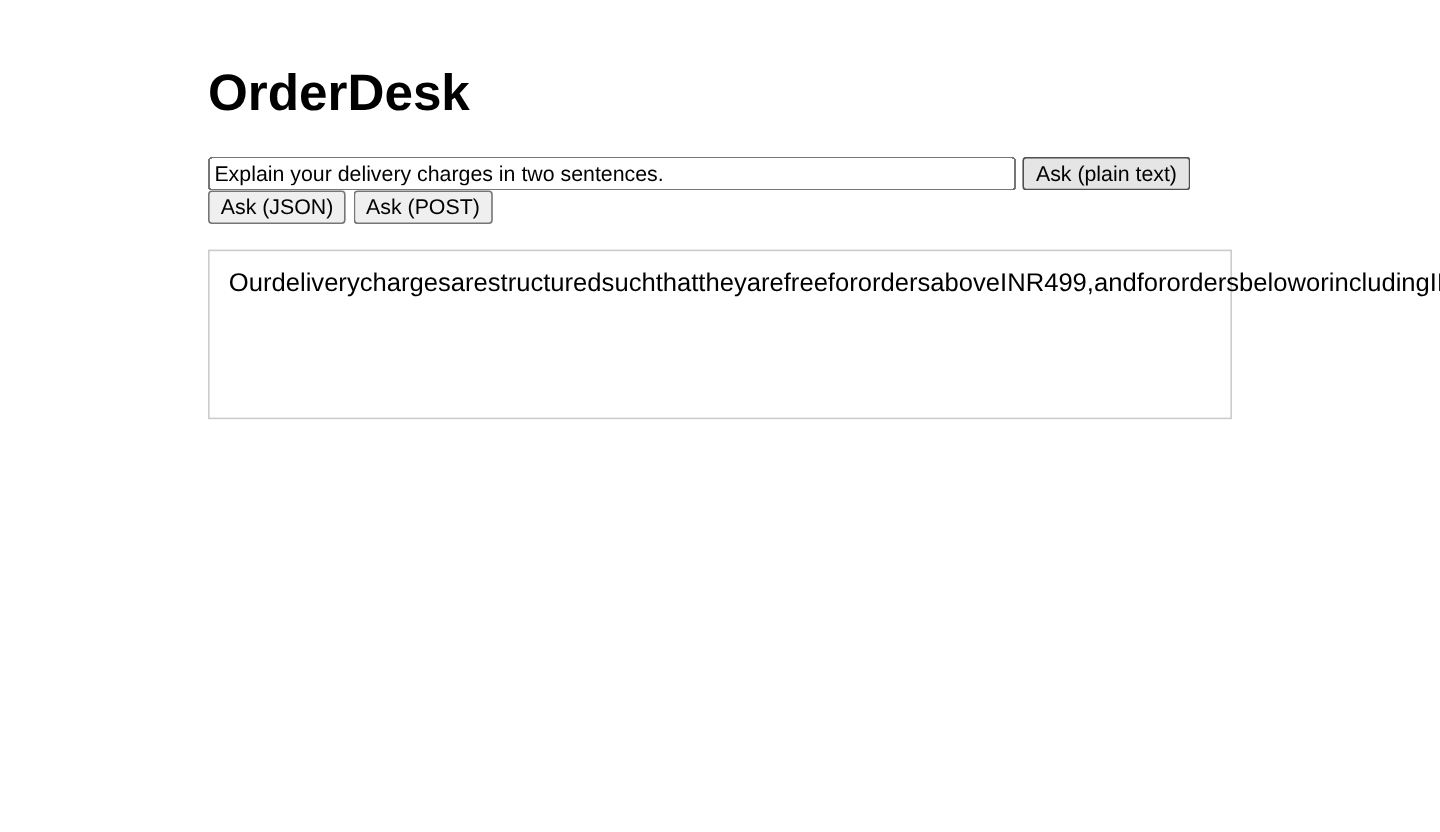
Every space is gone. The reason is one rule in the SSE standard. When the browser reads a data: line, it removes one space after the colon, if there is one. Our piece ” delivery” starts with a space, so that is the space the browser removes. The piece becomes “delivery”, and the words glue together.
The fix is to put each piece inside JSON. Then the line is data:{“text”:” delivery”}, and the space is safe inside the JSON string. This is the /stream-json endpoint from Step 1. It adds one map() call, which turns each String piece into a Map with one key, text. It also adds a doOnCancel() call, which we look at in Section 5.
Spring MVC converts each Map to JSON with Jackson, the JSON library that comes with spring-boot-starter-web, before it writes the event. Let’s look at the raw events with curl:
curl -N "localhost:8080/stream-json?question=Explain%20your%20return%20policy%20for%20a%20damaged%20parcel%20in%20four%20sentences."These are the first two events:
data:{"text":"Our"}

data:{"text":" return"}
In the page, the one line of JavaScript that changes is in askJson(). It reads /stream-json and parses each event with JSON.parse(event.data).text. Click “Ask (JSON)”, and the answer keeps its spaces:
Our delivery charges are INR 49 for orders below INR 499 and are free for orders above INR 499.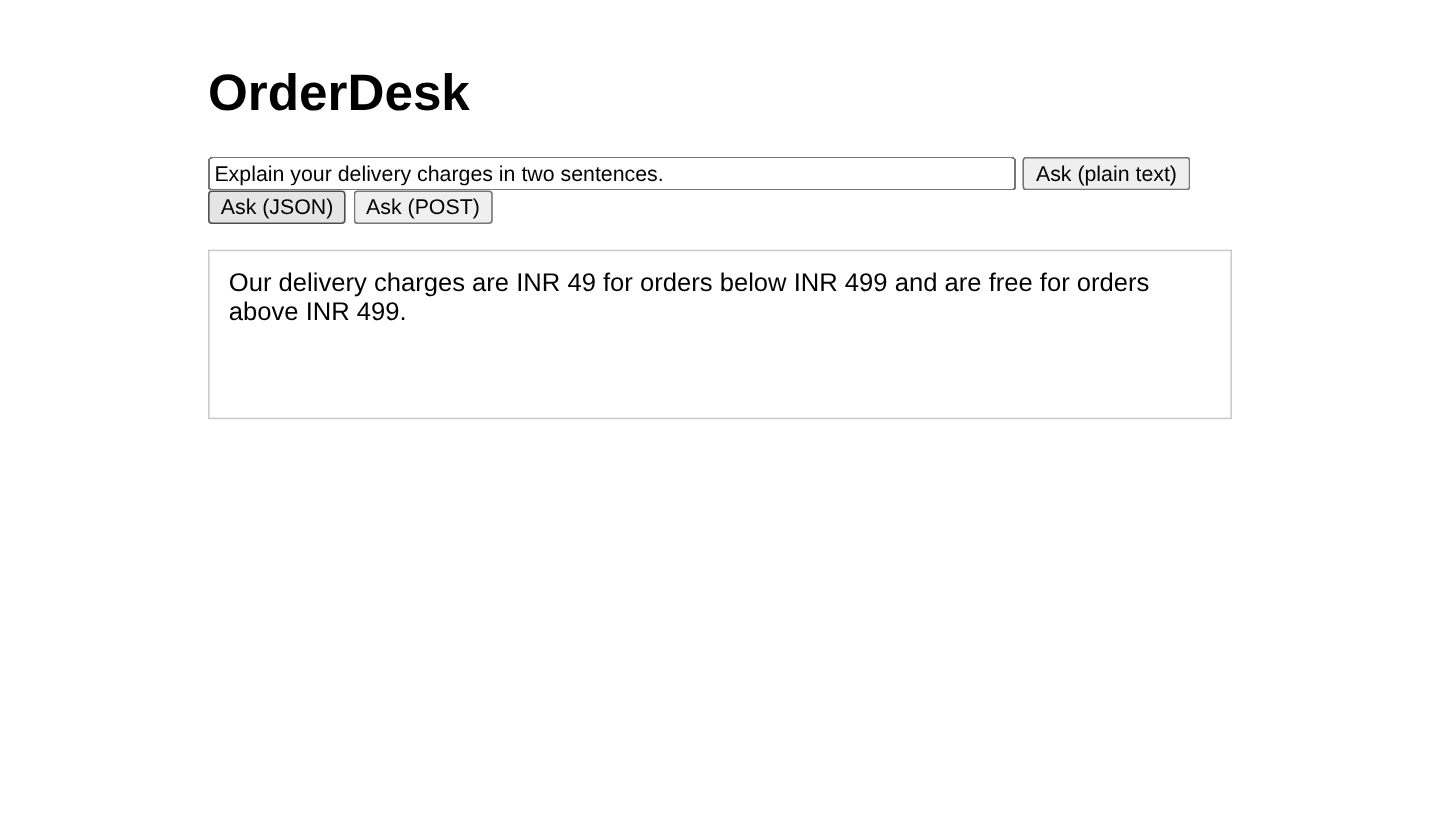
The wording differs from the plain-text answer because each click gets a new answer.
Step 4: Send a Long Question with fetch()
Finally, we handle a question that is too long for a URL. EventSource can only send a GET request, so the question has to travel in the query string. URLs have a length limit, so a long question (for example, with a pasted order history) goes in the body of a POST request.
StreamController already has the endpoint for this. The POST /stream-json endpoint reads the question from the request body and returns the same JSON events as GET /stream-json. The @RequestBody String parameter reads the raw text of the body as one String.
The browser side uses fetch() instead of EventSource. The fetch() function is the browser’s JavaScript function for sending any HTTP request. It gives us the response body as a ReadableStream, a browser object that hands over the body in chunks as they arrive, and we split those chunks into events ourselves. This is the askLong() function in chat.html from Step 3.
The TextDecoderStream turns the bytes into text. One read can hold several events, or half of one, so we keep the text in buffer and split it at each empty line. We cut off the five characters of data: ourselves, and the JSON keeps the spaces safe here too.
Unlike EventSource, this code doesn’t reconnect when the stream ends. The loop stops when done is true.
We can also test the POST endpoint with curl. The -X POST flag sets the method, and –data sends the question as the body:
curl -N -X POST localhost:8080/stream-json -H "Content-Type: text/plain" --data "I bought a kettle on 2 October, order ORD-1042. It arrived with a cracked lid and the box was wet. I want to return it. Explain your return policy for a damaged parcel in four sentences."The events start like this:
data:{"text":"Our"}

data:{"text":" return"}

data:{"text":" policy"}
To try it in the browser, paste the same question into the text box and click “Ask (POST)”. The answer streams in with its spaces:
Our return policy allows for the return of damaged or defective items within 14 days of delivery. For your kettle, if the lid is cracked and the box was wet, you should initiate a return. Please include all original packaging and any damaged parts with your return. We will process your refund or exchange as per your preference.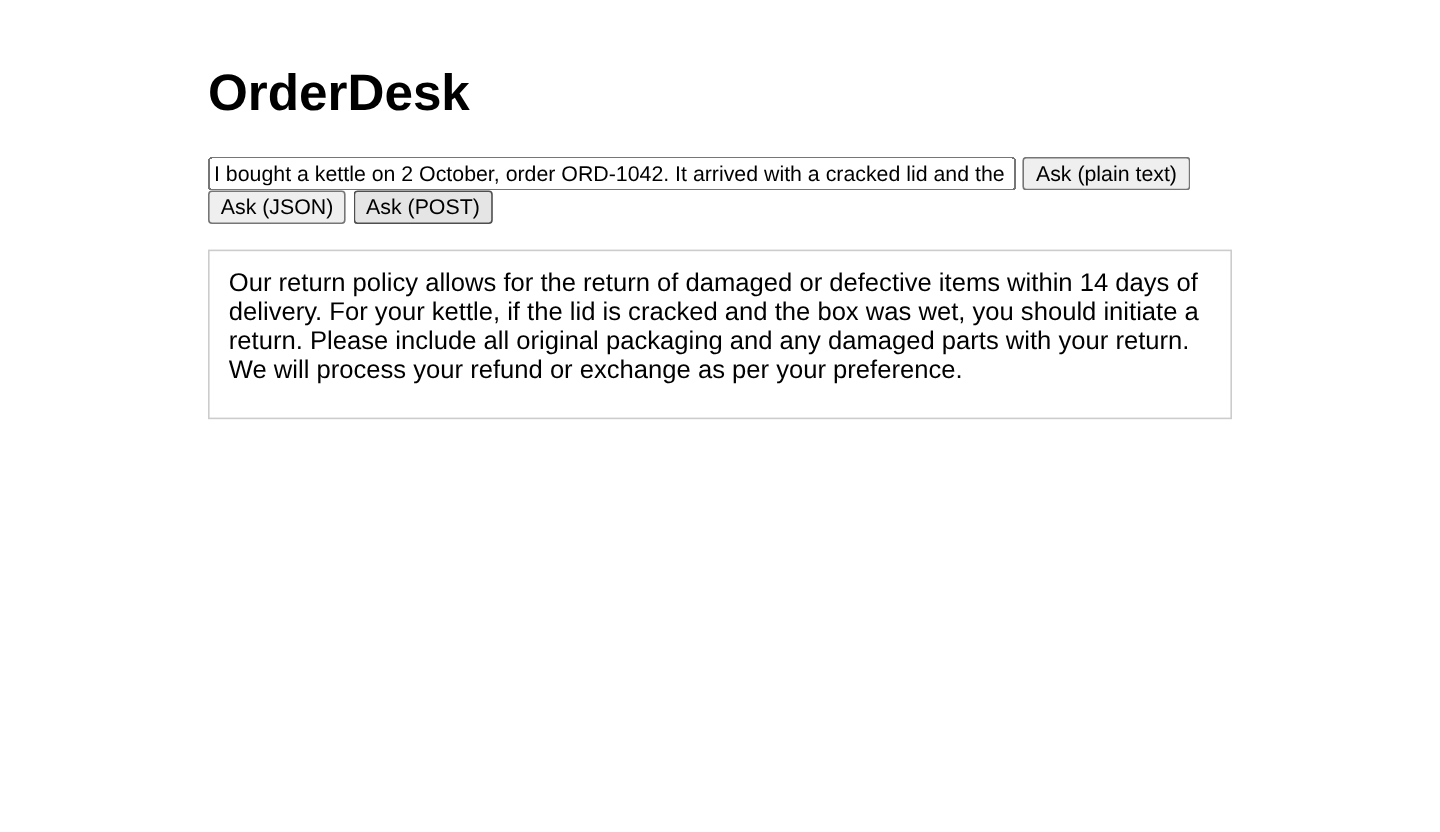
The streaming works, but look at the answer itself. The model made up the “14 days”, because OrderDesk’s system prompt has no return policy. Streaming only changes how the answer travels, not whether it’s true. To answer from the store’s real policy, the app has to give that policy to the model with each question. That’s what retrieval-augmented generation (RAG) does, and RAG Explained shows how it works.
5. When the Client Disconnects
Sometimes the user closes the tab, or clicks “Ask” again, before the answer is complete. The browser then closes the connection. When Spring MVC tries to write the next piece, it finds the connection closed and cancels the Flux. Cancelling the Flux stops Spring AI from reading more of the model’s answer.
The /stream-json endpoint has a doOnCancel() call that logs this moment. The doOnCancel() method runs the given code when the subscriber cancels the Flux. In this case, the subscriber is Spring MVC. To test it, we let curl give up after 2 seconds:
curl -N --max-time 2 "localhost:8080/stream-json?question=Explain%20your%20return%20policy%20for%20a%20damaged%20parcel%20in%20four%20sentences."The app logged this line:
INFO ... c.h.o.streaming.StreamController : Client disconnected, model call cancelledUse doOnCancel() when you need to clean up, for example to stop a timer or to record that the answer was not finished. The POST endpoint calls streamJson(), so it has the same doOnCancel(). The /stream endpoint has no doOnCancel(), so it logs nothing, but its Flux is cancelled in the same way.
6. Proxies That Buffer the Stream (Not Tested Here)
In production, there is often a reverse proxy between the browser and the app, such as nginx. A reverse proxy is a server that receives the browser’s request and forwards it to our app.
The problem with a proxy is that it may collect the whole response in a buffer before it sends it on. In that case, the user waits 20 seconds again, even though our app streams.
Compression can do the same. To compress well, gzip waits for more text before it sends anything.
These are the usual settings to check:
- In nginx, turn buffering off for the streaming path with proxy_buffering off;.
- Turn gzip off for the streaming path in the proxy.
- Spring Boot doesn’t compress text/event-stream by default. Keep it that way: don’t add it to server.compression.mime-types.
An nginx location for the JSON stream could look like this:
location /stream-json {
    proxy_pass http://localhost:8080;
    proxy_buffering off;
    gzip off;
}
Other proxies, load balancers, and CDNs have their own buffering settings. If the stream works with curl against the app but not through the proxy, look at the proxy first.
7. Streaming Structured Output
Sometimes, we want the answer as a Java object, for example a record with a delivery quote. With call(), the entity() method converts the answer for us. Spring AI 2.0 has no streaming version of entity() yet. A half-written JSON object can’t be converted, so you would have to collect the whole answer first, and then streaming gives no benefit.
Use ChatClient’s stream() for text that a person reads, and call().entity() for data that your code reads. Spring AI Structured Output Converters shows the converters.
8. FAQs
8.1. Do I need Spring WebFlux to stream from Spring AI?
No. A Spring MVC controller can return a Flux with produces = “text/event-stream”, and Spring MVC sends it as SSE. Reactor comes with Spring AI, so the spring-boot-starter-web dependency is enough.
8.2. Why does my streamed answer have no spaces in the browser?
The browser removes one space after data: in each event, and many pieces start with a space. The curl output still shows the spaces, which makes the bug confusing. Wrap each piece in JSON, as the /stream-json endpoint does, and read it with JSON.parse(event.data).
8.3. Why does EventSource send the same question again after the answer?
When the server closes the stream, EventSource reconnects by default. Close it in the onerror handler, as chat.html does.
8.4. Can I use advisors with ChatClient’s stream()?
Yes. Advisors that implement StreamAdvisor run on streaming calls. Spring AI Custom CallAdvisor & StreamAdvisor Example shows how to write one.
8.5. What happens if an answer takes longer than the request timeout?
Spring MVC runs a streaming response as an async request, and an async request has a timeout. If spring.mvc.async.request-timeout is not set, the server’s own default applies. For Tomcat, the server that comes with spring-boot-starter-web, that default is 30 seconds. If your answers take longer, set spring.mvc.async.request-timeout in application.properties to a value above your longest answer. We did not test this setting; our answers finished in under 23 seconds.
9. Conclusion
To stream a Spring AI answer, call stream().content() instead of call().content(), return the Flux from a Spring MVC controller, and set produces to text/event-stream. In our test, the user saw the first piece after 0.20 seconds instead of waiting 19.5 seconds for the whole answer.
The one trap is the space after data:. The browser removes it, and the words glue together. Wrap each piece in JSON, and the spaces stay.
When the user leaves early, the Flux is cancelled and doOnCancel() tells you. Before you go to production, check that no proxy between the browser and the app buffers the stream.
All articles in order: Spring AI Tutorial
10. References
Drop me your questions related to Spring AI streaming in the comments.
Happy Learning !!
