
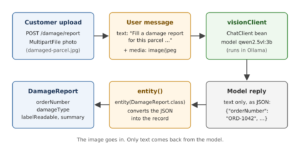
Spring AI multimodality means sending an image together with a question to a chat model. In this example, OrderDesk reads a customer’s photo of a damaged parcel and fills a damage report as a Java record. We’ll build it using Spring Boot 4.1, Spring AI 2.0, Java 21, and a local vision model in Ollama.
1. What Is Multimodality in Spring AI
A modality is a kind of input, such as text, an image, or audio. A multimodal model accepts more than one kind. A vision model is a multimodal model that accepts text and images.
In Spring AI, we talk to a chat model through ChatClient, the Spring AI class that builds a prompt (the list of messages we send), sends it to the model, and returns the answer. A prompt holds a system message with our instructions and a user message with the question.
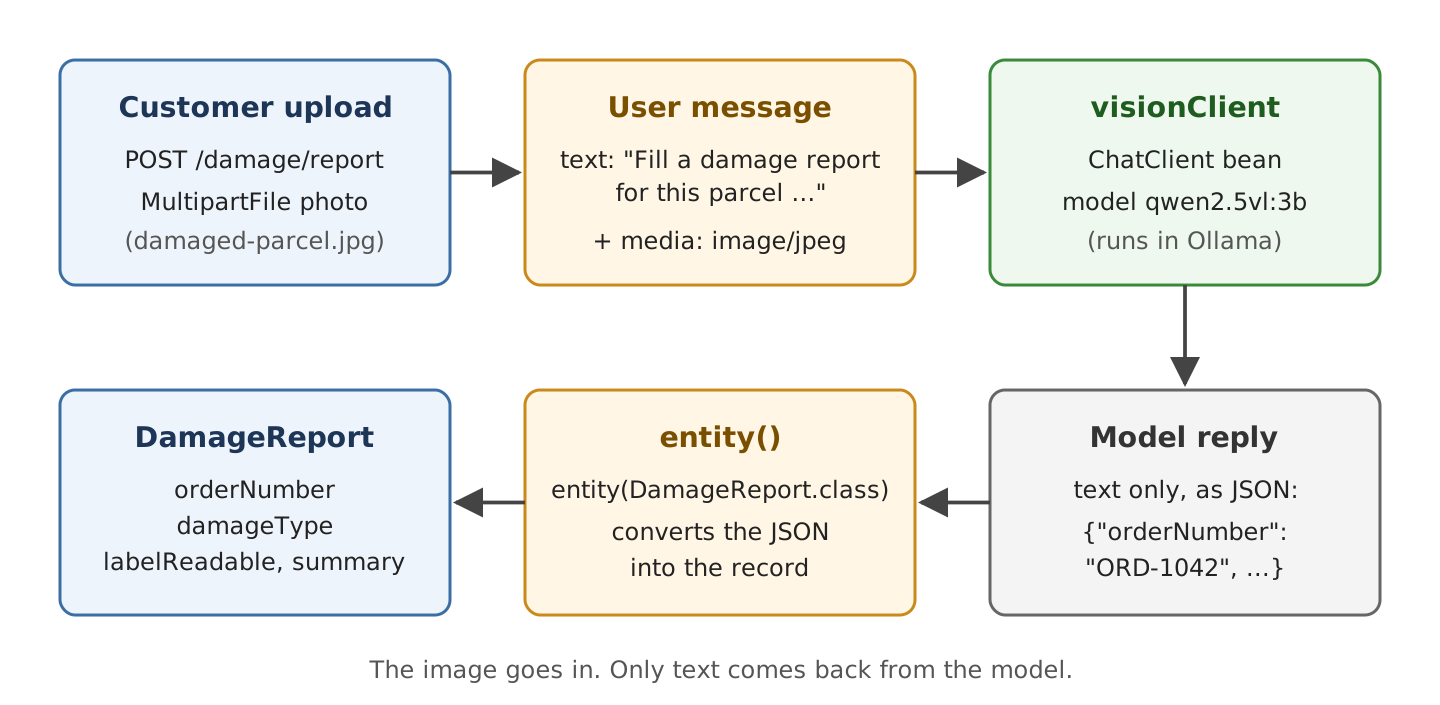
The image travels inside the user message. A user message can hold text and one or more media items. A media item is the image’s bytes plus its MIME type. A MIME type is the standard name of a file format, such as image/jpeg for a JPEG file or image/png for a PNG file.
In code, a media item is a Media object (org.springframework.ai.content.Media). We rarely create it ourselves, because ChatClient builds it for us when we call user(u -> u.text(…).media(…)).
The output is still text. The model doesn’t send back an image. When we want a Java object, Spring AI asks the model for JSON and converts that text into our class.
Media goes only into user messages. The system message stays text.
1.1. Which Providers Accept Images
Spring AI supports image input for these providers, as long as the chosen model is a vision model:
- Anthropic (Claude models).
- Amazon Bedrock, through the Converse API.
- Google Gemini.
- Mistral AI, with its Pixtral models.
- OpenAI.
- Ollama, with local vision models such as LLaVA, Llama vision and qwen2.5vl.
A provider that supports images isn’t enough, because the model you choose must also accept images. Many Ollama models read only text, and our chat model qwen2.5:3b is one of them (Section 4.1).
2. Setting Up the Vision Model
This article is part of the OrderDesk series, where every Spring AI tutorial adds one feature to the same app. OrderDesk is the support assistant of a demo online store. The code for this article belongs to the com.howtodoinjava.orderdesk.vision package. Every new class goes in a sub-package of com.howtodoinjava.orderdesk, the package of the main class, because Spring Boot looks for beans only in that package and below it. The full app is on GitHub in the orderdesk folder.
The basic setup (Ollama, the chat model qwen2.5:3b, and a Spring Boot project with Spring AI) is the same for every article in the series. Getting Started with Spring AI explains each of these step by step. This article adds three things on top: a vision model, a second ChatClient bean, and a sample image. The pom.xml needs no new dependency, because the Ollama starter already sends media.
2.1. Download a Vision Model
The chat model qwen2.5:3b reads only text. If we send it an image, Ollama rejects the request (Section 4.1 shows the error). So we need a vision model too. For OrderDesk, we use qwen2.5vl:3b, a small vision model from the same Qwen family. The download is about 3.2 GB:
ollama pull qwen2.5vl:3bAfter the download, ollama list shows qwen2.5vl:3b next to qwen2.5:3b.
We keep qwen2.5:3b as the default model in application.properties, so only the image endpoints use the vision model. The vision model needs more memory than the chat model. With 8 GB of RAM, both models may not fit at the same time, and calls get slow (Section 4.2).
2.2. Add a Second ChatClient Bean
Next, we tell Spring AI which requests go to the vision model. We do that with a second ChatClient bean (a Spring-managed object that other classes can inject). Only the damage endpoints use it:
package com.howtodoinjava.orderdesk.vision;

import org.springframework.ai.chat.client.ChatClient;
import org.springframework.ai.ollama.api.OllamaChatOptions;
import org.springframework.context.annotation.Bean;
import org.springframework.context.annotation.Configuration;

@Configuration
public class VisionConfig {

    // qwen2.5:3b reads only text, so images go to a vision model
    @Bean
    ChatClient visionClient(ChatClient.Builder builder) {
        return builder
            .defaultSystem("You check photos of parcels for the OrderDesk support team.")
            .defaultOptions(OllamaChatOptions.builder().model("qwen2.5vl:3b").temperature(0.1))
            .build();
    }
}
Let’s go through it line by line:
- @Configuration marks VisionConfig as a class that declares beans.
- @Bean ChatClient visionClient(…) creates a bean named visionClient. The bean name comes from the method name, and we use it later to inject this client.
- ChatClient.Builder is the builder that Spring AI’s auto-configuration creates for us. The settings below change only visionClient.
- defaultSystem(…) sets the system message that goes with every request from this client.
- defaultOptions(…) sets the model options for every call of visionClient. OllamaChatOptions holds the Ollama options. model(“qwen2.5vl:3b”) replaces the default model from application.properties, and temperature(0.1) makes the answers less random, which we want for a report. The missing build() after temperature(0.1) is not a mistake. In Spring AI 2.0, defaultOptions() has a version that takes the options builder (ChatOptions.Builder) and builds it itself.
- build() returns the finished ChatClient.
We set the model name in Java here. You can also move it to a property of your own and inject it with @Value.
Now the app has two ChatClient beans, but the ChatController from Getting Started still works. Its constructor parameter is named supportClient, and when several beans match, Spring picks the one whose name matches the parameter name.
2.3. Add the Sample Image
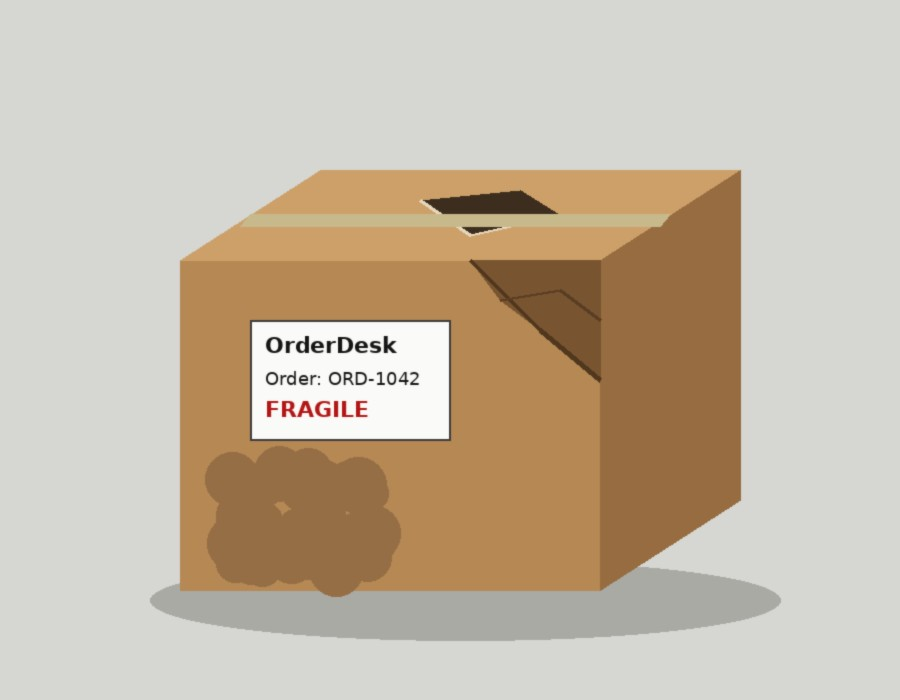
Download damaged-parcel.jpg from the images folder on GitHub, or use any JPEG photo of a parcel. Put it in src/main/resources/images and name it damaged-parcel.jpg. Files in src/main/resources end up on the classpath, so the code can load the image by the path images/damaged-parcel.jpg. Our image is a drawn test image (900 x 700 pixels).
3. Sending Images to the Model
Now we build DamageController in three steps. First it describes an image from the classpath. Then it accepts a photo that the customer uploads. Finally it returns the answer as a DamageReport record.
Start Ollama and the app as shown in Getting Started with Spring AI. Restart the app after adding the code of each step.
Step 1: Describe an Image from the Classpath
Let’s start with the smallest request: one fixed image and one question. Spring loads files through the Resource interface (org.springframework.core.io.Resource), which gives access to the bytes of a file wherever it lives. Our image is on the classpath, so we use the ClassPathResource implementation. The class below already has all the imports of the finished file, and the methods of Steps 2 and 3 use MimeType, PostMapping, RequestParam, and MultipartFile:
package com.howtodoinjava.orderdesk.vision;

import org.springframework.ai.chat.client.ChatClient;
import org.springframework.beans.factory.annotation.Qualifier;
import org.springframework.core.io.ClassPathResource;
import org.springframework.util.MimeType;
import org.springframework.util.MimeTypeUtils;
import org.springframework.web.bind.annotation.GetMapping;
import org.springframework.web.bind.annotation.PostMapping;
import org.springframework.web.bind.annotation.RequestParam;
import org.springframework.web.bind.annotation.RestController;
import org.springframework.web.multipart.MultipartFile;

@RestController
public class DamageController {

    private final ChatClient visionClient;

    DamageController(@Qualifier("visionClient") ChatClient visionClient) {
        this.visionClient = visionClient;
    }

    // Step 1: an image from the classpath and a question about it
    @GetMapping("/damage/sample")
    String describeSample() {
        var photo = new ClassPathResource("images/damaged-parcel.jpg");
        return visionClient.prompt()
            .user(u -> u.text("Describe this parcel in two sentences. Is it damaged?")
                        .media(MimeTypeUtils.IMAGE_JPEG, photo))
            .call()
            .content();
    }
}
OrderDesk has more than one ChatClient bean, so @Qualifier(“visionClient”) picks this one.
The prompt() method starts a new request on the client, and user() builds the user message. Inside it, text() sets the question and media() adds the image as a Media object. Then call() sends the request and waits for the answer, and content() returns the answer as a String.
MimeTypeUtils.IMAGE_JPEG is the constant for image/jpeg. Spring AI reads the bytes of the Resource and encodes the image for us.
Call the endpoint:
curl localhost:8080/damage/sampleThe model reads the label and sees damage:
The parcel is a cardboard box with a label that reads "OrderDesk Order: ORD-1042 FRAGILE." The box appears to be damaged, as there is a noticeable tear on the side.The order number is right, but the tear is on the top, not the side (Section 4.4). The first call can take minutes while Ollama loads the model (Section 4.2).
Step 2: Accept an Uploaded Photo
Next, we take the photo from the customer instead of the classpath. A browser or curl sends a file as a multipart request, an HTTP request whose body has several named parts, such as form fields and files. Spring MVC gives us each uploaded file as a MultipartFile, which holds the file’s bytes, its name, and its content type. Add this method to DamageController:
    // Step 2: an image that the customer uploads
    @PostMapping("/damage/describe")
    String describe(@RequestParam("photo") MultipartFile photo) {
        return visionClient.prompt()
            .user(u -> u.text("Describe this parcel in two sentences. Is it damaged?")
                        .media(MimeType.valueOf(photo.getContentType()), photo.getResource()))
            .call()
            .content();
    }
Two things changed from Step 1. The photo.getResource() call gives the uploaded bytes as a Resource, so media() accepts it like the classpath file. The photo.getContentType() call gives the MIME type that the client sent, and MimeType.valueOf() turns that String into a MimeType.
We send the file with curl -F, which builds a multipart form request. Run the command from the project folder, because the file path is relative to it. The name before = must match @RequestParam(“photo”). The ;type=image/jpeg part sets the content type of the file:
curl -F "photo=@src/main/resources/images/damaged-parcel.jpg;type=image/jpeg" localhost:8080/damage/describeThe parcel is a cardboard box with a label that reads "OrderDesk Order: ORD-1042 FRAGILE". The box appears to be damaged as there is a noticeable tear on the side.This method trusts the content type that the client sends. A client can send any file with any type, or no type at all. With no type, getContentType() returns null, and MimeType.valueOf() throws an InvalidMimeTypeException. In a real app, check that the type is image/jpeg or image/png before calling the model, and reject everything else with HTTP 400.
Step 3: Get a DamageReport Record
Finally, we want data that our code can use, not two sentences. The support team needs the order number, the kind of damage, and whether the label is readable. Let’s create a record for that:
package com.howtodoinjava.orderdesk.vision;

public record DamageReport(String orderNumber, String damageType, boolean labelReadable,
                           String summary) {
}
Then add the third method to DamageController. It’s the upload from Step 2 with a new question, and it ends with entity() instead of content():
    // Step 3: the same upload, returned as a Java record
    @PostMapping("/damage/report")
    DamageReport report(@RequestParam("photo") MultipartFile photo) {
        return visionClient.prompt()
            .user(u -> u.text("""
                    Fill a damage report for this parcel. Read the order number
                    from the label. damageType is one of: none, crushed, torn, wet.""")
                        .media(MimeType.valueOf(photo.getContentType()), photo.getResource()))
            .call()
            .entity(DamageReport.class);
    }
In ChatClient, the entity() method returns the answer as a Java object instead of a String. Calling entity(DamageReport.class) adds format instructions to our text, which tell the model to reply with JSON that has the fields of DamageReport. When the reply comes back, Spring AI converts the JSON into the record. Spring AI Structured Output Converters explains this conversion in detail.
The field names act as instructions too. The question never mentions labelReadable or summary, and the model fills them from their names alone. For damageType, the question lists the allowed values. Without that list, the model invents its own words, such as “dented” or “ripped”, and our code can’t compare them.
Send the same photo to the new endpoint:
curl -F "photo=@src/main/resources/images/damaged-parcel.jpg;type=image/jpeg" localhost:8080/damage/reportSpring MVC writes the record back as JSON:
{"orderNumber":"ORD-1042","damageType":"crushed","labelReadable":true,"summary":"The parcel is damaged and labeled as fragile."}The order number is correct, and the label is readable. The damageType field says “crushed”, but the box is also torn (Section 4.4).
4. Limits and Traps
The code works, but images bring problems that text prompts don’t have.
4.1. A Text-Only Model Rejects Images
The supportClient bean from Getting Started uses the default model qwen2.5:3b. If we send the same request through supportClient, Ollama refuses it:
org.springframework.ai.retry.NonTransientAiException: HTTP 400 - {"error":"Multimodal data provided, but model does not support multimodal requests."}Spring AI doesn’t retry this error. The fix is to send images only to a vision model. Before you pick an Ollama model, check its page in the Ollama library for the “vision” label. For hosted providers, check the provider’s model list for image input.
4.2. The First Call After Switching Models Is Slow
On our test machine, the first call to visionClient took 6 minutes. Every call after that took about 16 seconds.
The time went into loading. Ollama loads a model into memory on its first request. The vision model is a separate model from the chat model, so Ollama loads it when the first image arrives. Ollama unloads a model after 5 minutes without requests, so the slow call can come back after a quiet period.
Memory matters too. The vision model needs more memory than the chat model, and both may not fit in 8 GB of RAM. In that case, Ollama swaps them: it unloads one model to load the other. Each swap is a slow call.
In development, call /damage/sample once after startup to load the model. On a server, keep the model loaded or run it on a machine with enough memory for both models.
4.3. Image Size Costs Tokens
The model reads text and images as small units called tokens. More tokens mean slower calls, and on a hosted provider, costlier ones. A larger image becomes more tokens.
A photo from a phone camera has many times more pixels than our test image. So resize large photos on the server before sending them to the model.
Spring Boot also limits the upload size. By default, one uploaded file can be at most 1 MB. A larger photo fails before it reaches our method. To accept bigger files, set spring.servlet.multipart.max-file-size in application.properties.
4.4. The Model Can Be Wrong
The box has a torn hole on the top, a pushed-in corner and a brown stain on the front.
The model got some of this right. It read the order number, and it saw that the box is damaged. But it placed the tear “on the side”, and the report chose “crushed” without the tear. The damageType field is one String, so it holds only one kind of damage, and the model had to pick one. Small models miss details; larger ones miss fewer.
So treat the report as a suggestion, not a decision. Let a person look at the photo before OrderDesk approves a refund or a replacement. If the report must list every kind of damage, change damageType to a List<String> and say so in the question.
4.5. Generating Images and Reading Audio
Multimodal input in this article means images in and text out. To create images from a text prompt, use ImageModel, as shown in Spring AI ImageModel Example. To turn audio into text, see Spring AI Speech to Text.
5. FAQs
5.1. Can I send more than one image in one message?
Yes. Call media() once for each image inside the same user() call. Each image adds tokens, so the request gets slower. We tested OrderDesk with one image only.
5.2. Can the chat model send back an image?
No. Use ImageModel for image output (Section 4.5).
5.3. Which image formats can I send?
JPEG and PNG work with most providers. Some providers accept more types, such as GIF or WebP, so check your provider’s documentation. We tested OrderDesk with JPEG only.
5.4. Do I always need a second ChatClient for images?
No. Many hosted models read both text and images, so one model can serve the whole app. We need two beans in OrderDesk because the small local chat model reads only text.
5.5. Does Spring AI send my photo anywhere?
It sends the photo to the model provider that the ChatClient uses. In OrderDesk, that is Ollama on localhost, so the photo stays on our computer. With a hosted provider, the photo leaves your server, so check what the provider stores before you send customer photos.
6. Conclusion
To send an image with Spring AI, we add it to the user message with media(), next to the question in text(). The image goes in, and text comes back. With entity(), that text becomes a Java record such as DamageReport.
The model must be a vision model. A text-only model answers with HTTP 400. The first call is slow while the model loads.
The one trap to remember is that the model can be wrong about what it sees. So use the report to help a person decide, not to decide alone.
All articles in order: Spring AI Tutorial
7. References
Drop me your questions related to Spring AI multimodality in the comments.
Happy Learning !!
